

iPhone stuck on Waiting for Other iPhone? 8 fixes for Quick Start
The Waiting for Other iPhone screen means your new iPhone is waiting for the old one during Quick Start. Eight fixes in the order that works most often, plus a way to finish setup without losing anything.
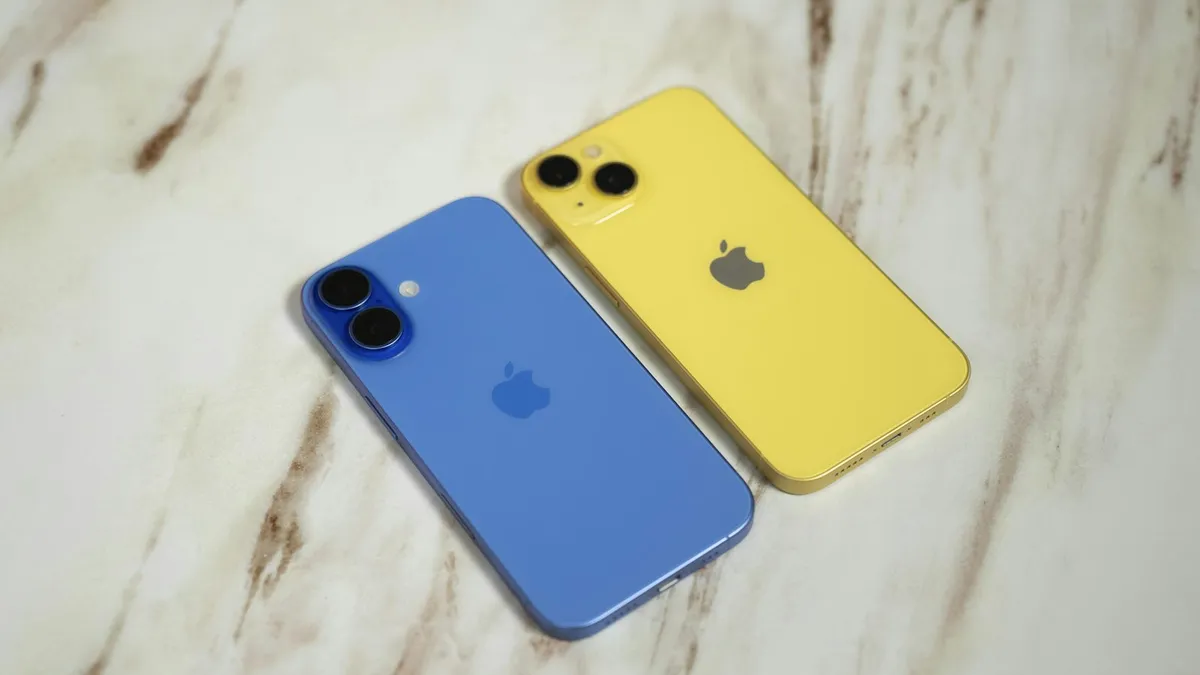
Photo by Amanz on Unsplash
You turned on your new iPhone, held it next to the old one, and Quick Start began. Then the screen changed to Waiting for Other iPhone and nothing else happened. Minutes pass, the old phone shows nothing useful, and the new one will not move on. This is a common place for a transfer to stall, and it is usually fixable without losing anything, because your old iPhone still has all your data. Here is what the screen means, how long to wait, and eight fixes in the order that clears most cases.
What does Waiting for Other iPhone mean?
Apple does not publish a help article for this exact screen, so this is our reading of how Quick Start works. In Quick Start the two phones talk to each other over Bluetooth and Wi-Fi. When the new iPhone says Waiting for Other iPhone, it has started the handshake and is waiting for the old phone to confirm and begin sending your data. If the old phone is locked, asleep, too far away or on a poor connection, the answer never arrives and the new phone keeps waiting.
Apple's Quick Start page lists what is needed: both devices updated, the current device on Wi-Fi with Bluetooth turned on, and both kept near each other and plugged in until the transfer finishes. It also notes that Quick Start occupies both devices, so pick a time when you do not need the old phone. Every fix below comes back to those basics.
How long should you wait on this screen?
Give it about 10 to 15 minutes. Apple says transfer time depends on network conditions and the amount of data, and the early part of Quick Start can be slow on a busy network. Watch for any sign of life, such as a changing animation, a progress bar or an estimated time. If the screen has not changed at all after 15 minutes, it is stuck and a restart is the right next step. If you are not sure whether it is stuck or just slow, our guide on how long a transfer takes explains what normal looks like.
Fix 1: Unlock the old iPhone and keep both phones close
Unlock the old iPhone and leave it on the Home Screen. A locked screen can stop the handshake. Place the two phones next to each other, ideally touching, and keep them there. Plug both into power. A phone that goes to sleep or dips low on battery mid transfer is a frequent cause. Do not use either phone for anything else while Quick Start runs.
Fix 2: Force restart both iPhones
This is the fix Apple Support moderators suggest most often for this screen, and Apple's own Quick Start page says to restart both devices if the setup prompt disappears. A normal restart helps, and a force restart clears more.
Force restart an iPhone with Face ID or an iPhone SE (2nd generation or later)
- 1
Press and quickly release the volume up button.
- 2
Press and quickly release the volume down button.
- 3
Press and hold the side button until the Apple logo appears.
Keep holding, even if the screen goes black first.
- 4
Do the same on the other iPhone, then start Quick Start again.
Turn on the new iPhone and hold it near the old one.
Do this on both phones, not just one. Restarting the old phone alone often leaves the new one on the same screen.
Fix 3: Check Wi-Fi and Bluetooth on the old iPhone
Apple lists Wi-Fi and Bluetooth on the current device as a requirement. Open Settings on the old iPhone and confirm that both are on and that it is connected to a working Wi-Fi network. Then check the usual troublemakers that people report: a VPN that is switched on, Personal Hotspot in use, or a Wi-Fi network that needs a sign-in page. Turn the VPN off, stop the hotspot and, if the Wi-Fi is flaky, move closer to the router or try another network. If the Wi-Fi itself keeps failing, see our guide on an iPhone that will not connect to Wi-Fi.
Fix 4: Update both iPhones
Apple recommends both devices run the latest version of iOS. A large gap between the two versions can cause Quick Start to hang. If the new iPhone came out of the box with an older version, it may offer an update during setup, and it is worth taking it. On the old iPhone, open Settings, tap General, tap Software Update, and install what is offered. You may need to do this before you start Quick Start again, because you cannot use the old phone for much while it transfers.
Fix 5: Choose iCloud instead of a direct transfer
If the direct transfer keeps stalling, change the method. Apple says Quick Start lets you either transfer directly from the previous device or download from iCloud. The iCloud route runs in the background, so you can start using the new phone right away while apps and photos download. It needs a recent iCloud backup of the old iPhone. To make one, connect the old phone to Wi-Fi and power, open Settings, tap your name, tap iCloud, tap iCloud Backup and tap Back Up Now. If iCloud says it is full, our guide on what to do when iCloud storage is full shows how to make room.
Fix 6: Use a cable for the transfer
Apple offers a wired way to transfer data, and a cable avoids the Bluetooth and Wi-Fi handshake that is failing. Apple's wired transfer guide lists the cables you need for your models, which usually means a USB-C or Lightning cable and an adapter between the two phones. A wired transfer is often faster too. Start it from the same setup screens by choosing the transfer option and following the prompts.
Fix 7: Set up as new, then restore from a backup
If you can get past the Hello screens without Quick Start, set up the new iPhone without transferring, then restore from an iCloud or computer backup. Choose the option to set up manually, which may be worded a little differently in your version. Sign in with your Apple Account, and when it asks how to transfer your apps and data, choose iCloud backup or, later, a computer backup. Our step by step guide on how to restore an iPhone from a backup covers each route.
Fix 8: Erase the new iPhone and start again
As a last resort, erase the new iPhone and restart setup. This is safe because the new phone has nothing of yours on it yet. Do not erase the old one. On the new iPhone, open Settings, tap General, tap Transfer or Reset iPhone and tap Erase All Content and Settings. If setup has not finished, you may need to use the force restart and a computer instead. Our guide on how to factory reset an iPhone has every route. After the erase, try Quick Start once more or use iCloud.
Why does this screen get stuck?
- The old iPhone locked or slept. The handshake needs the old phone awake and on the Home Screen.
- Weak or blocked Wi-Fi. A captive network, a VPN or a busy network can break the connection.
- Bluetooth is off or interrupted. Quick Start uses it to find the other phone.
- Mismatched iOS versions. A big gap sometimes causes a hang.
- A managed phone. Apple says a new device enrolled in Apple School Manager or Apple Business cannot use Quick Start to transfer from another device.
- A random glitch. Sometimes a restart is all that is needed.
What should you not do?
Do not erase or reset the old iPhone until the new iPhone has your data and you have checked photos, messages and apps. Do not trade in or sell the old phone yet. Do not turn off the new phone halfway through a transfer unless you are certain it is stuck, because an interrupted transfer can leave a half set up phone. And avoid downloading transfer software from random websites. Apple's own methods are free, and our research found that the pages that rank for this problem are mostly from vendors who sell transfer tools.
Still stuck on Waiting for Other iPhone?
Try a different Wi-Fi network, such as a phone hotspot from a third device, and a different cable. If the new iPhone is a work or school device, ask your administrator, since managed devices cannot use Quick Start. Otherwise contact Apple Support, who can check the new phone and offer a replacement if it is faulty. Also read about the other common failures in this part of setup: the Unable to Complete Data Transfer message and a stall on Reconnecting. If it keeps happening, the full guide to moving to a new iPhone lists every method.
Frequently asked questions
What does Waiting for Other iPhone mean?
It is the Quick Start screen where the new iPhone waits for your old iPhone to confirm and send data. Apple does not document this exact screen, but the transfer needs both phones awake, close and powered.
How long should I wait before I restart?
Give it 10 to 15 minutes with both phones plugged in and the old iPhone unlocked. If the screen has not changed at all after that, restart both phones.
Will I lose data if I restart the old iPhone?
No. Restarting does not erase anything. Just do not erase the old iPhone until the new one has your data.
Can I skip Quick Start and still get my data?
Yes. You can set up the new iPhone from an iCloud backup, from a computer backup, or with a wired transfer. Apple lists all of these in its transfer guides.
What to try next
People also ask
Why does the prompt not show on my old iPhone?
The old iPhone must be unlocked on the Home Screen, on Wi-Fi, with Bluetooth on. Apple says to restart both devices if the setup prompt disappears.
Read the full guide: iPhone Quick Start not workingI already set up my new iPhone. Can I still transfer?
Yes, but you must erase it first. Go to Settings › General › Transfer or Reset iPhone › Erase All Content and Settings, then use Quick Start when setup starts again.
Read the full guide: Transfer data to a new iPhoneIs there an official time for a Quick Start transfer?
No. Apple says transfer time depends on network conditions and the amount of data, and it gives no fixed number.
Read the full guide: How long an iPhone transfer takesWhy does my iPhone say it is unable to complete the data transfer?
The link between your old and new iPhone dropped, or one of them has old software, a weak Wi-Fi connection or low battery. Restarting both phones and trying again fixes many cases.
Read the full guide: iPhone unable to complete data transferRelated guides
iPhone Quick Start not working
iPhone Quick Start not working or no prompt on your old phone? Check Bluetooth, Wi-Fi and iOS, restart both phones, or set up another way. 8 fixes.
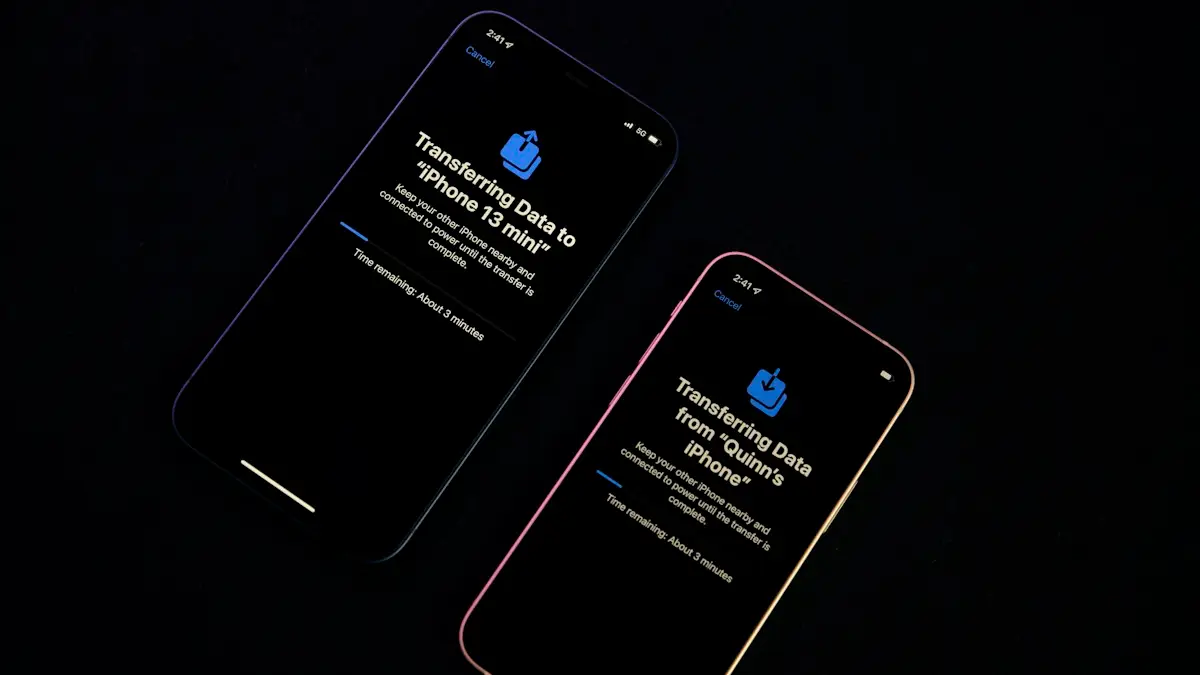
Transfer data to a new iPhone
Move everything to your new iPhone with Quick Start, an iCloud backup or a computer. Keeps apps, photos, messages and settings, plus your eSIM and WhatsApp.

How long an iPhone transfer takes
How long does an iPhone transfer take? Apple gives no fixed time. See what changes it, Quick Start vs iCloud vs cable, and how to tell slow from stuck.
iPhone unable to complete data transfer
iPhone unable to complete data transfer in setup? Restart both phones, update, switch to a cable or iCloud, and fix an Apple logo stall. 7 fixes.
More guides you may need

iPhone not tracking steps
iPhone steps stuck at zero or not counting? Turn on Fitness Tracking, check Health data sources, carry the phone right and try more fixes, Watch or not.
iPhone notifications not showing on lock screen
iPhone notifications not showing on lock screen? Check the app's Lock Screen switch, Display As, Focus and Scheduled Summary, then try 4 more fixes.