

iPhone unable to complete data transfer? 7 fixes
The data transfer error on a new iPhone usually comes from a dropped connection between the two phones, old software, or too much data for a weak network. Restarting both and switching to a cable or an iCloud restore gets most people through without losing anything.
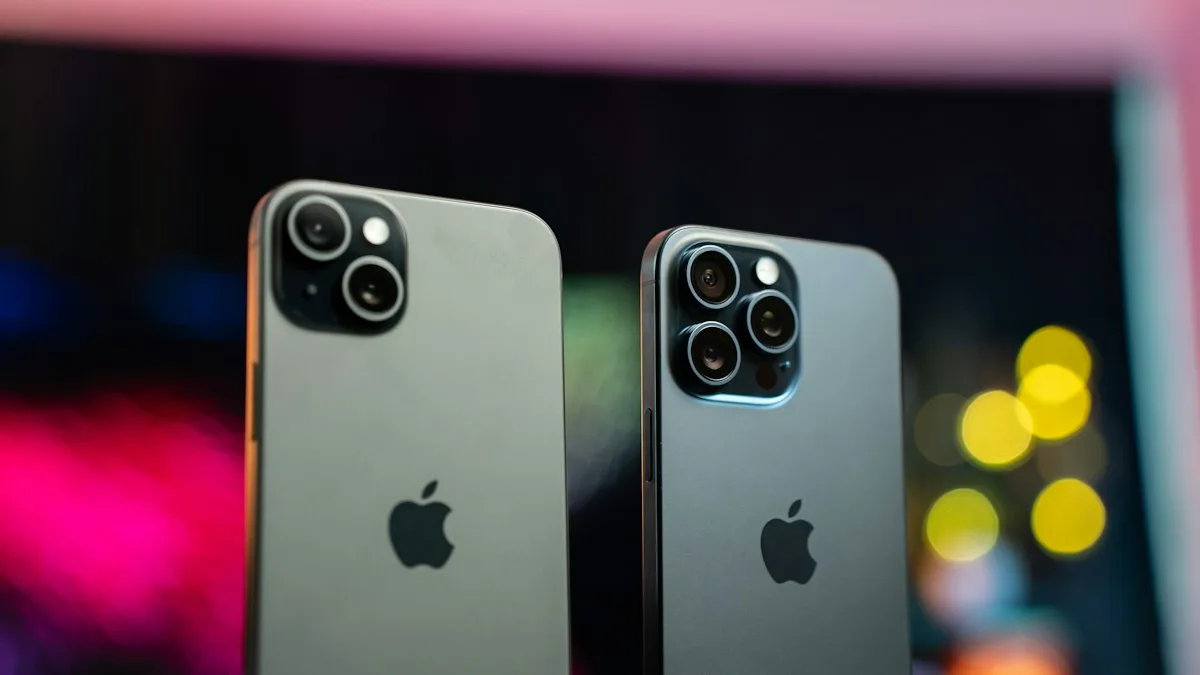
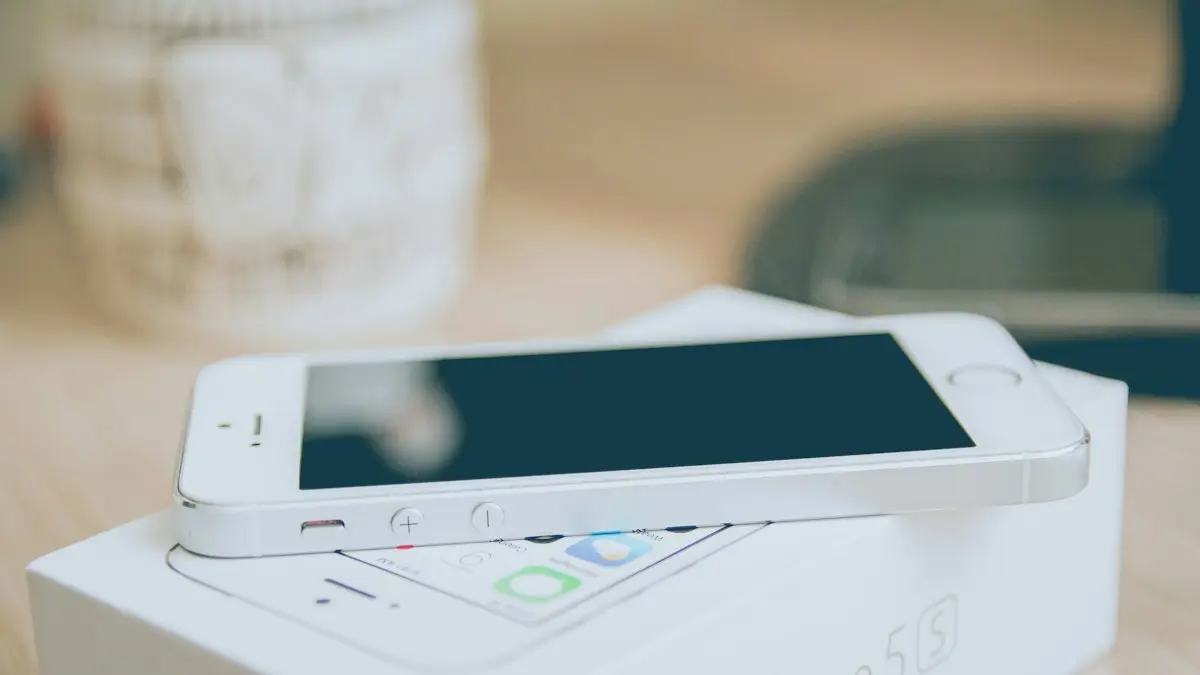
Photo by Amanz on Unsplash
You are an hour into setting up a new iPhone, the progress bar is half full, and then it stops with a message that the data transfer could not be completed. It is a bad moment, but not a disaster. A failed transfer does not hurt your old phone, and there are several ways to get the data across. This guide starts with the quick resets that fix most cases, then moves to cable and backup methods that do not depend on a fragile wireless link. Steps follow Apple’s support pages and recent versions of iOS, and menu names may differ slightly on yours.
Why does my iPhone say it is unable to complete the data transfer?
Quick Start moves your data from one iPhone to another using a direct link and Wi-Fi. Anything that breaks that link can end the transfer with this message. Apple’s own pages do not give a single cause, but they point to the same set of things: both phones need to be updated, kept close together and plugged in, and the connection has to hold while a lot of data moves.
- The link dropped. One phone went to sleep, moved away, or lost Bluetooth or Wi-Fi.
- Old software. Apple says both devices should be updated to the latest iOS.
- A weak network. Slow or filtered Wi-Fi, a VPN, or a hotel login page.
- Low battery or heat. A phone that is not plugged in can stop part way.
- A managed new phone. Apple says Quick Start cannot pull data when the new iPhone is enrolled in Apple School Manager or Apple Business.
- A big transfer. A lot of photos and apps take a long time, and more time means more chances to drop.
The fix
Fix 1: Restart both iPhones and try again
- 1
Press and hold the side button and a volume button on each iPhone.
Slide to power off. On an older model with a Home button, hold the top or side button.
- 2
Wait 30 seconds, then turn both phones back on.
On the new iPhone, start setup again from the Hello screen.
- 3
Unlock the old iPhone and bring it close to the new one.
Follow the Quick Start prompt on the old phone.
- 4
Keep both plugged in until it finishes.
Apple says to keep them close together and powered during the transfer.
Apple’s own advice for a Quick Start prompt that disappears is the same: restart both devices. It sounds basic, and it works because the setup process keeps a session open that can get stuck. For a phone that is stuck rather than failed, see an iPhone stuck on Preparing to Transfer.
The fix
Fix 2: Update the old iPhone
- 1
On the old iPhone, open Settings › General › Software Update.
Install any update that is offered and wait for the restart.
- 2
Keep it on Wi-Fi and plugged in.
A big update can take a while.
- 3
Start the transfer again.
The new iPhone will already have the newest version. This makes the two phones match.
If the old phone is out of space and cannot update, free some room first with our guide to installing the latest iOS. Apple’s Quick Start page lists iOS 11 or later on the old iPhone as a minimum, but updating to the latest is the safer choice.
Fix 3: Improve the connection
Put both phones next to each other and the router within a room or two. Turn off any VPN, and avoid shared Wi-Fi that asks for a login or has limits. Home Wi-Fi on the 5 GHz band is faster if your router has one. If your Wi-Fi keeps dropping, test with a personal hotspot from another phone. Apple’s page also notes that the new device can use its cellular network to connect during setup, but a transfer of a lot of data is better on Wi-Fi.
The fix
Fix 4: Transfer with a cable instead
A wired transfer does not depend on the wireless link, and it is the best second try when the first one failed. Apple lists the cable you need by model.
- 1
Choose the right cable.
iPhone 15 or later to iPhone 15 or later: one USB-C charge cable. iPhone 14 or earlier to iPhone 15 or later: one USB-C to Lightning cable. iPhone 14 or earlier to iPhone 14 or earlier: a Lightning to USB 3 Camera Adapter, a Lightning to USB cable and a 12W or higher power adapter.
- 2
Turn on both phones and follow the setup prompts.
Connect the new iPhone to Wi-Fi when asked. Apple says Wi-Fi is needed for the wired setup.
- 3
Connect the cable and choose the transfer.
Set up Face ID or Touch ID when asked.
- 4
Wait until both phones say it is done.
Do not unplug early. Time depends on how much data you have.
The fix
Fix 5: Restore from an iCloud backup instead
- 1
On the old iPhone, open Settings › your name › iCloud › iCloud Backup.
Tap Back Up Now and wait for it to finish. Make sure you have enough iCloud space.
- 2
On the new iPhone, choose Restore from iCloud Backup during setup.
Sign in with the same Apple Account.
- 3
Pick the newest backup.
If a restore gives an error, try Show All Backups and pick another.
- 4
Stay on Wi-Fi and plugged in.
Apple says you cannot restore from a backup over cellular.
If the backup will not finish because iCloud is full, see an iCloud storage warning and how much iCloud storage you need. Apple’s restore page also suggests trying a different network, and entering each Apple Account password if you are asked repeatedly. Tap Skip this Step if you do not know one. For the rest of the steps, read how to restore an iPhone.
The fix
Fix 6: Restore the new iPhone with a computer if it stalls on the Apple logo
Apple has a page for a new iPhone that gets stuck on the Apple logo after choosing From Another Device. It covers iPhones on iOS 17, and Apple no longer updates it, so check Apple’s site for current advice.
- 1
Connect the new iPhone to a Mac or PC with a cable.
On a Mac, open Finder. On a PC, open iTunes or the Apple Devices app.
- 2
Put the iPhone in recovery mode.
Press and release volume up, then volume down, then hold the side button through the Apple logo until the computer and cable image appears.
- 3
Choose Restore on the computer.
Wait for the software to download and install.
- 4
Install any update on the Hello screen, then try a transfer method again.
Choose a different method than the one that failed, such as an iCloud backup.
This wipes the new iPhone, which is fine because it has nothing on it yet. Do not use this on the old iPhone, which has all your data. If the logo stays for more than an hour with no progress, Apple’s advice is also to use recovery mode.
Fix 7: Reset network settings and skip the managed-device trap
If the error returns every time, open Settings › General › Transfer or Reset iPhone › Reset › Reset Network Settings on the new phone once it is set up. This clears Wi-Fi passwords and VPN settings but not your data. Then try again on a known good network. Also check whether the new iPhone belongs to your employer or school. Apple says Quick Start cannot transfer from your phone if the new device is enrolled in Apple School Manager or Apple Business, so use a backup or ask your IT team.
Which fix to try, based on what you see
- Message appears after a few minutes: restart both phones and keep them plugged in (Fix 1).
- Message appears near the end of a large transfer: use a cable (Fix 4).
- Stuck on the Apple logo after choosing From Another Device: restore with a computer (Fix 6).
- Restore from iCloud fails: switch to Wi-Fi and a different network, then try another backup (Fix 5).
- Work or school phone: use a backup, not Quick Start (Fix 7).
After the transfer: what to check
When setup ends, apps may keep downloading in the background for a while. Open Photos, Messages and Contacts and make sure they look right. Check Settings › your name › iCloud to see that the new phone is signed in. Keep the old iPhone untouched for a week, in case something is missing. When you are happy, you can trade it in or sell it. See trading in your phone for what to do before you hand it over.
For a clean walkthrough of the whole process, including a plan for the old phone, read how to transfer data to a new iPhone.
Quick checklist
- Both iPhones were restarted and are on the latest iOS.
- Both are plugged in, close together, and on stable Wi-Fi with the VPN off.
- You tried a cable transfer if the wireless one failed twice.
- The old iPhone has a fresh iCloud backup and enough iCloud space.
- You restored with a computer only for a new iPhone stuck on the logo.
- The old iPhone is untouched until you check everything on the new one.
Frequently asked questions
Why does my iPhone say it is unable to complete the data transfer?
The link between your old and new iPhone dropped, or one of them has old software, a weak Wi-Fi connection or low battery. Restarting both phones and trying again fixes many cases.
Will I lose my data if the transfer fails?
No. Your old iPhone is not changed by a failed transfer, so your photos, messages and apps are still on it. The new iPhone is the one that is incomplete.
Is it better to transfer with a cable or with iCloud?
A cable is steadier for a lot of data because it does not depend on Wi-Fi. An iCloud restore needs Wi-Fi, since Apple says you cannot restore from a backup over cellular, and it needs a recent backup.
How long does a transfer between iPhones take?
Apple says it varies with network conditions and the amount of data. Keep both phones close and plugged in until it finishes, and do not use either one in the meantime.
What to try next
Sources
Official pages these steps are based on. Menus can differ by software version.
People also ask
How long does Preparing to Transfer take on an iPhone?
Anywhere from a few minutes to a few hours, depending on how much data you have and your Wi-Fi speed. If there is no change at all after about two hours, treat it as stuck.
Read the full guide: iPhone stuck on Preparing to TransferI already set up my new iPhone. Can I still transfer?
Yes, but you must erase it first. Go to Settings › General › Transfer or Reset iPhone › Erase All Content and Settings, then use Quick Start when setup starts again.
Read the full guide: Transfer data to a new iPhoneWhat does Reconnecting mean when I set up a new iPhone?
The new iPhone lost its connection to the old one or to the internet during setup and is trying to join again. A short pause is normal, but a screen that stays for many minutes means it is stuck.
Read the full guide: iPhone stuck on ReconnectingHow long does it take to set up a new iPhone?
The setup screens take about 10 to 15 minutes. Restoring your apps and photos from a backup can take an hour or more, depending on your Wi-Fi and how much you have.
Read the full guide: Set up a new iPhoneRelated guides
iPhone stuck on Preparing to Transfer
iPhone stuck on preparing to transfer during setup? Learn how long to wait, what to check on both phones and how to use iCloud or a computer instead.
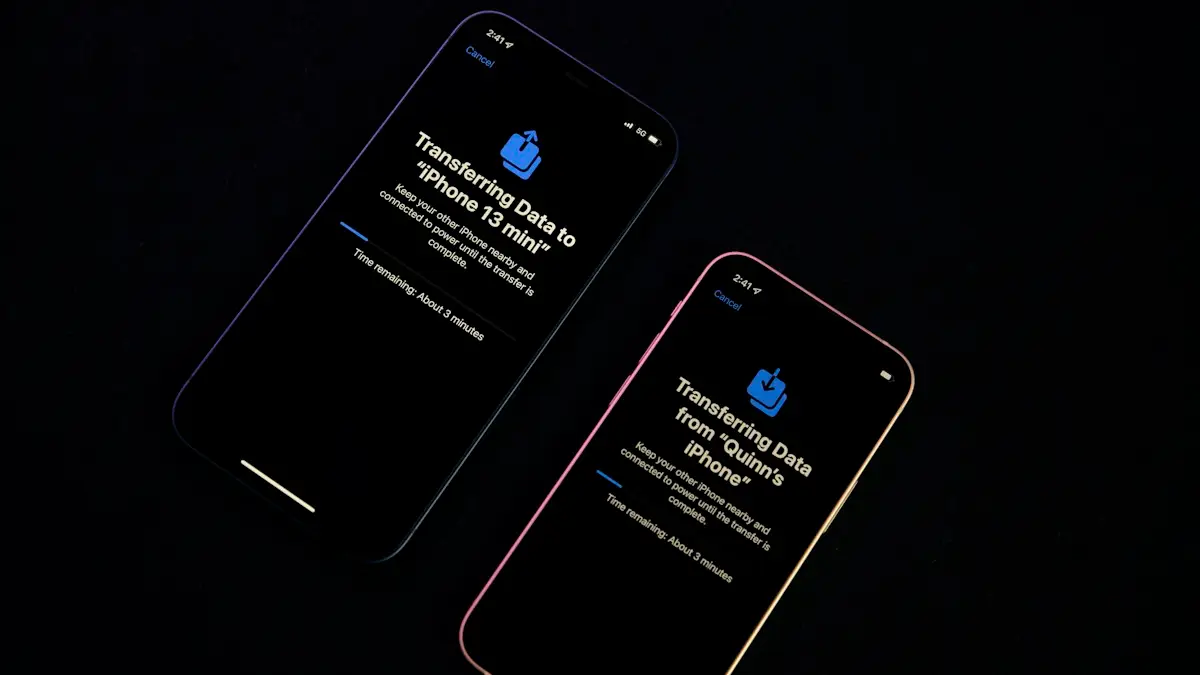
Transfer data to a new iPhone
Move everything to your new iPhone with Quick Start, an iCloud backup or a computer. Keeps apps, photos, messages and settings, plus your eSIM and WhatsApp.
iPhone stuck on Reconnecting
iPhone stuck on reconnecting while setting up a new iPhone? Keep both phones close, check Wi-Fi and Bluetooth, restart, then use a cable or backup.
Set up a new iPhone
How to set up a new iPhone from the first screen to the last: Quick Start, restore from backup, eSIM, Face ID and the settings to check on day one.
More guides you may need

iPhone water eject
Water in your iPhone speaker? Learn if the Water Eject shortcut and speaker cleaner apps work, how to use them safely, and what to do if sound stays muffled.

iPhone white screen
iPhone screen turned white? Tell a software glitch from a hardware fault, force restart by model, use recovery mode to update, and know when to repair.