

iPhone stuck on Preparing to Transfer? 7 fixes that work
Preparing to Transfer can run for hours when you have a lot of data, but it can also stall. Keep both phones close, plugged in and on the same Wi-Fi, then restart. If it still hangs, use an iCloud or computer backup instead.
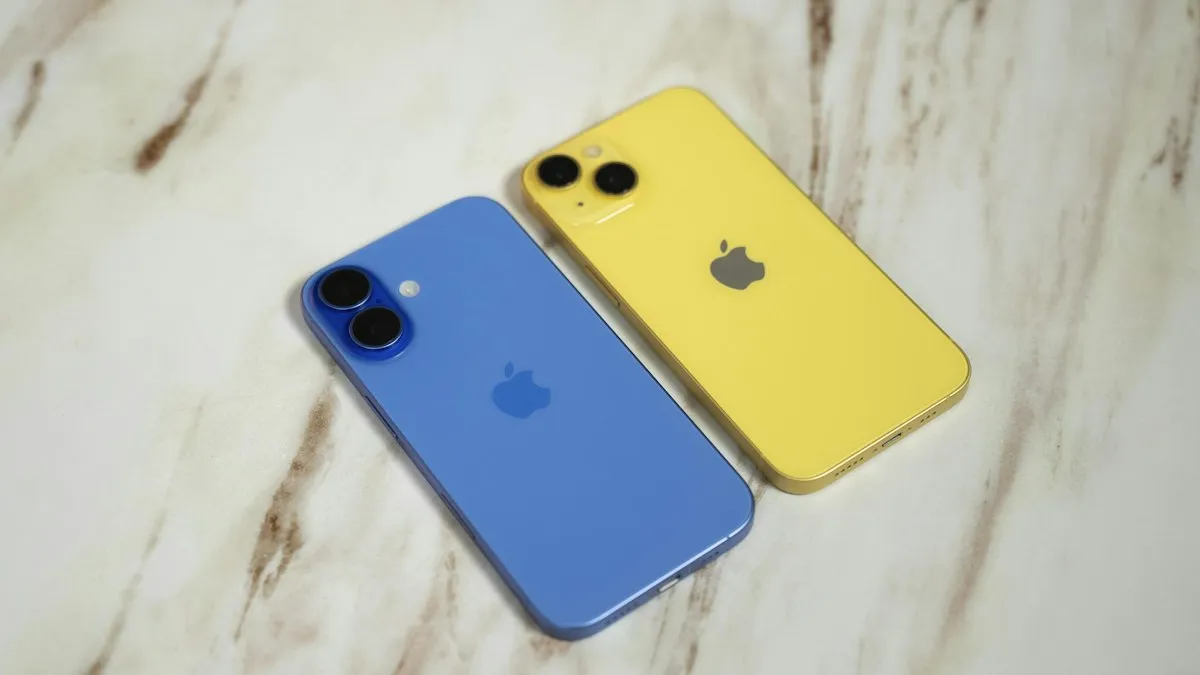
Photo by Amanz on Unsplash
You have a new iPhone, you hold it next to your old one, and Quick Start begins. Then it sits on Preparing to Transfer, sometimes for hours, with no clear sign of progress. Is it working or frozen? This guide helps you decide, shows what to check on both phones, and gives you safe ways to finish the move if the direct transfer will not.
Why is my iPhone stuck on Preparing to Transfer?
Before data moves, the iPhones count and package what you have: apps, photos, messages, settings and more. With a lot of data, that step can take a long time, and the screen may show little or no progress. The usual reasons for a real stall are:
- A huge library. Tens of thousands of photos and videos make the preparation step much longer.
- A weak or changing Wi-Fi connection. Both phones need a steady link to each other and to the internet.
- Old software. A new iPhone ships with an iOS version that may not match your old one.
- Low battery or a phone that locks. If either screen sleeps or power runs low, the process can pause.
- Low storage on the old phone. The old iPhone needs some free space to prepare the transfer.
- A software glitch. Apple Community threads show cases where only a restart or a different method worked.
Is it stuck, or just slow?
Give it time before you act. If the screen shows an estimate, even a long one, the transfer is working. A transfer that starts with the words Preparing to Transfer can sit for 30 to 60 minutes on a big phone. If you see no change and no estimate after about two hours, with both phones on power, then it is stuck. Interrupting a working transfer wastes time, so plug both phones in and wait first.
The fix
Fix 1: Check the basics on both iPhones
- 1
Plug both iPhones into power.
A long transfer can drain a battery quickly.
- 2
Put them close together.
Keep them within a few inches during the whole transfer.
- 3
Make sure both are on the same Wi-Fi.
Use a strong network and stay near the router. Avoid public or hotel Wi-Fi that needs a login.
- 4
Keep both screens awake.
Touch the screens now and then. Do not open other apps.
Fix 2: Update the old iPhone
The old iPhone should run a recent iOS version. On the old phone, open Settings › General › Software Update and install anything that is available. A new iPhone often arrives with a newer iOS than your old one. If the versions are far apart, the transfer can fail or stall. See our guide to setting up a new iPhone step by step for the full process.
Fix 3: Restart both iPhones and start over
If the transfer is stuck, stop it. Force restart both phones, then begin Quick Start again. Your data is safe on the old iPhone because the transfer copies it and does not remove it.
- iPhone 8 and later: press and release Volume Up, press and release Volume Down, then hold the side button until the Apple logo appears.
- iPhone 7: hold the Volume Down button and the side button together until the logo appears.
If the new iPhone is mid-setup and shows a choice to continue, you may need to hold the buttons to restart it. Once it is back, hold the old iPhone next to it again and follow the prompts.
Fix 4: Reset network settings on the old iPhone
Network problems cause many stalls. On the old iPhone, go to Settings › General › Transfer or Reset iPhone › Reset › Reset Network Settings. This forgets saved Wi-Fi networks and passwords, but not your data. Reconnect to your home Wi-Fi and try the transfer again. If a VPN or a content blocker is on either phone, turn it off for the transfer.
Fix 5: Free up space on the old iPhone
If the old iPhone is almost full, the preparation step can struggle. Delete apps you do not use, clear large videos and empty Recently Deleted in Photos. Our guide on how to free iPhone storage lists the biggest wins. Then try the transfer again.
Fix 6: Use an iCloud backup instead
An iCloud backup does not need the two phones to talk to each other, which makes it a reliable fallback. You first back up the old iPhone, then restore the new one from that backup.
Move your data with iCloud
- 1
On the old iPhone, back up.
Go to Settings › your name › iCloud › iCloud Backup and tap Back Up Now. Wait for it to finish.
- 2
Set up the new iPhone from the start.
On the Apps and Data screen, choose Restore from iCloud Backup.
- 3
Sign in and pick the newest backup.
Check the date and size, then keep the phone on Wi-Fi and power until it finishes.
If the backup fails because your account is full, see an iCloud account that is out of space. The restore steps are explained in more detail in our guide to how to restore an iPhone from a backup.
Fix 7: Use a computer backup
If your home Wi-Fi is slow or iCloud is full, a computer is the best backup route. On a Mac, use Finder. On Windows, use the Apple Devices app. Connect the old iPhone, choose Back Up Now, and tick the option to encrypt the backup if you want to keep passwords and Health data. Then connect the new iPhone, choose Restore Backup, and select the backup you just made. A cable is faster and steadier than Wi-Fi for large libraries.
If you are moving from Android with Move to iOS
The Move to iOS app has a similar stall on its preparing step. Plug in both phones and keep the Android screen on. Turn off the Android phone’s smart network switching or any VPN, and stay near the router. If you moved a lot of photos, expect a long wait. Remember that Move to iOS needs enough free space on the iPhone for what you move. If it still hangs, back up photos to Google Photos and add the other items by hand. Our guide to moving from Android to iPhone covers every route.
What each method keeps
- Direct transfer (Quick Start): apps, photos, messages and most settings. It can take the longest.
- iCloud backup: most data and settings. Some items, such as Face ID and Apple Pay cards, need setup again.
- Encrypted computer backup: the most complete option, including saved passwords and Health data.
- Unencrypted computer backup: most items, but not passwords or Health data.
How to make the next transfer faster
A transfer is quicker when there is less to move and the connection is good. A few days before you switch, clear out what you no longer need. Delete old screen recordings, duplicate photos and apps you never open. If you use iCloud Photos, your pictures are already in your account, and the new phone only needs to download thumbnails and then the full files over time. Put the new iPhone on the same router as the old one, close to it, and avoid doing the transfer on a crowded network, such as a shared dorm or office Wi-Fi.It also helps to start in the morning with both phones charged, so you can leave them alone for several hours without worrying. Do not use the old iPhone during the transfer, because a call, a lock or an app update can pause it.
Apple Watch, eSIM and Apple Pay after the move
Once the data is across, a few items need a second step. Your Apple Watch may need to be paired again with the new iPhone. A physical SIM card moves over by hand, and an eSIM may need to be moved by your carrier or from the old phone, as our guide to transferring an eSIM to a new iPhone explains. Cards in Apple Wallet usually ask you to confirm with your bank. Do these before you wipe the old phone, so you can go back if a step fails.
Do not erase the old iPhone yet
Whatever method you use, keep the old iPhone until you have checked the new one. Open Photos, Messages, Contacts, Notes and your most used apps. Check that your eSIM or physical SIM works. Only then erase the old phone, trade it in or sell it. If you plan to sell, our guide on how to sell your iPhone lists the steps in order.
Quick checklist
- Both iPhones are plugged in, close together and on the same Wi-Fi.
- The old iPhone is on the latest iOS and has free space.
- You waited up to two hours before calling it stuck.
- You restarted both phones and tried again.
- You reset network settings and turned off any VPN.
- You used an iCloud or computer backup if the direct transfer kept failing.
Frequently asked questions
How long does Preparing to Transfer take on an iPhone?
Anywhere from a few minutes to a few hours, depending on how much data you have and your Wi-Fi speed. If there is no change at all after about two hours, treat it as stuck.
Will I lose data if I restart during Preparing to Transfer?
Your old iPhone keeps everything, because the transfer copies data and does not move it. Restarting only cancels this attempt, and you can start again or use a backup.
Can I skip Preparing to Transfer and use a backup instead?
Yes. On the setup screen you can choose to restore from an iCloud backup or from a computer. Both bring back most of your data without a phone-to-phone transfer.
Why is Preparing to Transfer stuck when moving from Android?
The Move to iOS app needs both phones on a steady connection and enough free space on the iPhone. Keep the Android phone awake, turn off any VPN and try again.
What to try next
People also ask
Why does my iPhone say it is unable to complete the data transfer?
The link between your old and new iPhone dropped, or one of them has old software, a weak Wi-Fi connection or low battery. Restarting both phones and trying again fixes many cases.
Read the full guide: iPhone unable to complete data transferWhat does Reconnecting mean when I set up a new iPhone?
The new iPhone lost its connection to the old one or to the internet during setup and is trying to join again. A short pause is normal, but a screen that stays for many minutes means it is stuck.
Read the full guide: iPhone stuck on ReconnectingI already set up my new iPhone. Can I still transfer?
Yes, but you must erase it first. Go to Settings › General › Transfer or Reset iPhone › Erase All Content and Settings, then use Quick Start when setup starts again.
Read the full guide: Transfer data to a new iPhoneIs there an official time for a Quick Start transfer?
No. Apple says transfer time depends on network conditions and the amount of data, and it gives no fixed number.
Read the full guide: How long an iPhone transfer takesRelated guides
iPhone unable to complete data transfer
iPhone unable to complete data transfer in setup? Restart both phones, update, switch to a cable or iCloud, and fix an Apple logo stall. 7 fixes.
iPhone stuck on Reconnecting
iPhone stuck on reconnecting while setting up a new iPhone? Keep both phones close, check Wi-Fi and Bluetooth, restart, then use a cable or backup.
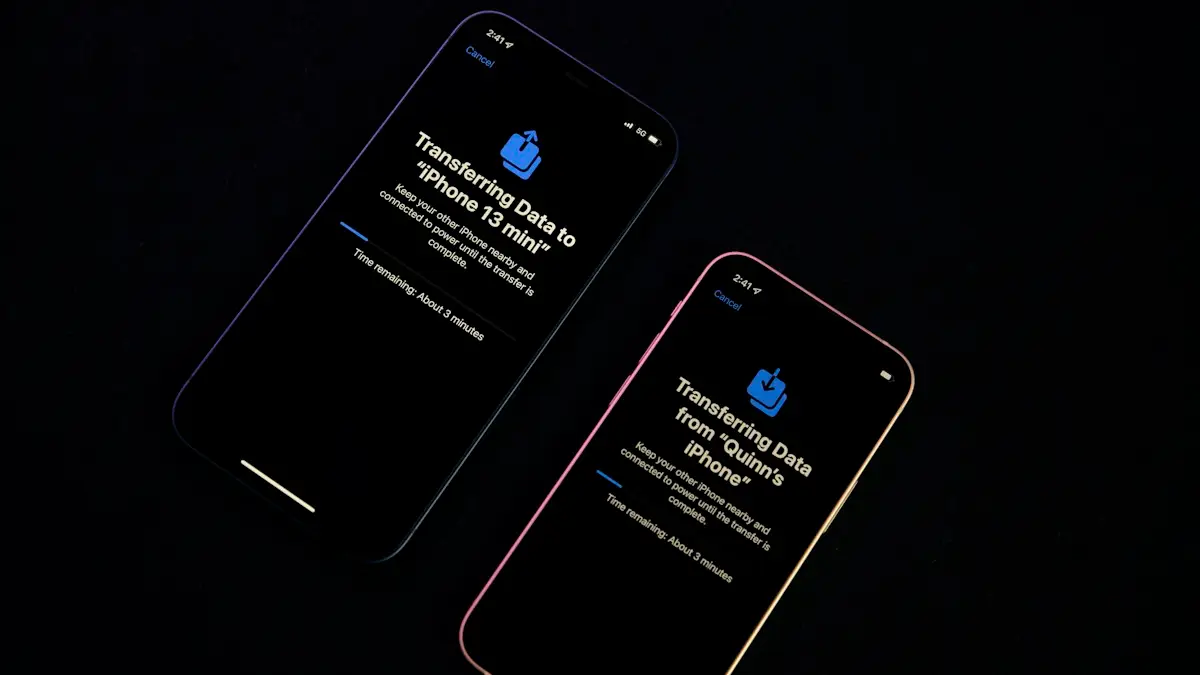
Transfer data to a new iPhone
Move everything to your new iPhone with Quick Start, an iCloud backup or a computer. Keeps apps, photos, messages and settings, plus your eSIM and WhatsApp.

How long an iPhone transfer takes
How long does an iPhone transfer take? Apple gives no fixed time. See what changes it, Quick Start vs iCloud vs cable, and how to tell slow from stuck.
More guides you may need

iPhone not tracking steps
iPhone steps stuck at zero or not counting? Turn on Fitness Tracking, check Health data sources, carry the phone right and try more fixes, Watch or not.
iPhone not vibrating
iPhone not vibrating for calls, texts or alerts? Check System Haptics, the Haptics setting, Vibration in Accessibility, Focus and Silent mode. 8 fixes.