

How to transfer data to a new iPhone (Quick Start or iCloud)
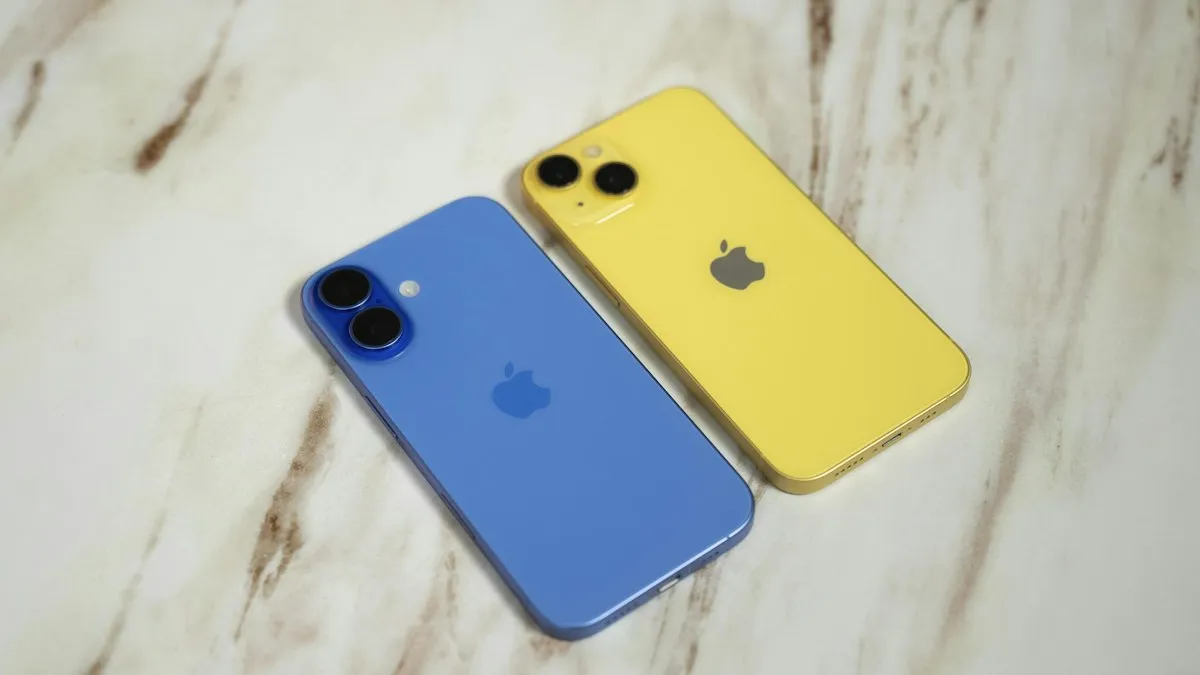
Quick Start copies your old iPhone to the new one while you set it up. It is the easiest way for most people.
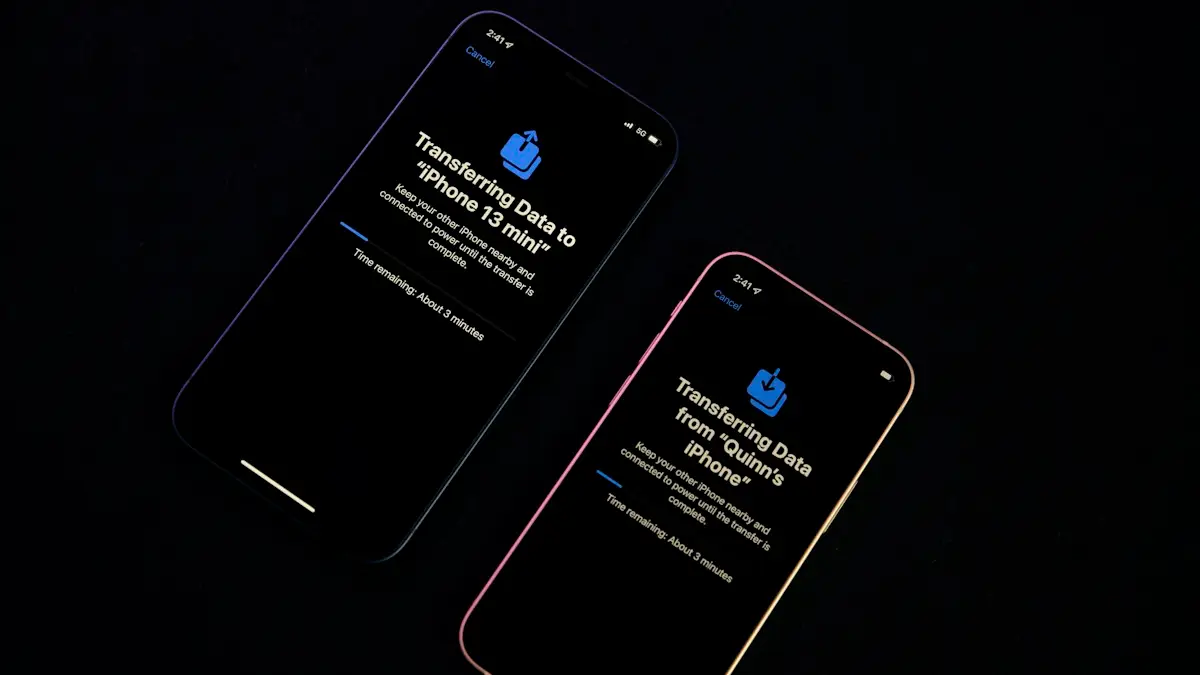
Photo by Quinn Battick on Unsplash
Moving to a new iPhone, such as an iPhone 18 or iPhone 17, is much easier than it used to be. Your apps, photos, messages, settings and even your phone number can come across in one go during setup. There are three ways to do it. Quick Start is the best for most people; the other two are for when your old phone is not nearby.
Before you start
- Update the old iPhone to the latest iOS it supports, in Settings › General › Software Update.
- Charge both phones, or keep them plugged in during the transfer.
- Know your Apple Account password and your old iPhone’s passcode.
- Make sure WhatsApp and other apps with their own backup have backed up recently.
- If you use an Apple Watch, keep it nearby. Setup offers to move it to the new iPhone.
How to transfer data to new iPhone
The fix
Method 1: Quick Start (old iPhone nearby)
- 1
Charge both phones and update the old one.
An old iPhone on an outdated iOS version may not offer Transfer from iPhone at all.
- 2
Turn on the new iPhone and set it beside the old one.
Bluetooth must be on for the old iPhone to see the new one.
- 3
Tap Continue on the old iPhone and scan the animation with it.
If the camera cannot scan it, tap Authenticate Manually and follow the prompts instead.
- 4
Enter your old passcode on the new iPhone.
Then set up Face ID or Touch ID on the new phone.
- 5
Choose Transfer from iPhone and follow the steps.
This copies data directly from the old phone over a wireless link. You can also connect the two iPhones with a USB-C or Lightning cable for a faster, more stable transfer. Keep them close together until it finishes, and do not use either phone.
Quick Start may offer Download from iCloud instead. That signs the new iPhone in and restores your latest iCloud backup, which frees the old phone sooner but needs a recent backup and good Wi-Fi. Transfer from iPhone is more complete, since it includes anything changed since your last backup.
The fix
Method 2: iCloud backup (old iPhone not nearby)
- 1
On the old iPhone, back up in Settings › your name › iCloud › iCloud Backup.
- 2
Not enough iCloud storage? Use temporary storage.
Go to Settings › General › Transfer or Reset iPhone and tap Get Started under Prepare for New iPhone. Apple gives you enough free iCloud storage for a full backup, kept for 21 days, and you can extend it by another 21 days if the new phone is late.
- 3
On the new iPhone, choose From iCloud Backup on the Transfer Your Apps & Data screen.
- 4
Sign in and pick the newest backup.
Check its date and time so you know nothing recent is missing.
The fix
Method 3: a Mac or PC
- 1
Back up the old iPhone to your computer in Finder or the Apple Devices app, with Encrypt local backup ticked.
- 2
Connect the new iPhone and choose Restore from this backup when the computer asks.
- 3
Enter the backup password and wait for it to finish.
Keep the cable connected until the iPhone restarts.
The encrypted computer backup includes saved passwords, Health data and Wi-Fi networks. It is a good option with slow internet or a very large library, since nothing has to upload to iCloud.
Moving your Apple Watch
If your old iPhone was paired with an Apple Watch, setup on the new iPhone asks whether to use the watch with it. Say yes and keep the watch close to the new phone. If you skip it, open the Watch app on the new iPhone later; you may need to unpair the watch from the old phone first, which also backs it up, and then pair it again.
WhatsApp and other chat apps
WhatsApp chats come across with Quick Start and iCloud backups as long as WhatsApp has its own recent iCloud backup. Open WhatsApp › Settings › Chats › Chat Backup on the old phone and tap Back Up Now just before you move. On the new phone, sign in with the same number and choose Restore Chat History. Signal, Telegram and other apps each have their own transfer options inside the app.
Moving your phone number and eSIM
During setup, the new iPhone offers to transfer your eSIM from the old one, which moves your number in a few taps with most US carriers, including Verizon, AT&T and T-Mobile. If you use a physical SIM, move the card to the new phone; US iPhone models from the iPhone 14 onward have no SIM tray, so ask your carrier to convert it to an eSIM. If eSIM transfer fails, your carrier’s app or support line can activate it. Our guide to the basics of eSIM explains the options.
What does not transfer automatically
- Apple Pay cards: add them again in Wallet. Your bank may ask you to verify each card.
- Face ID and Touch ID: set up fresh on the new phone, for security.
- Some app logins: banking, email and work apps often ask you to sign in again.
- Authenticator apps: codes in apps such as Google Authenticator or Microsoft Authenticator may need to be moved using the app’s own export or cloud backup. Do this before erasing the old phone, or you can be locked out of accounts.
- Apps no longer in the App Store: they cannot be downloaded again.
Coming from an Android phone?
Quick Start only works between Apple devices. From Android, use Apple’s free Move to iOS app during setup, choosing From Android on the Transfer Your Apps & Data screen. It moves contacts, messages, photos, calendars and some free apps. See our full guide to switching from Android to iPhone.
Already set up the new iPhone?
Quick Start and backups only run during setup. If you skipped the transfer, you have two choices. Erase the new iPhone in Settings › General › Transfer or Reset iPhone › Erase All Content and Settings and start again with Quick Start, or keep it as it is and let iCloud sync bring back your photos, contacts, notes and messages, then download apps by hand. The first option is more complete; the second keeps anything you already did on the new phone.
Check the transfer worked
- 1
Wait for downloads to finish.
Apps show a progress circle until they are ready, and photos keep arriving for a while. Scroll to the bottom of the Photos library to see how many are left.
- 2
Open your most important apps.
Banking, email, work, WhatsApp and any authenticator app. Sign in where asked.
- 3
Check Messages, Notes and Health.
Scroll back through a few old conversations and notes, and open the Health app to make sure your history came across.
- 4
Make a first backup of the new iPhone.
Settings › your name › iCloud › iCloud Backup › Back Up Now, so the new phone is protected from day one.
Before you sell or trade in the old iPhone
- Open a few important apps on the new iPhone and check your photos, messages and authenticator codes are all there.
- Unpair your Apple Watch from the old phone if setup did not move it.
- Then erase the old iPhone. Our guide to factory resetting an iPhone covers signing out, Activation Lock and removing it from your account.
- Compare trade-in offers from Apple, your carrier and resale sites before you accept one; prices vary a lot for the same phone.
Frequently asked questions
I already set up my new iPhone. Can I still transfer?
Yes, but you must erase it first. Go to Settings › General › Transfer or Reset iPhone › Erase All Content and Settings, then use Quick Start when setup starts again.
Does WhatsApp transfer too?
Yes, with Quick Start or an iCloud backup, as long as WhatsApp was backed up to iCloud. Check WhatsApp › Settings › Chats › Chat Backup first.
How long does it take?
Anywhere from 15 minutes to a few hours, depending on how much data you have. Photos, music and apps can keep downloading in the background after you start using the new phone.
Do I need to buy more iCloud storage to transfer?
No. If your iCloud storage is too small for a backup, Apple gives you free temporary storage for the move. Use Prepare for New iPhone in Settings › General › Transfer or Reset iPhone.
What to try next
Sources
Official pages these steps are based on. Menus can differ by software version.
People also ask
Why does my iPhone say it is unable to complete the data transfer?
The link between your old and new iPhone dropped, or one of them has old software, a weak Wi-Fi connection or low battery. Restarting both phones and trying again fixes many cases.
Read the full guide: iPhone unable to complete data transferWhy does the prompt not show on my old iPhone?
The old iPhone must be unlocked on the Home Screen, on Wi-Fi, with Bluetooth on. Apple says to restart both devices if the setup prompt disappears.
Read the full guide: iPhone Quick Start not workingWhat does Waiting for Other iPhone mean?
It is the Quick Start screen where the new iPhone waits for your old iPhone to confirm and send data. Apple does not document this exact screen, but the transfer needs both phones awake, close and powered.
Read the full guide: iPhone stuck on Waiting for Other iPhoneHow long does Preparing to Transfer take on an iPhone?
Anywhere from a few minutes to a few hours, depending on how much data you have and your Wi-Fi speed. If there is no change at all after about two hours, treat it as stuck.
Read the full guide: iPhone stuck on Preparing to TransferRelated guides
iPhone unable to complete data transfer
iPhone unable to complete data transfer in setup? Restart both phones, update, switch to a cable or iCloud, and fix an Apple logo stall. 7 fixes.
iPhone Quick Start not working
iPhone Quick Start not working or no prompt on your old phone? Check Bluetooth, Wi-Fi and iOS, restart both phones, or set up another way. 8 fixes.
iPhone stuck on Waiting for Other iPhone
iPhone stuck on Waiting for Other iPhone during setup? Restart both phones, check Wi-Fi and Bluetooth, update, or switch to iCloud. 8 fixes that work.
iPhone stuck on Preparing to Transfer
iPhone stuck on preparing to transfer during setup? Learn how long to wait, what to check on both phones and how to use iCloud or a computer instead.
More guides you may need
Forgot your Android PIN
Forgot your Android PIN or pattern? Try Samsung’s previous PIN option and Smart Lock first, then reset with Find Hub or recovery mode and restore your backup.

Use your phone in Canada
How to use your phone in Canada without surprise charges. Check if your US plan includes Canada, set up roaming and avoid border tower traps.