

No AirPrint printers found on iPhone? 9 fixes
No AirPrint printers found means your iPhone cannot see a printer on the network. Nine fixes in order: same Wi-Fi, AirPrint support, restarts, VPN and network settings, plus what AirPrint cannot do.
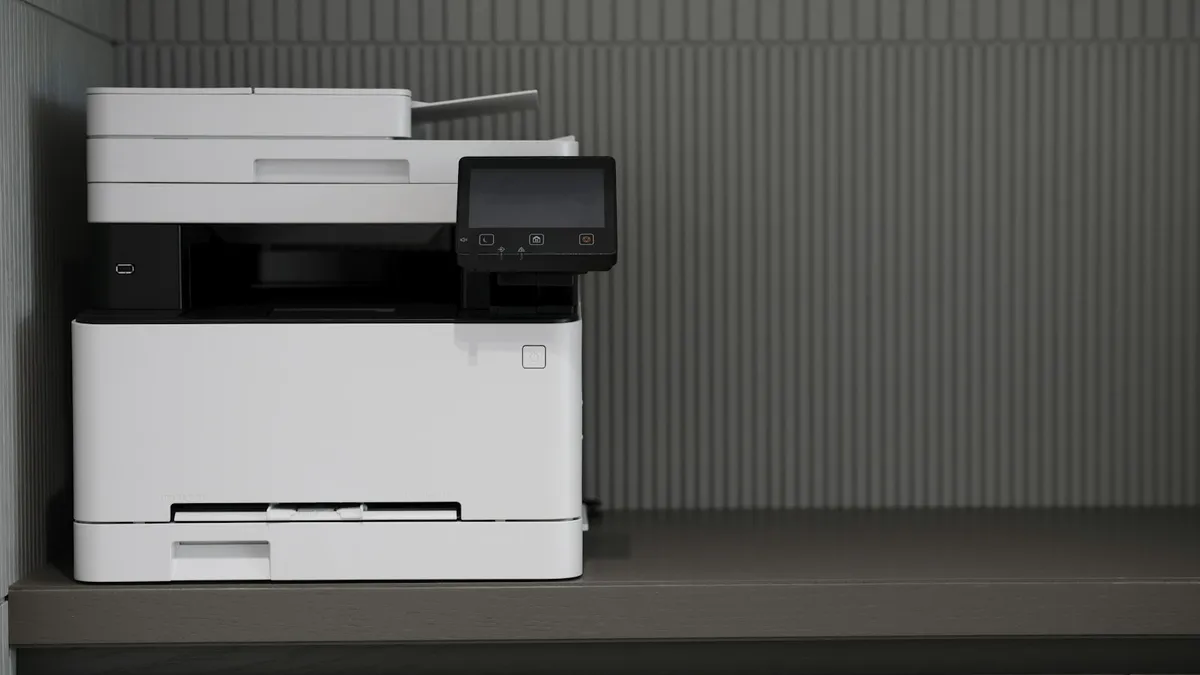
Photo by engin akyurt on Unsplash
You tap Share, tap Print, and tap No Printer Selected. Then your iPhone searches for a while and tells you No AirPrint Printers Found. The printer is sitting right there and the lights are on. The message sounds technical, but the cause is usually simple: your iPhone and the printer are not seeing each other on the same network. Apple's own pages give two firm requirements, and most cases come down to one of them. Below are nine fixes, starting with the two that Apple names and moving to the ones that people report most often.
What does No AirPrint Printers Found mean?
AirPrint is Apple's built in way to print without installing a driver. Your iPhone looks for printers on the local network that say they support AirPrint. When it finds none, it shows No AirPrint Printers Found. That can mean the printer is off or asleep, the printer is not on your Wi-Fi, your iPhone is on a different network, the printer does not support AirPrint, or something such as a VPN is hiding it. The message itself does not tell you which.
Fix 1: Put the iPhone and the printer on the same Wi-Fi network
This is the first requirement in Apple's AirPrint article: the printer and your iPhone must be on the same Wi-Fi network. Open Settings, tap Wi-Fi and note the network name your iPhone uses. Then check the printer's display or its network report and make sure it is on that same name. Many routers have two names, one for 2.4 GHz and one for 5 GHz, and some printers can only use one of them. Some routers also put visitors on a guest network that is separate from the main one, which hides devices from each other. Make sure both are on the main network.
Fix 2: Check that the printer supports AirPrint
The second requirement is that the printer supports AirPrint and connects over Wi-Fi or a wired network. Apple's printer list lets you search by brand, model or category, and Apple says to check with the manufacturer if your printer is not listed. A printer that only prints over USB, or an older model, may not support AirPrint at all. If yours does not, the printer maker's own app is usually the way to print from an iPhone, and we cover that near the end.
Fix 3: Wake the printer and clear its errors
A printer in sleep mode, switched off or showing an error may not answer. Turn it on, press a button to wake it and look at the display. Fix anything it reports, such as an empty paper tray, a paper jam, low ink or a network error. Some printers stop answering on the network until the error is cleared. Wait a minute after it wakes, then try again.
Fix 4: Turn off Airplane Mode, VPN and Private Wi-Fi Address
Airplane Mode must be off and Wi-Fi on. AirPrint works over your local network, so a phone that is on cellular data alone will not find a printer. A VPN can also send your traffic away from the local network, so turn it off while you print. Some guides report that Private Wi-Fi Address can interfere. To try that, open Settings, tap Wi-Fi, tap the info button next to your network and turn off Private Wi-Fi Address, then reconnect. Turn it back on later if it makes no difference.
Fix 5: Restart the router, the printer and the iPhone in order
A community answer suggests a careful power cycle, and it works for many people. It clears stale network records.
Restart your network in order
- 1
Turn off the router, the printer and the iPhone.
Unplug the router and printer if you can.
- 2
Turn on the router first and wait until its lights settle.
This can take a couple of minutes.
- 3
Turn on the printer and wait for it to join Wi-Fi.
Check its display for a connected message.
- 4
Turn on the iPhone and connect to the same Wi-Fi.
- 5
Try Print again.
Open an app, tap Share, tap Print, then tap No Printer Selected.
Fix 6: Reconnect the printer to Wi-Fi
If the printer lost its connection, it will not show up. Apple's Wi-Fi setup guide for AirPrint printers describes the main ways to join a printer to a network: through its own display, through a USB cable to a Mac with the printer's setup assistant, through an ad hoc network, or with WPS if the printer supports it. The simplest for most people is the printer's control panel. Choose your Wi-Fi network, enter the password and wait for it to confirm. Print a network report if the printer can do it, and check the network name on it.
Fix 7: Update iOS and the printer firmware
Old software can break discovery. On the iPhone, open Settings, tap General, tap Software Update and install what is offered. See our guide on how to update an iPhone if you are not sure. Printer makers also release firmware updates. Check the printer's display menu, its app or the maker's website, and install any update. This is especially worth doing if the printer worked before and stopped after a recent change.
Fix 8: Reset the network settings
If nothing helps, reset the iPhone's network settings. This removes saved Wi-Fi networks and passwords, so have yours ready. Open Settings, tap General, tap Transfer or Reset iPhone, tap Reset, then tap Reset Network Settings. Reconnect to your Wi-Fi and try printing again. If the Wi-Fi itself is the problem, see our guide on an iPhone that will not connect to Wi-Fi.
Fix 9: Use the printer maker's app or another way to print
When AirPrint will not work, the printer's own app is often the easiest way around. Many makers offer an app that sends a document straight to the printer. You can also email a document to a computer that is connected to the printer, or save the file to cloud storage and print from the computer. These are workarounds, and they do not fix AirPrint, but they get your page out.
Why did the printer work before and stop now?
A printer that used to show up and now does not usually had something change. The router may have been replaced or reset, so the printer lost the network and needs to be joined again. The router may have given the printer a new address, or switched bands. An update on the iPhone or the printer may have changed how they find each other. Think about what changed just before the problem started, and start with that. If you moved house or changed your internet provider, the printer almost certainly needs to join the new Wi-Fi from its own control panel.
What does AirPrint not work with?
Apple's AirPrint articles list two setups that do not work: a printer plugged into the USB port of an AirPort Base Station or AirPort Time Capsule, and a printer connected to a computer by Bluetooth. A printer that is only connected to a computer by USB, and not to the network, will not show up either. If your printer is shared from a computer, it may need to be set up on the network directly.
I found the printer. How do I print the right size?
Once the printer shows up, tap Print, choose the printer, set the copies and pages and tap Print. If the page comes out too small, too large or on the wrong paper size, our guide on how to change the print size from an iPhone explains the options, and the one on printing text messages covers a common use. If an app does not show a Print option, it may not support printing. Check the app's help.
Still no AirPrint printers found?
Try printing from another device on the same network. If that fails too, the problem is the printer or the network, not your iPhone. If another phone prints and yours does not, repeat the network reset and check for a VPN profile or a content filter. At that point, the printer maker's support page for your model is the best next step. Keep the model number and a note of what you tried.
Frequently asked questions
What does No AirPrint Printers Found mean?
Your iPhone searched your Wi-Fi network and found no printer that supports AirPrint. The printer may be off, on another network, or not compatible.
Does the iPhone need to be on the same Wi-Fi as the printer?
Yes. Apple says the printer and your iPhone or iPad must be on the same Wi-Fi network for AirPrint to work.
Do I need to install a driver or app?
No. Apple says AirPrint needs no extra drivers or software. A printer maker's app can still help with setup or a workaround.
Can I print over cellular data?
Not with AirPrint. It works on your local network, so your iPhone has to be on Wi-Fi with the printer.
What to try next
People also ask
How do I print a smaller label from my iPhone?
Open Print Options and choose the label paper size, such as 4 x 6, if your printer offers it. If the printer keeps printing on the wrong size, set the paper size in the printer’s own app or on its control panel.
Read the full guide: Change print size on iPhoneWhy is Wi-Fi greyed out on my iPhone?
A software glitch, a restriction, or a failed Wi-Fi chip. If a reset and update do not bring the switch back, it is almost always hardware.
Read the full guide: iPhone Wi-Fi won’t turn onWhy does Find My say No location found for a person?
They may have stopped sharing, their phone may be off or offline, or Location Services is off. People are not notified when you check, and you are not notified when they stop sharing.
Read the full guide: Find My not updating locationWhy does my new iPhone say no backups available?
Usually because you signed in with a different Apple Account than the one that made the backup, or the old phone never completed a backup. A weak Wi-Fi connection can also hide the list.
Read the full guide: No backups availableRelated guides
Change print size on iPhone
Change print size on iPhone: pick the paper size in the Print menu, print photos smaller, or use your printer's app to scale. Steps for HP, Canon and Epson.
iPhone Wi-Fi won’t turn on
iPhone Wi-Fi won’t turn on, greyed out or stuck off? Check Airplane Mode and Screen Time, reset network settings, update iOS and know when the chip is at fault.
Find My not updating location
Find My not updating location or showing No location found? Check the other iPhone is online, Share My Location, Precise Location and try 6 more fixes.
No backups available
Getting no backups available when you restore an iPhone? Check your Apple Account, Wi-Fi, iOS version and iCloud backup list to find the backup that is missing.
More guides you may need

FaceTime sensitive content warning
FaceTime paused your call with a sensitive content warning? Learn what triggers it, how it works on your iPhone, and where to turn it off in Settings.
Screen black during calls
iPhone screen goes black during calls and will not wake? Clean the sensor, remove the screen protector, update iOS and reset settings. Plus how to hang up.