

How to screen record on Samsung (and other Android phones)
Every recent Galaxy phone has a screen recorder in Quick Settings. Here is how to use it, including sound options most people miss.
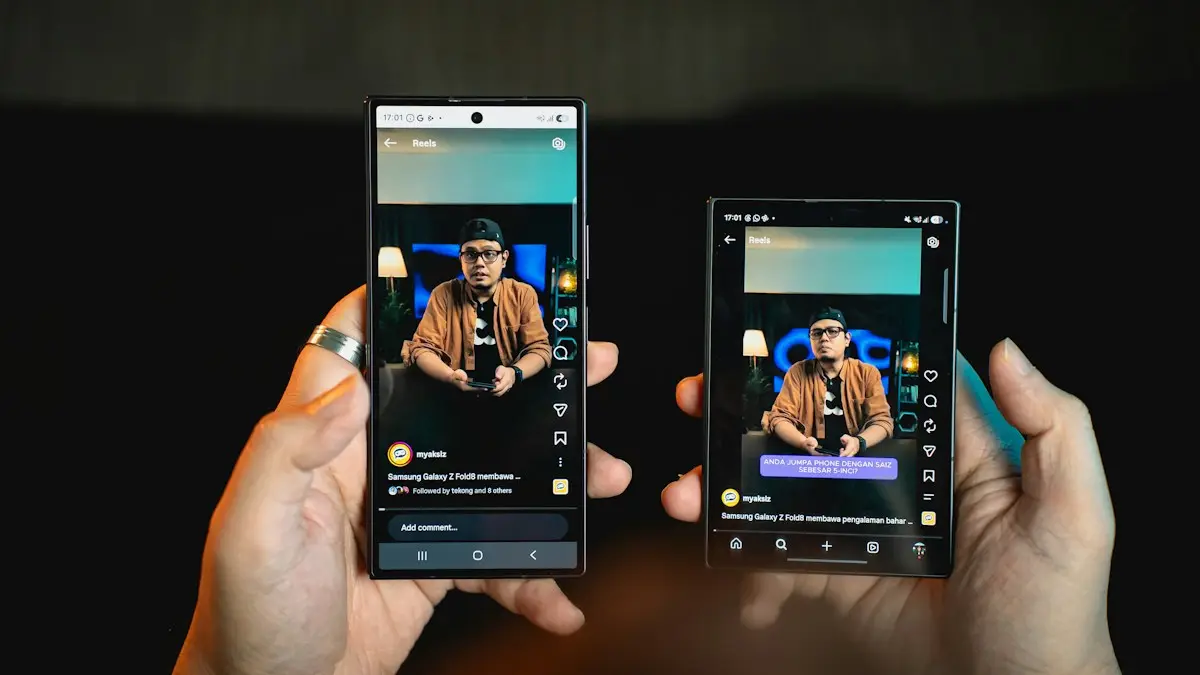
Photo by Amanz on Unsplash
The fix
How to screen record on a Samsung Galaxy
- 1
Swipe down twice from the top of the screen to open Quick Settings.
- 2
Tap Screen recorder.
If you do not see it, tap the pencil icon (Edit) and drag the Screen recorder tile into your Quick Settings.
- 3
Choose your sound setting.
No sound, Media sounds (sound from apps and videos) or Media sounds and mic (also records your voice).
- 4
Tap Start recording and wait for the countdown.
- 5
Tap the stop button to finish.
The toolbar is in the top-right corner. You can also draw on the screen or add a selfie video from it.
On other Android phones
Google Pixel
Swipe down twice, tap Screen record, choose whether to record audio and show touches, then tap Start. Stop from the notification.
Motorola and most other Android 11+ phones
Look for Screen record in Quick Settings. If it is missing, tap the edit icon to add it.
What does the Samsung screen recorder do?
The Screen recorder is part of One UI, so you do not need an app. It records the display and can add the phone's sound, your voice and a small selfie video of you. A toolbar floats on the screen while you record and lets you draw, pause or stop. The recording saves as an MP4 file that you can share anywhere. On Samsung phones that run recent versions of One UI, the tile sits in the Quick panel, and you can also add it to the Edge panel or a button in the toolbar for faster access.
How do you choose video quality and sound?
Touch and hold the Screen recorder tile to open its settings. Under Sound you can pick No sound, Media sounds or Media sounds and mic. Under Video quality, choose a higher setting for sharp text and a lower one for smaller files. Common choices are 1080p, 720p and 480p. Under Selfie video size, drag to resize your camera preview, which appears in a corner of the recording. Turn on Show taps and touches if you make a guide, so viewers see where you press. Samsung also lets you draw on the screen from the toolbar while you record.
Can you record without sound or with your voice?
- Media sounds: records what the phone plays, such as a game or video. Your voice is not recorded.
- Media sounds and mic: records both the phone sound and your voice. A quiet room matters, since the mic also picks up the speaker.
- No sound: good when you only need to show steps.
If your voice is missing, check that the microphone permission is on, and that no other app holds the mic, such as a call. See fixing a microphone that does not work if it fails in every app.
How do you record with a selfie video?
When you start a recording, the toolbar shows a camera icon. Tap it to show your face in a small bubble that you can drag. It is handy for tutorials and for gaming. If the bubble does not appear, check the Camera permission for the Screen recorder in Settings › Apps. You can also resize the bubble from the Screen recorder settings.
Where do you find and trim your recordings?
Open the Gallery app, tap Albums and open Screen recordings. Tap a video, then the pencil icon, to trim it. Move the handles to set the start and end, tap Save and choose to save a copy. You can also share it from Gallery with Nearby Share or Quick Share, or send it by email or message. If it will not send, trim it or share a link. To save space, move older recordings to the cloud. Our guide to clearing out a full Android phone shows how.
What if the screen recorder is missing?
- Swipe down twice, tap the pencil icon or the three dots, choose Edit buttons and drag Screen recorder into the active area.
- Update the software in Settings › Software update. Very old phones may lack the feature.
- Check whether Samsung's Game Launcher or Game Booster has its own recorder. It works in games.
- On other brands, look for Screen record in Quick Settings, or use Google's built-in recorder on Android 11 and later.
What are the common problems and fixes?
- Black screen: protected apps such as Netflix block recording on purpose.
- Recording stops by itself: the phone may be low on storage or overheating. Free space and let it cool down.
- Lag or dropped frames: lower the video quality and close other apps.
- No sound in the video: the sound setting was No sound, or the volume was muted.
- Recording will not start: restart the phone and check for an update.
If you only need an image, use a screenshot. Samsung guides: taking a screenshot on Samsung. For iPhone, read screen recording on iPhone.
Why record your Samsung screen
- To show someone how to change a setting on a Galaxy phone.
- To save a bug or an error for a support request.
- To record a game or a short demo for friends.
- To keep proof of an online order, a text or a scam attempt.
Record the screen with a button or a gesture
You can add the Screen recorder to Quick Settings, and also to the Edge panel on phones that have it. Open Settings › Display › Edge panels and add Screen recorder as a tool. Some models let you start a recording by drawing a shortcut in Bixby Routines, or by using the Game Launcher in a game. If you use the Samsung Good Lock app, there are other options, but the built-in tile is the simplest.
How do you record on a Samsung tablet or foldable?
The steps are the same on Galaxy Tab and Galaxy Z models. Swipe down from the top right to open the Quick panel on a tablet. On a foldable, the screen recorder works on both the cover screen and the main screen, though a recording stays on the screen where you started it. If you fold or unfold the phone in the middle of a recording, the video may stop or change size, so finish first.
How do you save space with smaller recordings?
A 10 minute recording at the highest quality can use over a gigabyte. If you are short of storage, pick a lower quality, record in shorter clips and delete the originals after you share them. Our guide to freeing space on an Android phone has more ideas. Also empty the Gallery trash, where deleted videos stay for 30 days.
Record the screen with other apps (when the built-in tool is not enough)
Most people never need another app, because the Samsung recorder handles sound, selfie video and drawing. If you want advanced editing, a free app such as AZ Screen Recorder or a Google Play screen recorder adds options such as a countdown timer, brush colors and cropping. Choose apps with many reviews, avoid ones that ask for more permissions than they need and read the privacy policy. You can also record on a computer by casting the phone with Smart View or a USB cable and using a desktop recorder. That produces larger, cleaner files for long tutorials.
Tips to record a clear tutorial
- Turn off notifications with Do Not Disturb so private messages do not appear in the video.
- Turn on Show taps and touches, so viewers see every press.
- Plan your steps before you start, and pause between them. You can trim mistakes later in Gallery.
- Record in portrait for social media and in landscape for games and longer videos.
- Speak slowly if you use the microphone, and keep the phone close to your mouth.
How do you share your recording?
From Gallery, tap the video, then the share icon. Quick Share sends it to nearby Galaxy phones, and you can also pick Messages, email or a cloud service. If the file is too large for a message, trim it or send a link instead of the file.
Frequently asked questions
Where do Samsung screen recordings go?
In the Gallery app, in the Screen recordings album. The files are stored in Internal storage › DCIM › Screen recordings.
Why is there no sound in my Samsung screen recording?
The sound setting may be set to No sound. Tap and hold the Screen recorder tile, or check the options before recording starts, and choose Media sounds or Media sounds and mic.
Can I record a Samsung screen with internal audio only?
Yes. Choose Media sounds in the Screen recorder settings. It records the sound the phone plays and not your voice.
What if the screen recorder is missing from Quick settings?
Open the Quick settings panel, tap the edit or plus button and drag Screen recorder into your active buttons. Menu names vary a little by One UI version.
People also ask
Why is my iPhone screen recording silent?
Screen recording captures app sound but not your voice by default. Press and hold the Screen Recording button in Control Center and turn on Microphone. Also check the phone is not in Silent mode, which mutes some app sounds.
Read the full guide: Screen record on iPhoneWhy is my storage full when I have deleted everything?
Deleted photos usually sit in a Trash or Recycle bin for 30 days. WhatsApp media, app caches and the Downloads folder also take space that does not show up as photos.
Read the full guide: Android storage fullCan you record a call on any Android phone?
No. Recording needs a supported phone, carrier and region, a recent Phone app, and Android 9 or later. If you do not see a Record button, your phone or carrier may not support it.
Read the full guide: Record a call on AndroidWhat are Screen reactions on Pixel?
Screen reactions let you record your screen and your selfie camera at the same time, so your face appears over what you are showing. Google describes it as a Pixel first feature in Android 17.
Read the full guide: Pixel Screen ReactionsRelated guides
Screen record on iPhone
Screen record on your iPhone in seconds. Add the button to Control Center, record your voice with the microphone, and find and trim your video in Photos.
Android storage full
Android phone storage full? Find what is using the space, clear junk files and large videos, and move photos to the cloud or an SD card. Works on Samsung too.

Record a call on Android
Learn how to record a call on Android with the Phone app on Pixel, Samsung and other phones, where recordings are saved, and the consent laws to know first.
Pixel Screen Reactions
Pixel Screen Reactions record your screen and selfie camera together on Android 17. See the steps, the entire screen rule, its limits and why it may be missing.
More guides you may need
Change Featured Photos on iPhone
Change what appears in Featured Photos and the Photos widget on iPhone. Remove photos, feature people less, favorite the ones you want or turn it off.
Change Gmail password
Change your Gmail password on iPhone in the Gmail app or Safari, then update it in iPhone Mail so email keeps arriving. Plus what to do if you forgot it.