

Samsung screen keeps dimming? 7 fixes to try
A Galaxy screen that keeps dimming usually has Adaptive brightness, Extra dim or a power saving mode switched on, or the phone is hot. Each has a setting you can change in a minute.
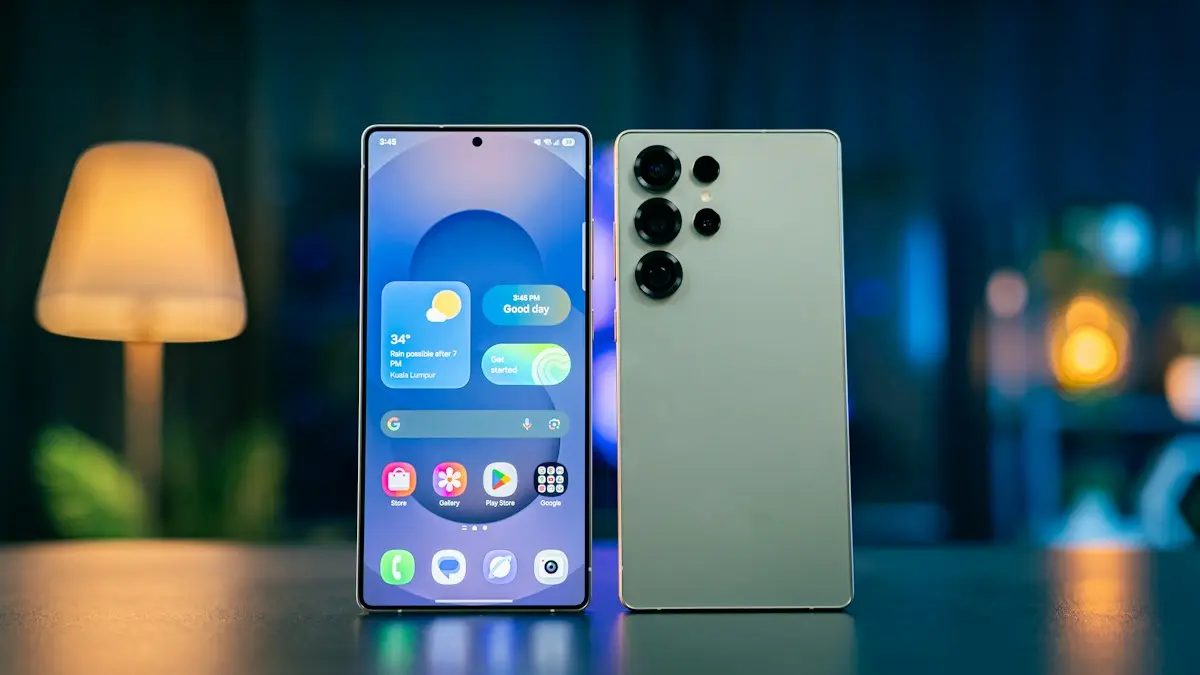
Photo by Amanz on Unsplash
A screen that gets darker on its own is annoying, especially in sunlight. On a Galaxy it is almost always one of a few features that are designed to dim the display on purpose. Work through the fixes below in order and you will find which one it is. The steps use One UI menu names, which can differ slightly between versions.
Why a Galaxy screen dims by itself
Samsung phones lower brightness for several reasons. Adaptive brightness learns your habits and reacts to the light sensor. Extra dim makes the screen darker than the lowest slider setting. Power saving modes cut brightness to save battery. The phone also dims the screen to protect itself when it is hot. And a short screen timeout makes the display go dark quickly, which can feel like dimming.
The fix
Fix 1: Turn off Adaptive brightness and set the level yourself
- 1
Open Settings › Display.
- 2
Turn off Adaptive brightness.
With it off, the screen stays at the level you choose with the Brightness slider, instead of changing with the light around you.
- 3
Drag the Brightness slider to the level you want.
You can also change it from the quick panel by swiping down from the top of the screen.
Fix 2: Check Extra dim
Extra dim is a feature that makes the screen darker than normal for low light. Open the quick panel and look for Extra dim in the tiles, or go to Settings › Display and look under Brightness for an Extra dim switch. In some versions it is under Settings › Accessibility. If it is on, turn it off and test the screen in a bright room.
The fix
Fix 3: Turn off Power saving
- 1
Open Settings › Battery.
On some versions it is called Battery and device care.
- 2
Look for Power saving or Power saving mode.
If it is on, it lowers brightness and limits the screen refresh rate to save battery.
- 3
Turn it off and test.
If you want to keep it on, you can often switch off the brightness reduction inside its settings.
Fix 4: Check Screen timeout and Smart stay
If the screen goes dark while you are reading, the Screen timeout may be too short. Open Settings › Display › Screen timeout and choose 2 minutes or longer. Some versions also have Keep screen on while viewing, which uses the front camera to see that you are looking. It can be found in Settings › Advanced features on some versions. Turning it on keeps the screen lit while you look at it.
Fix 5: Let the phone cool down
A hot phone dims its screen to protect the battery and the display. This happens in the sun, when charging fast, while gaming or filming, and in a hot car. Take off the case, move to the shade, stop heavy apps and unplug the charger. If the screen returns to normal after cooling down, heat was the cause. See our guide to an Android phone that overheats for what to do if it happens often.
Fix 6: Check the light sensor and the screen protector
The light sensor sits near the top of the screen. A thick or badly placed screen protector, a dirty spot or a case lip can cover it, which makes Adaptive brightness think the room is dark. Clean the top of the screen, and if you use a protector, check that it leaves the sensor area clear. If brightness is fine without the protector, replace it with one made for your model.
The fix
Fix 7: Update, then test in Safe mode
- 1
Install the latest software update.
Open Settings › Software update › Download and install. Brightness bugs are often fixed in updates. See updating your Android phone if the update fails.
- 2
Restart in Safe mode and check the brightness.
If the dimming stops in Safe mode, an app is causing it. Uninstall recently added apps, especially screen filters, blue light filters and battery savers.
- 3
Factory reset only if the problem remains and the phone is not hot.
Back up first, because a reset erases the phone.
Screen dims when brightness is at maximum
In bright light, Galaxy phones can use a higher brightness level for a short time when you slide to the top. After a while, the phone lowers it to control heat and battery use. This is normal. If the screen looks too dim even with every setting off and the phone cool, test with a different app and check whether the dimming follows one app only.
Dimming only in certain apps or when you watch video
If the screen dims in one app, the app may be the cause. Some video, reading and map apps set their own brightness or dim the screen after a short time. Check the app’s settings for a brightness or keep screen on option. Apps that draw over other apps, such as screen filters and floating tools, can also lower brightness. Open Settings › Apps and look for anything that says it can appear on top, then remove the ones you do not need.Video can look dimmer than the rest of the phone when Video brightness is lowered in the display settings. If you see a Video brightness setting, set it to Normal or Bright and test again.
Dimming after an update or a new case
A software update can reset brightness settings or turn on Adaptive brightness again. If the dimming started right after an update, repeat Fix 1 and Fix 3 and check Extra dim. A new case with a flap or a new screen protector can also start the problem, because it changes how much light reaches the sensor. Remove it for a day and see if the dimming stops. If the problem began after a drop or after the phone got wet, skip the settings and go to the hardware section below.
When dimming points to a hardware problem
- The screen dims or flickers even in Safe mode and after a software update.
- You see lines, dark patches or color changes along with the dimming.
- The phone was dropped, got wet, or has a swollen battery.
- The battery drains very fast or the phone gets hot with no heavy use.
At that point, have the phone checked. Our guide to checking Samsung battery health shows how to run Samsung’s built-in diagnostics, and you can compare repair prices in our Samsung screen replacement cost guide before you decide.
Quick checklist
- Adaptive brightness is off and the slider is where you want it.
- Extra dim and Power saving are off.
- Screen timeout is long enough.
- The phone is cool and out of direct sun.
- The light sensor is not covered by a protector or dirt.
- The software is updated and Safe mode was tested.
Frequently asked questions
Why does my Samsung screen dim when brightness is at maximum?
The phone may be hot, in a power saving mode, or Extra dim is on. A screen protector over the light sensor can also confuse the brightness controls.
How do I stop my Samsung screen from dimming?
Turn off Adaptive brightness, Extra dim and Power saving, and raise the screen timeout. Then set the brightness slider where you want it.
Is a dimming screen a sign the display is failing?
Not usually. Software settings and heat cause most cases. If the screen also flickers, shows lines or dims in Safe mode as well, the display or battery may need service.
Does Dark mode change the brightness?
No. Dark mode changes colors, not how bright the screen is. Adaptive brightness and power saving change brightness.
What to try next
People also ask
Why does my Samsung restart at night?
That is almost certainly Auto restart, a Samsung feature that restarts the phone on a schedule to keep it running smoothly. You can turn it off in Settings › Device care › Auto optimization.
Read the full guide: Samsung phone keeps restartingWhy does my Samsung vibrate when there is no notification?
Common causes are a notification reminder that buzzes about old alerts, the alert when phone picked up feature, system vibration for taps and gestures, or an app that sends silent alerts. Cards stored in a phone case can also set off the NFC reader.
Read the full guide: Samsung vibrating for no reasonWhy is there no Wi-Fi Calling option on my Samsung?
Your carrier may not support it on that plan or phone, the SIM may not be fully activated, or Samsung’s software is out of date. Update the phone first, then ask your carrier to enable Wi-Fi Calling on your line.
Read the full guide: Samsung Wi-Fi calling not workingWhy does my Samsung stop charging at 80% or 85%?
Battery protection is turned on. It stops charging early to reduce battery wear. Turn it off or change it in Settings › Battery › Battery protection.
Read the full guide: Samsung phone not chargingRelated guides
Samsung phone keeps restarting
Samsung Galaxy keeps restarting on its own? Check Auto restart, test in Safe mode, run Samsung Members diagnostics and try 6 more fixes before a reset.
Samsung vibrating for no reason
Galaxy phone buzzing with no call or message? Turn off the settings that cause random vibration, test in Safe Mode and learn when the motor is the problem.
Samsung Wi-Fi calling not working
Samsung Wi-Fi calling not working or missing? Turn it on, add your emergency address, check your carrier and reset network settings. 7 fixes for Galaxy phones.
Samsung phone not charging
Samsung Galaxy not charging, charging slowly or stopping at 80%? Check the cable, port, Battery protection and Moisture detected with these 9 fixes.
More guides you may need
Google Pixel keeps restarting
Google Pixel keeps restarting or stuck in a reboot loop? Test in safe mode, free up storage, update and use Google’s repair tool with these 8 fixes.
Pixel liquid or debris in USB port
Pixel says Liquid or debris in USB port or Unplug charger? Unplug, dry the port, wait for OK to use USB port and clear the cache. 6 fixes from Google.