

How to check battery health on Samsung Galaxy phones (and what the result means)
Samsung hides battery health in different places on different phones. Here are the three places to look, and how to read what you find.
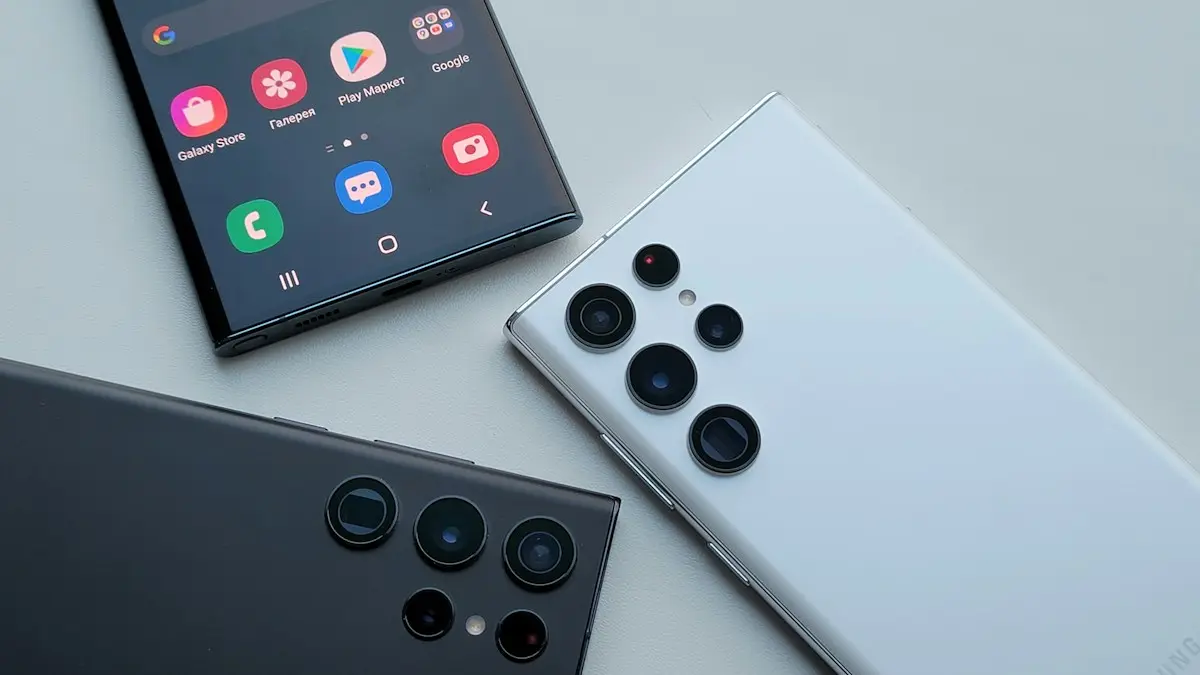
Photo by Daniel Korpai on Unsplash
Apple puts battery health in one obvious place. Samsung does not, and the answer depends on your phone and its software. Newer Galaxy phones have a built-in health screen, and older ones rely on the Samsung Members app or a hidden test menu. This guide covers every method, shows how to read the results and explains what to do if your battery is weaker than it should be.
Method 1: check in Settings (newer Galaxy phones)
- 1
Open Settings and tap Battery.
On some versions it is called Battery and device care, and then Battery.
- 2
Look for Battery information, Battery health or More battery settings.
Menu names differ by phone and One UI version. Newer One UI releases add a battery health section with a status and, on some models, a capacity percentage.
- 3
Read the result.
A status such as Good means the battery is holding up. A percentage shows how much of the original capacity is left. If you see no health option, use the next method.
Method 2: Samsung Members app
- 1
Open the Samsung Members app.
It comes with most Galaxy phones. If it is missing, install it from the Galaxy Store or Google Play.
- 2
Tap Support, then Phone diagnostics.
On some versions this is under Get help or Diagnostics.
- 3
Tap Battery status, or run the full test.
The app checks the battery and gives a result such as Good or Needs attention.
- 4
Read the details.
Some phones show the charge cycles or battery capacity too.
Method 3: the hidden test menu
Open the Phone app and dial *#0228#. On many Galaxy phones, this shows a battery status screen with the charge level, voltage and temperature. A second code, *#0*#, opens a general test menu on some models. These codes were built for service technicians. They do not show a health percentage, and they may not work on every model or carrier version, but the voltage and temperature readings can show whether a battery is behaving oddly. Do not change any settings in these menus, and just exit when you are done.
How to read the result
- Good or Normal: the battery is working as expected. You may still see a slow loss in capacity over the years.
- Above 80 percent: healthy. Daily battery life should be close to what you remember.
- 70 to 80 percent: noticeably shorter battery life. A replacement is worth planning, especially if you rely on the phone all day.
- Below 70 percent, or marked Weak or Bad: replace the battery. The phone may shut down early or run slowly.
Signs of a worn battery even without a number
- The battery drops from 30 percent to off, or from 100 to 70 quickly.
- The phone shuts down in the cold or under heavy use.
- It gets hot while charging, or charges much more slowly than before.
- The back or screen looks slightly raised, which can mean a swollen battery.
- You need to charge twice a day, with normal use.
Other Android phones
Pixel 8 and later phones have a battery health section in Settings › Battery, and Google shows a status and, on some models, a capacity figure. Phones from OnePlus, Motorola and Xiaomi vary, and some show health in their own battery or device care settings. Third-party apps that claim to show a percentage are often inaccurate, so treat them with care. When in doubt, a repair shop can test a battery in a few minutes.
What to do if the battery is weak
- 1
Rule out software first.
Update the phone, restart it and check for an app using a lot of power. See how to fix a fast-draining Android battery.
- 2
Slow down the wear.
Turn on Protect battery in Settings › Battery › Charging, if your phone has it, and avoid heat.
- 3
Get a replacement quote.
- 4
Compare with upgrading.
If the phone is old or the repair is close to a used replacement, a new phone may be smarter.
Checking a used Galaxy before you buy
Ask the seller to show the battery health screen, or run the Samsung Members test in front of you. A used phone with a weak battery needs a replacement soon, which adds to the cost. Compare the price with a phone that has a healthy battery, and factor in the repair. Also check that the battery is not swollen and that the screen sits flat. For a full list of checks, see how to buy a used phone.
Why Galaxy batteries lose capacity
Every lithium ion battery wears a little each time it charges and discharges. Chemists measure this in charge cycles: one cycle is 100% of capacity used, whether in one go or spread over several days. Heat speeds up the wear more than anything else. A phone that often charges in a hot car, runs games while plugged in, or sits on a fast charger under a pillow will lose capacity faster than one kept cool. Keeping the battery at 100% for long periods adds stress too, which is why Samsung added charging limits.
Turn on battery protection
Go to Settings › Battery › Battery protection (on older One UI versions, Settings › Battery and device care › Battery › More battery settings › Protect battery). Newer versions offer choices such as Basic, which tops up gently after reaching 100%, Adaptive, which learns your sleep schedule, and Maximum, which stops charging at 80%. Maximum gives the longest battery life over the years, at the cost of a shorter day per charge. The exact names depend on your model and One UI version.
How often should you check?
Once every few months is enough. Battery health changes slowly, so daily checks only cause worry. Check sooner if the phone suddenly drains faster, shuts down at 20% or 30%, or gets hot while doing little. Those signs matter more than any single number.
Battery health is not battery usage
The Battery screen in Settings shows which apps used power today. That is usage, not health. A healthy battery can still drain fast if an app misbehaves, the screen is very bright or the signal is weak. Before you blame the battery, look at the usage list for an app using far more than it should.
Myths about calibrating the battery
Old advice says to drain the battery to 0% and charge to 100% to calibrate it. Modern Galaxy batteries do not need this, and running to zero often adds wear. If the percentage seems wrong, for example it jumps from 30% to 5%, one full charge without interruption can help the reading. If it keeps happening, the battery is likely worn and a test in Samsung Members or at a service center is the next step.
Is a new battery or a new phone better?
If the phone still gets updates and you like it, a battery replacement is usually much cheaper than a new phone and makes it feel new again. If it is close to the end of Samsung's update period, putting that money toward a newer model may make more sense. Our guide to the cost of a Samsung battery replacement helps you compare.
Checking takes a minute and tells you whether a battery swap or a new phone makes sense, before a weak battery leaves you stuck.
Frequently asked questions
Does Samsung show battery health as a percentage?
Some newer Galaxy phones show a battery health or capacity figure in Settings. Many show only a status such as Good, so the exact number depends on your model and One UI version.
What is a good battery health for a Samsung phone?
Above 80 percent of original capacity is generally healthy. Below that, expect shorter battery life and think about a replacement.
Can I check battery health on an older Galaxy?
Yes. Use the Samsung Members app diagnostics, which shows a battery status on most Galaxy phones, or the test menu opened by a dial code.
How often should I check battery health?
Every few months is plenty, or when you notice the battery draining faster. Check before you buy a used Galaxy, too.
What to try next
People also ask
Is 74% battery health OK on an iPhone?
It works, but it is worn. Apple considers a battery below 80% of its original capacity worn out. At 70% to 79% you will notice shorter days and may see sudden shutdowns in the cold or at low charge. A replacement fixes it.
Read the full guide: Check iPhone battery healthHow long does a Samsung battery replacement take?
Many shops finish in about an hour or two if the part is in stock. Mail-in repair takes several days each way.
Read the full guide: Samsung battery replacement costWhy is there no Wi-Fi Calling option on my Samsung?
Your carrier may not support it on that plan or phone, the SIM may not be fully activated, or Samsung’s software is out of date. Update the phone first, then ask your carrier to enable Wi-Fi Calling on your line.
Read the full guide: Samsung Wi-Fi calling not workingWhy does call forwarding show an error?
Some carriers, such as Verizon, do not support the menu. Dial *72 plus the number to forward and *73 to stop.
Read the full guide: Forward calls on SamsungRelated guides
Check iPhone battery health
Find your iPhone's Maximum Capacity in Settings, understand what the percentage tells you, and learn when a battery replacement is actually worth it.
Samsung battery replacement cost
What a Samsung battery replacement costs, who can do it and when it pays off. Compare Samsung, Best Buy and repair shops, and check if your warranty covers it.
Samsung Wi-Fi calling not working
Samsung Wi-Fi calling not working or missing? Turn it on, add your emergency address, check your carrier and reset network settings. 7 fixes for Galaxy phones.
Forward calls on Samsung
Forward calls on your Samsung Galaxy from the Phone app settings: always, when busy, unanswered or unreachable. Plus carrier codes and how to turn it off.
More guides you may need
Pixel can't cast to Samsung TV
Pixel can't cast to Samsung TV or says no devices found? See why Samsung TVs hide from Cast, fix Wi-Fi and permissions, or use a cable or dongle.

Pixel keeps lowering volume
Pixel keeps lowering volume on its own? Check Adaptive Sound, app volume normalization, Bluetooth absolute volume and stuck buttons. 8 fixes for Pixel phones.