

How to scan a QR code on iPhone and Android
You do not need an app. The camera on any recent iPhone or Android phone reads QR codes on its own.
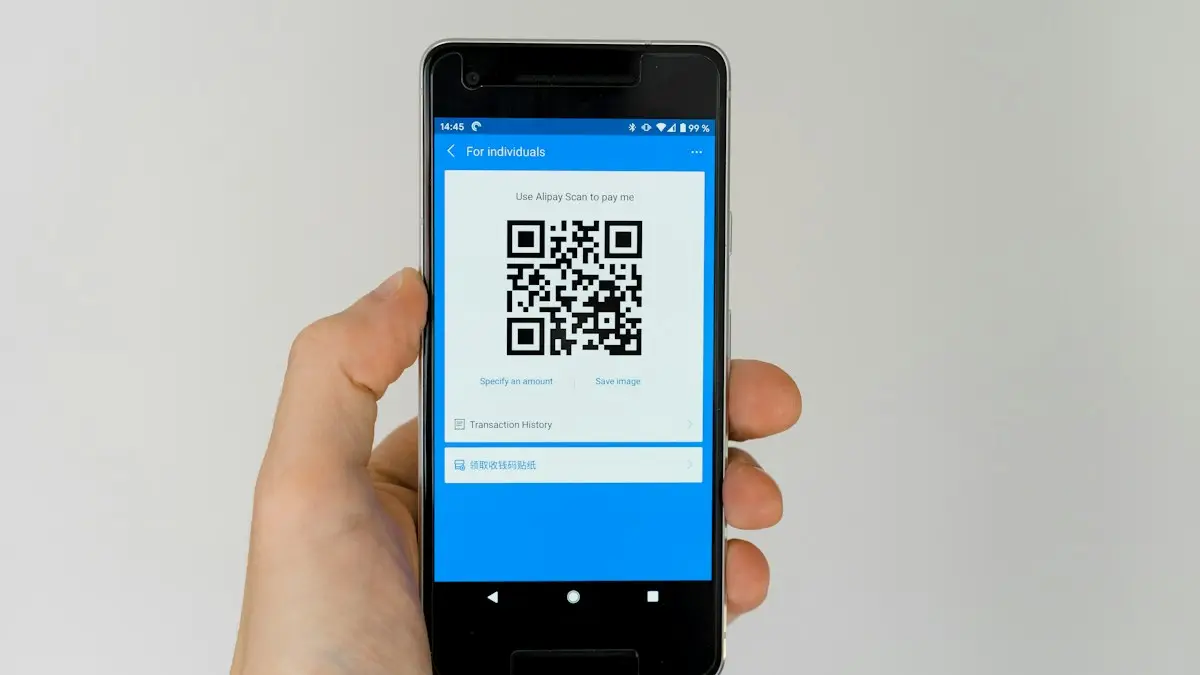
Photo by Markus Winkler on Unsplash
The fix
On iPhone
- 1
Open Camera in Photo mode.
- 2
Point it at the code so it fits on screen.
- 3
Tap the yellow link that appears.
The fix
On Android
- 1
Open the Camera app and point it at the code.
- 2
Tap the link that pops up.
- 3
If nothing happens, tap Google Lens in the camera or open the Google app and tap the Lens icon.
The fix
If it will not scan
- 1
Turn on QR scanning.
iPhone: Settings › Camera › Scan QR Codes. Samsung: Camera settings › Scan QR codes.
- 2
Use Photo mode, not Portrait or Video.
- 3
Clean the lens and move to better light.
- 4
Move the phone closer or further until the code is sharp.
- 5
Try the Code Scanner in Control Center (iPhone).
What is a QR code and how does a phone read it?
A QR code is a square pattern that stores a short piece of data, most often a web address. Your phone's camera sees the pattern, decodes it and offers an action, such as opening a link, joining a Wi-Fi network, adding a contact or paying a bill. The camera app does the reading, so nothing needs to be installed. The code does not take a photo for you. It just shows a small banner or a link that you tap.
Scan from the Control Center on iPhone
iPhone has a Code Scanner button you can add to Control Center. Swipe down from the top right corner, tap + in the top left, choose Add a Control and pick Code Scanner. After that, open Control Center, tap it and point the phone at the code. On older iOS versions, open Settings › Control Center and add Code Scanner from the list. This is handy when the Camera app does not offer a banner, or you want a one-tap shortcut.
Scan a QR code from a screenshot or a photo
- iPhone: open the picture in Photos, touch and hold the QR code and tap the link that appears. You can also tap the Live Text button at the bottom right of the photo.
- Android and Samsung: open the picture in Google Photos and tap Lens. On many Samsung phones, the Gallery app also shows a QR link when you open the image.
- Another option: open Google Lens from the Google app or Google Chrome and choose the picture from your gallery.
This is the answer for codes on your own screen, such as one sent by email or a chat. You cannot point the same phone's camera at its own screen, so use the screenshot method.
Join Wi-Fi, add a contact and other actions
A QR code can do more than open a website. Scanning a Wi-Fi code asks if you want to join the network, which saves typing a long password. Scanning a contact code offers to add the person. Scanning a calendar code can add an event. On iPhone, the banner tells you the action before you tap. If you often share your home Wi-Fi, a Wi-Fi QR code on the fridge is useful for visitors. Our guide to changing your Wi-Fi password on iPhone explains where the password lives.
Is it safe to scan a QR code?
Scanning is safe. What happens after you tap is what matters. Criminals paste fake QR codes over real ones on parking meters, restaurant tables and flyers, and send them in emails and texts. Before you tap, read the web address shown in the banner. If it looks odd, has misspelled names, or asks you to log in or pay, close it. Be wary of any code that asks for a password, bank details or a code from a text message. A QR code in an unexpected message is as risky as a link in one.
- Check that a printed code is not a sticker stuck over another code.
- Type the website address yourself if you can, instead of using the code.
- Never install an app from a code unless it takes you to the App Store or Google Play.
- Do not scan codes that promise prizes or demand payment right away.
If you already entered a password or card details, change the password and call your bank. Our guide to checking your iPhone for a virus explains what is and is not a real threat.
The camera does not scan: more fixes
- Make sure QR scanning is on. iPhone: Settings › Camera › Scan QR Codes. Samsung: Camera settings › Scan QR codes.
- Use Photo mode. Some modes do not scan.
- Clean the lens and hold the phone steady 6 to 12 inches away.
- Turn on the flashlight in dim light, or tilt the phone to remove glare on glossy prints.
- Update the phone. Older Android versions need Google Lens.
- Restart the phone, and try the Control Center Code Scanner.
If the camera itself fails, see a phone camera that is not working.
Scan a QR code on a computer or tablet
On a Mac or Windows computer, you can scan a code from a picture with a free QR reader app or your phone's camera in the browser. Chrome and Edge can read codes through Google Lens or a built in tool. Use your phone's camera for codes shown on a computer screen. Tablets work the same way as phones: open the camera app and point it at the code.
Make a QR code of your own
You can create a code for a website or a Wi-Fi network with a free generator. Test it with two phones before you print it, keep it large, and leave a white border around the code so cameras can read it. Choose a generator that does not add a tracking redirect, since a code that points through another company's server can stop working if that company shuts down.
QR codes for payments and tickets
Many places use QR codes for menus, tickets, boarding passes, parking and payment. Open the Camera or your Wallet app, point at the code and follow the prompt. For a ticket or a boarding pass, the airline or event app usually shows its own code that a staff member scans, so brighten the screen and keep it still. Do not share a screenshot of a ticket code, since anyone who has it can use it.
QR code limits to know
- Damaged or scratched codes may fail to scan. Try a different angle or ask for another code.
- Very small codes need you to hold the phone closer.
- Codes on shiny screens may need the screen brightness up.
- Dark mode inverted codes may not scan. Switch to a plain white background.
Scan QR codes on Samsung and Pixel phones
On a Samsung Galaxy, open the Camera app and point it at the code. If nothing shows, open Camera settings and turn on Scan QR codes, or swipe down twice and use the QR code scanner tile in Quick Settings if you have it. On a Pixel, the Camera app scans codes by itself, and Google Lens is available from the Google app. On other Android phones, Google Lens or Google Assistant works in a few taps. If your phone is old, update the system and the Google app first, because very old versions cannot read QR codes.
What to do when a code opens the wrong thing
Sometimes a code opens a web page in a browser that is hard to read on a phone, or asks you to install an app. You can close the page and move on. If a code was meant for an app, such as a payment or a ticket app, open that app and use its own scanner. Printed codes can also be old, so if a page says the link is not found, the business may have changed it. Ask the staff for a current code or type the address from their website.
Frequently asked questions
How do I scan a QR code from a screenshot?
On iPhone, open the image in Photos and touch and hold the QR code, or tap the Live Text button. On Android, open it in Google Photos and tap Lens.
Are QR codes safe?
Most are, but scammers stick fake codes on parking meters and in emails. Check the web address before opening it, and never enter passwords or payment details from a code you did not expect.
Can I scan a QR code without an app?
Yes. The built-in camera on recent iPhones and most Android phones scans QR codes. Open the camera and point it at the code.
Why does my phone not scan a QR code on my screen?
A phone cannot scan its own screen. Take a screenshot and use Live Text on iPhone or Google Lens on Android, or scan it from a second device.
People also ask
How long does eSIM activation take on an iPhone?
Usually seconds to a few minutes. If it takes longer than about ten minutes, restart the iPhone, check your connection and ask the carrier to confirm the eSIM is ready.
Read the full guide: Activate eSIM on iPhoneWhich Samsung phones support eSIM?
Most recent Galaxy S, Z Flip, Z Fold and many A phones support eSIM, but support depends on the model and the region. Check Settings › Connections › SIM manager for an Add eSIM option, or ask your carrier.
Read the full guide: Set up eSIM on SamsungWhich Android phones can transfer without the Move to iOS app?
Apple says you need a compatible device running Android 17 or later, and tells you to check with your phone's maker about eSIM and data transfer support.
Read the full guide: Android to iPhone without Move to iOSMy browser says my phone has a virus. Is it real?
Almost never. Those pop ups are ads trying to scare you into installing something. Close the tab and do not tap anything in it.
Read the full guide: Scan Android for malwareRelated guides
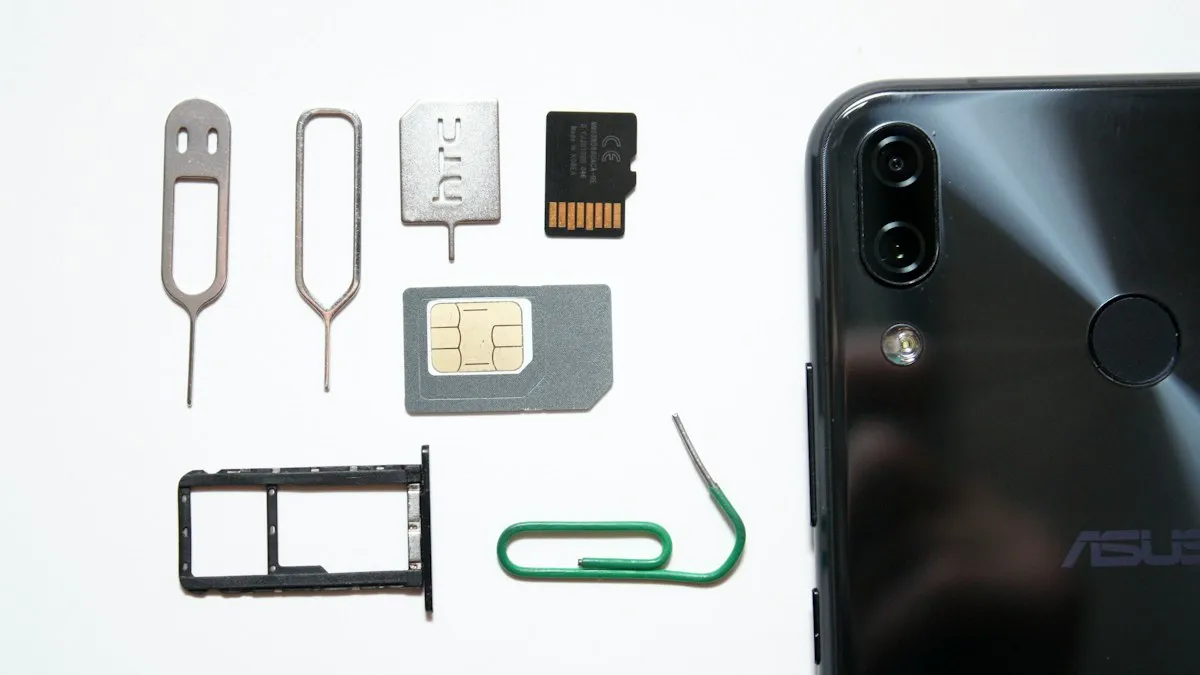
Activate eSIM on iPhone
How to activate eSIM on iPhone with a QR code, manual details or your carrier's app. Steps for Verizon, AT&T and T-Mobile, plus fixes when activation fails.
Set up eSIM on Samsung
How to set up eSIM on Samsung: scan a QR code, use your carrier app or enter details by hand, then pick which SIM handles calls and data. Fixes included.
Android to iPhone without Move to iOS
You can now move from Android to iPhone without the Move to iOS app if your phone runs Android 17 or later. Follow Apple's QR code steps, and the backup option.
Scan Android for malware
Scan your Android phone for malware for free with Google Play Protect or Samsung Device protection, then remove bad apps in safe mode. No extra app needed.
More guides you may need

Change AirDrop name on iPhone
How to change AirDrop name on iPhone: edit your iPhone name and your contact card, because AirDrop shows one or the other. Fix a name that won't update.
Change alarm sound on iPhone
Change your iPhone alarm sound to a new tone or a song in the Clock app, set the alarm volume and vibration, and fix an alarm that makes no sound.