

How to set up eSIM on Samsung Galaxy: QR code, carrier app and transfer
Adding an eSIM to a Galaxy takes a few minutes. The steps differ a little by carrier and One UI version, so here are all the routes.
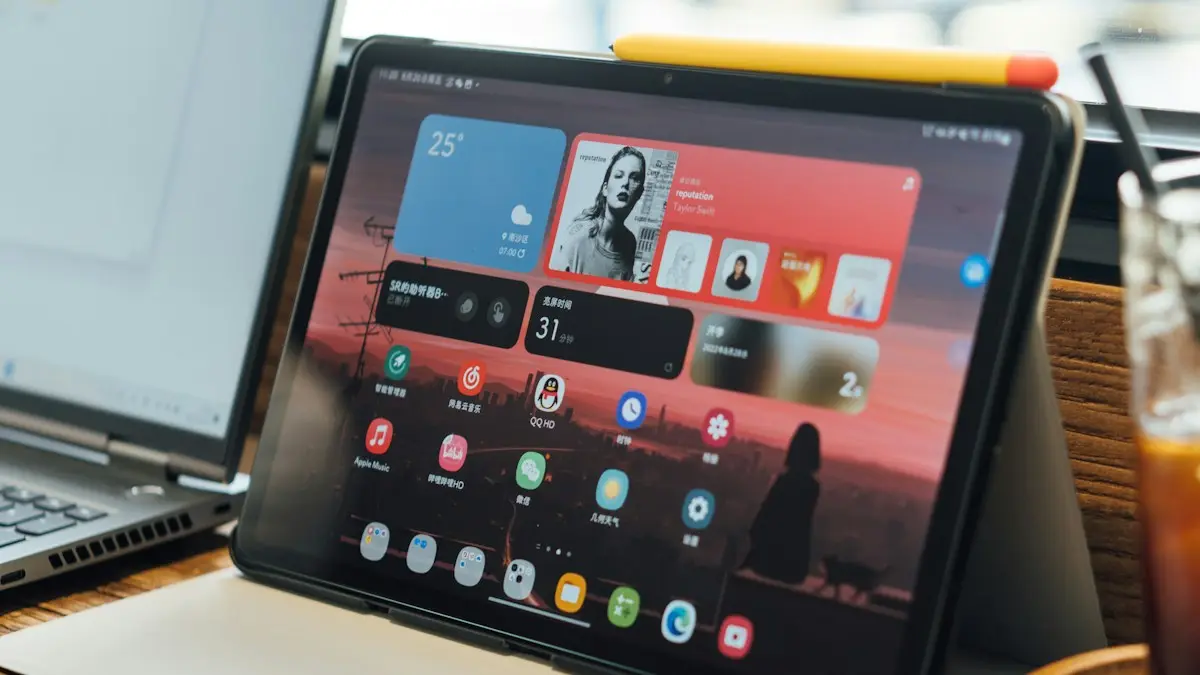
Photo by Markus Winkler on Unsplash
An eSIM is a SIM built into your phone, so there is no card to insert. It makes switching carriers faster, lets you keep two numbers on one phone and is the easiest way to get a data plan when you travel. Samsung offers a few ways to add one, and the menu names change slightly by One UI version and by carrier. This guide covers each method, how to choose which line does what and what to try when activation fails.
Before you start
- Check that your Galaxy supports eSIM. Look for Add eSIM in Settings › Connections › SIM manager. If you do not see it, the model or the regional version may not support it.
- Make sure the phone is unlocked if you are using a different carrier than the one that sold it.
Not sure? Read how to check if your phone is unlocked. You also need a Wi-Fi connection, a plan or a new line with a carrier that supports eSIM, and the activation details the carrier gives you, such as a QR code or a carrier app.
Method 1: scan a QR code
The fix
Add an eSIM with a QR code
- 1
Connect to Wi-Fi.
The phone downloads the eSIM profile over the internet.
- 2
Open Settings › Connections › SIM manager.
- 3
Tap Add eSIM, then choose Scan carrier QR code.
Some versions show Add mobile plan or Add using QR code. The wording differs by software version.
- 4
Point the camera at the QR code from your carrier.
The code might be on a card, in an email, in your online account or on another screen. You cannot scan it from the same phone, so open it on a computer or another device.
- 5
Confirm and wait.
Tap Add or Confirm. The phone downloads the plan and may restart. Activation can take a few minutes.
Method 2: use your carrier's app or website
Many US carriers can install the eSIM for you without a QR code. Install the carrier's app, sign in, and choose the option to activate or switch to eSIM, such as Activate eSIM or Switch to eSIM. The app talks to your phone and installs the profile. This is usually the easiest route when you are switching to or from a carrier that supports it, because the carrier handles the details. Follow the prompts and keep the phone on Wi-Fi until it finishes.
Method 3: enter the details manually
If the QR code will not scan, you can type the details. Go to Settings › Connections › SIM manager › Add eSIM › Scan carrier QR code, then look for Enter activation code or Enter manually. Type the SM-DP+ address and the activation code exactly as your carrier gave them. Capital letters and punctuation matter. Travel eSIM providers often include these details in the email under the QR code.
Method 4: transfer an eSIM from another phone
An eSIM does not copy over like a file. To move yours to a new Galaxy, start the transfer in your carrier's app, or ask the carrier for a new QR code. Some carriers let you convert a physical SIM to an eSIM in the app when you set up the new phone. Your old phone stops working on the line once the new eSIM activates, so do not remove the old one until the transfer is finished. When you set up the new phone with Smart Switch, check whether your carrier offers to move the line during setup.
How to choose which SIM does what
- 1
Open Settings › Connections › SIM manager.
- 2
Rename each SIM.
Tap a SIM and change its name and color, for example Personal and Travel, so you can tell them apart.
- 3
Set your preferred SIM for calls, text messages and mobile data.
Each setting can use a different line. You might call from your main number and use data from a cheaper plan.
- 4
Turn on Dual SIM always on if you want both lines to ring.
Not every model has this option.
Using an eSIM when you travel
A travel eSIM from a data provider can be far cheaper than roaming. Install it before you leave, while you have Wi-Fi, but do not turn it on. At your destination, set it as the mobile data SIM, and keep your main SIM on for calls and texts, or turn on Data roaming for the travel eSIM only. Turn off data on your home line so you are not charged roaming fees by accident. For a full travel checklist, see how to use your phone in Europe.
Samsung eSIM not working? Try these fixes
- 1
Check that you are on Wi-Fi and the QR code is valid.
Most QR codes work only once. If the first attempt failed halfway, you may need a new code from the carrier.
- 2
Restart the phone and try again.
- 3
Make sure the eSIM is turned on.
In SIM manager, tap the eSIM and switch it on. An eSIM that is installed but off gives no signal.
- 4
Check the carrier plan is active.
Sign in to your carrier account to confirm the line is active and the eSIM is assigned to your phone.
- 5
Toggle Airplane mode, or update the phone.
Check Settings › Software update for new software.
- 6
Contact the carrier.
They can re-send the profile, check the IMEI and EID and fix account problems.
If the eSIM is on but the phone shows No service, see what to do when a Samsung is not registered on the network.
Which Samsung phones can use an eSIM?
eSIM arrived on Galaxy phones with the S20 generation and is now common across the Galaxy S, Z Flip and Z Fold lines and some A models. Support also depends on the version of the phone sold for your region, so two phones with the same name can differ. The most reliable check is on the phone itself: if Settings › Connections › SIM manager shows Add eSIM, it is supported. Your carrier can also confirm from the IMEI. Carriers support eSIM on their network separately, so a phone can have the hardware but still need the carrier to enable it.
Dual SIM works as a physical SIM plus an eSIM on most models. A few phones can run two eSIMs, but only one is active at a time on some versions. If you plan to use two lines for work and personal, check the model's specs before you buy.
eSIM or physical SIM: which is better on a Galaxy?
- Switching is quicker with eSIM. You can change carriers without waiting for a card, and sign up at night or on a trip.
- A physical SIM is easier to move. Pop it into another phone and you are done, with no carrier steps. That helps if your phone breaks or your battery dies.
- eSIM is harder to lose or steal. Nobody can pull it out of a stolen phone, though the line can still be moved if someone tricks a carrier.
- Dual lines are simpler with eSIM. You can keep a main plan on the physical SIM and add a second line without a second tray.
If you often swap phones, a physical SIM is more flexible. If you travel or want two numbers, eSIM is more useful. You can mix both. For a longer look at the pros and cons, read what an eSIM is, and if your next phone is an iPhone, see how to move an eSIM to a new iPhone.
How to remove or delete an eSIM
Open Settings › Connections › SIM manager, tap the eSIM and choose Remove. Think twice before you delete it. An eSIM that is removed cannot always be restored, and you may have to ask the carrier for a new code. If you only want to stop using it for now, turn it off instead. Before you sell or trade in the phone, remove the eSIM and then erase the phone. Learn more about what an eSIM is in this eSIM guide.
Frequently asked questions
Which Samsung phones support eSIM?
Most recent Galaxy S, Z Flip, Z Fold and many A phones support eSIM, but support depends on the model and the region. Check Settings › Connections › SIM manager for an Add eSIM option, or ask your carrier.
Can I use an eSIM and a physical SIM together?
Yes, on models that support dual SIM. You can run one line on a physical SIM and the other on an eSIM, and choose which one handles calls, texts and data.
Do I need Wi-Fi to activate an eSIM?
Yes. The phone needs an internet connection, usually Wi-Fi, to download the eSIM profile. Once it is installed, the eSIM uses the mobile network.
Can I move my eSIM to another Samsung phone?
Yes, but the old eSIM does not simply copy over. You usually need to start the transfer in your carrier's app or ask the carrier for a new QR code.
What to try next
People also ask
How long does eSIM activation take on an iPhone?
Usually seconds to a few minutes. If it takes longer than about ten minutes, restart the iPhone, check your connection and ask the carrier to confirm the eSIM is ready.
Read the full guide: Activate eSIM on iPhoneWhich Android phones can transfer without the Move to iOS app?
Apple says you need a compatible device running Android 17 or later, and tells you to check with your phone's maker about eSIM and data transfer support.
Read the full guide: Android to iPhone without Move to iOSWhy does my new iPhone keep asking to transfer my phone number?
The number has not finished moving to the new iPhone. The usual reasons are an old iPhone that is locked or out of range, software older than iOS 18.4, or a carrier that does not support eSIM Quick Transfer.
Read the full guide: iPhone keeps asking to transfer phone numberDoes my old iPhone stop working when I transfer the eSIM?
It stops working as a phone. Apple says the old SIM is deactivated when the plan activates on the new iPhone. It still works on Wi-Fi.
Read the full guide: Transfer eSIM to a new iPhoneRelated guides
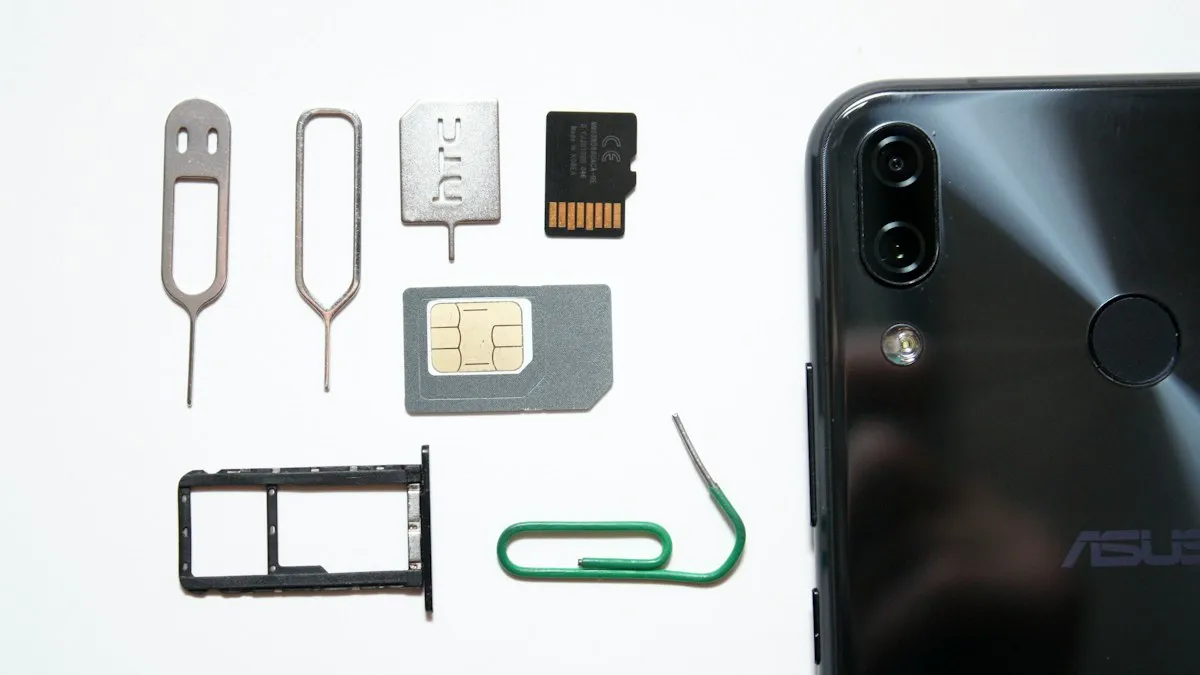
Activate eSIM on iPhone
How to activate eSIM on iPhone with a QR code, manual details or your carrier's app. Steps for Verizon, AT&T and T-Mobile, plus fixes when activation fails.
Android to iPhone without Move to iOS
You can now move from Android to iPhone without the Move to iOS app if your phone runs Android 17 or later. Follow Apple's QR code steps, and the backup option.
iPhone keeps asking to transfer phone number
iPhone keeps asking to transfer phone number or it will not finish? Check iOS 18.4, Bluetooth, your Apple Account and your carrier. 7 fixes for a new iPhone.
Transfer eSIM to a new iPhone
Transfer your eSIM to a new iPhone with eSIM Quick Transfer, from an Android phone or with your carrier if the old phone is lost. Verizon, AT&T and more.
More guides you may need
Samsung vibrating for no reason
Galaxy phone buzzing with no call or message? Turn off the settings that cause random vibration, test in Safe Mode and learn when the motor is the problem.
Samsung screen keeps dimming
Samsung screen keeps dimming by itself? Check Adaptive brightness, Extra dim, power saving, screen timeout and heat. 7 fixes for Galaxy phones, step by step.