

Unlock with Apple Watch not working on iPhone? Fixes that follow Apple's rules
Unlock with Apple Watch only helps when something blocks Face ID, such as a mask. This guide lists Apple's requirements, the hidden conditions, and the fixes to try in order.
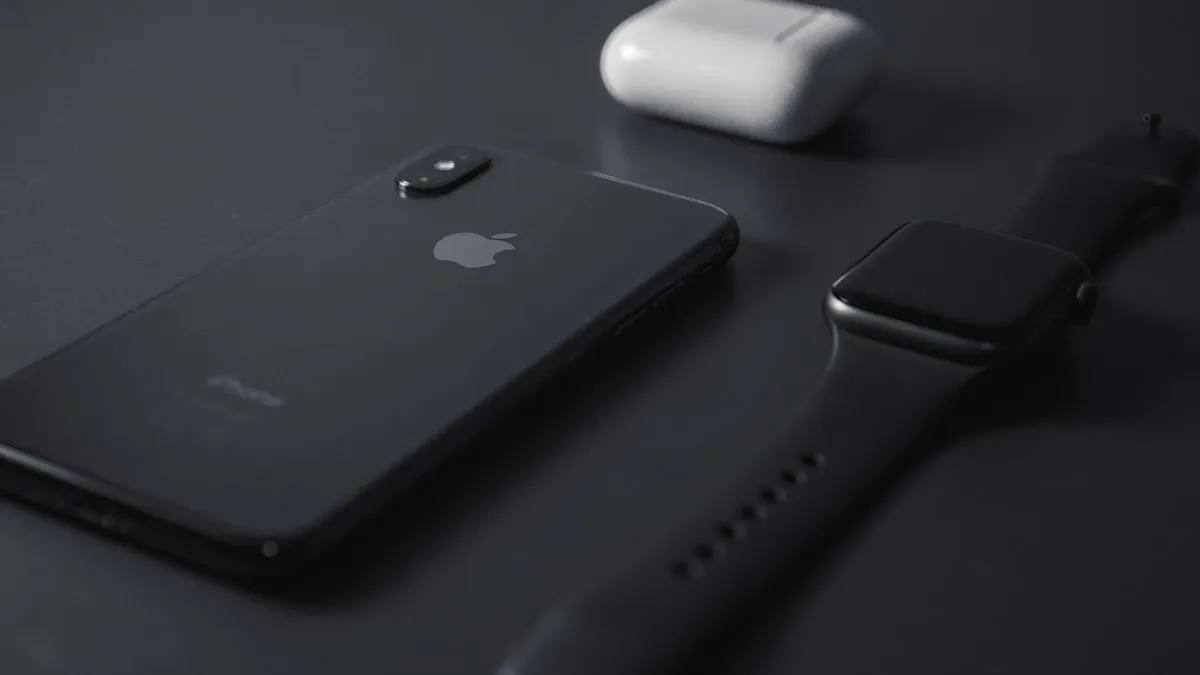
Photo by Klim Musalimov on Unsplash
You are wearing a mask, you raise your iPhone, and it still asks for a passcode. Your watch is right there. This feature has rules that most guides skip, and one of them explains a lot of cases: it was built for times when Face ID cannot see your face. This guide starts with that rule, gives Apple's checklist, and then walks through the fixes in order.
What is Unlock with Apple Watch actually for?
Apple's Watch guide says the feature lets your watch unlock your iPhone for Siri requests, or when something stops Face ID from recognizing your face. Apple's support page says you need to wear a mask that covers your mouth and nose, or sunglasses or ski goggles that cover your eyes. If nothing blocks your face, Face ID does the work and the watch is not used. So if you try it with a bare face and it does nothing, that can be normal.
It also does not use Face ID to check who you are. Apple says it works only for unlocking your iPhone, and it doesn't verify your identity for Apple Pay, passwords stored in Keychain, or password-protected apps. For those, you still enter your passcode.
Apple's requirements, as a checklist
| Requirement | What Apple says |
|---|---|
| iPhone | A model with Face ID (iPhone X or later) on iOS 14.5 or later |
| Apple Watch | Series 3 or later on watchOS 7.4 or later, paired with the iPhone |
| Wireless | Wi-Fi and Bluetooth turned on for both devices. You don't need to be on a Wi-Fi network |
| Watch passcode | The watch needs a passcode |
| Wrist detection | Must be on |
| On your wrist | The watch must be on your wrist and unlocked |
| Covered face | A mask over mouth and nose, or sunglasses or goggles over your eyes |
The hidden conditions in Apple's security guide
Apple's Platform Security guide lists more conditions. Based on an excerpt of that page, the iPhone must have been unlocked by another method at least once after the watch was put on your wrist and unlocked, and within the past 6.5 hours. The sensors must detect that your nose and mouth are covered. The iPhone and watch must be within about 2 to 3 meters. The watch can't be in bedtime mode. Check the guide yourself if the exact numbers matter to you.
In practice this means a phone that has just restarted may refuse to use the watch until you unlock it once the normal way, with your passcode. That surprises many people, but it is a safety rule, not a fault.
How to turn it on
Turn on Unlock with Apple Watch
- 1
Open the Settings app on your iPhone.
- 2
Tap Face ID & Passcode, then enter your passcode.
- 3
Scroll to Unlock with Nearby Devices.
Apple's Watch guide calls it Unlock With Apple Watch. The wording differs between Apple pages and versions.
- 4
Turn on the switch next to your watch's name.
If you have more than one watch, turn it on for each. If wrist detection is off, you will be asked to turn it on.
How to use it
Unlock with the watch
- 1
Put on a mask, sunglasses or ski goggles.
Make sure the watch is on your wrist and unlocked.
- 2
Wake the iPhone by raising it or tapping the screen.
- 3
Glance at the iPhone, then swipe up from the bottom.
The watch gives a tap and shows an alert when it unlocks the phone.
Unlock with Apple Watch not working: fixes in order
Work through these
- 1
Check the basics.
Is the watch on your wrist and unlocked? Is wrist detection on? Do both devices have Bluetooth and Wi-Fi turned on? Is the watch in bedtime mode?
- 2
Unlock the iPhone once with your passcode.
Apple's guide says the iPhone must be unlocked another way after the watch is unlocked on your wrist.
- 3
Check that you are actually covering your face.
A mask under your nose does not count, because Apple says the sensors need to detect that your nose and mouth are covered.
- 4
Turn the setting off and on.
Go to Settings, then Face ID & Passcode, switch it off for your watch, and switch it on again.
- 5
Update both devices.
The requirements name minimum versions. Update the iPhone, then the watch.
- 6
Restart the iPhone and the watch.
- 7
As a last resort, unpair and pair again.
This erases the watch, so back up first.
Steps 4 to 7 are common fixes, not instructions on Apple's page, which has no troubleshooting section. If the watch will not connect at all, read our guide to an Apple Watch that won't connect. If it needs an update first, see what to do when an Apple Watch won't update, and check which Apple Watches work with watchOS 27.
How to check wrist detection and the watch passcode
Two of Apple's requirements live on the watch side, and people often forget them. Apple says the watch needs a passcode, and wrist detection must be on. On most versions you can check both in the Watch app on your iPhone. Open the Watch app, tap My Watch, then tap Passcode, and look for Wrist Detection. Menu names can differ by version, so use the search bar in the Watch app if you cannot find it. If wrist detection is off, Apple says you will be asked to turn it on when you enable the unlock setting.
Also check the watch itself. If it is on a charger, off your wrist, or showing the passcode screen, the iPhone cannot use it. Apple says the watch must be on your wrist and unlocked. A loose band can make the watch lose its wrist detection, so wear it snug enough that the sensor stays against your skin.
Why does my iPhone ask for the passcode after the watch unlocked it?
If you did not mean to unlock the phone, you can tap the Lock iPhone button on the watch screen. Apple says the next time you unlock your iPhone after tapping that button, it requires your passcode. If you tapped it by accident, that is why you are being asked. Use your passcode once and the watch can work again.
Face ID with a mask on iPhone 12 and later
On iPhone 12 and later with iOS 15.4 or later, Apple says Face ID can work while you wear a mask, without an Apple Watch. Apple says you can combine it with Unlock with Apple Watch. If you wear the mask too high or too close to your eyes, Face ID may fail, and Apple says it does not work in landscape mode with a mask. So if your iPhone is new, Face ID may do the job and the watch becomes a backup. If your Face ID has trouble, see our page on Face ID not working.
What about iPhone Duo?
Apple's wake and unlock guide says that iPhone Duo uses Touch ID in the side button, and that you can also use your Apple Watch to unlock your iPhone Duo. If you own one, the same watch requirements apply. For more on the phone, see what Apple has confirmed about the iPhone Duo.
Common mistakes
- Testing it without a mask. Face ID handles that case, so the watch is not needed.
- Forgetting wrist detection. Apple says it must be on.
- Skipping the first passcode unlock. After a restart, unlock with your passcode first.
- Forgetting to unlock the watch. The watch must be on your wrist and unlocked.
- Expecting it to approve payments. It does not work for Apple Pay.
Which devices does this cover?
The feature needs an iPhone with Face ID (iPhone X or later) and an Apple Watch Series 3 or later, with the software versions in the table above. Apple's pages name iOS 14.5 and watchOS 7.4 as the minimums, and your devices will normally be far past that. Menu names can change between versions, so use the search bar in Settings for Face ID & Passcode if you cannot find it.
When to contact Apple
If you have checked every requirement, updated both devices and paired the watch again, and it still will not work, contact Apple Support. Tell them your iPhone and watch models and versions, and say whether Face ID works on its own.
The short version
Wear a mask or sunglasses, keep the watch unlocked on your wrist and close, check wrist detection and the passcode, and unlock the iPhone once by passcode after a restart. Then turn the setting off and on.
Frequently asked questions
Why won't my Apple Watch unlock my iPhone?
The feature only works when something blocks Face ID, such as a mask, sunglasses or ski goggles. The watch must be on your wrist, unlocked, paired, and close, with wrist detection on and a passcode set.
Where is the Unlock with Apple Watch setting?
Open Settings, tap Face ID & Passcode, enter your passcode, and scroll to Unlock with Nearby Devices. Apple's Watch guide calls it Unlock With Apple Watch. Turn it on next to your watch's name.
Why does my iPhone ask for the passcode after I used the watch?
Apple says that after you tap the Lock iPhone button on the watch, your iPhone requires your passcode the next time you unlock it.
Does Unlock with Apple Watch work with Apple Pay?
No. Apple says it doesn't verify your identity for Apple Pay, passwords stored in Keychain, or password-protected apps.
What to try next
Sources
Official pages these steps are based on. Menus can differ by software version.
People also ask
What does the red iPhone icon on my Apple Watch mean?
The watch is disconnected from your iPhone. Bring them close together and check that Bluetooth and Wi-Fi are on.
Read the full guide: Apple Watch not connectingWhy did this start after I dropped my iPhone?
A drop can shift or damage the TrueDepth parts behind the notch or Dynamic Island. If cleaning and a reset do not help, it needs repair.
Read the full guide: Face ID move iPhone lowerWhat does “Face ID is not available” mean?
It usually means the iPhone cannot talk to the TrueDepth camera. If a restart does not clear it, it is a hardware problem, often after a drop, water damage or a screen repair.
Read the full guide: Face ID not workingWhy does my Apple Watch say continue setup on iPhone?
The watch has started pairing and is waiting for you to finish the steps on the iPhone, such as choosing settings or entering a passcode. It stays on that screen if the iPhone closed the Watch app, locked, or lost its connection.
Read the full guide: Continue setup on iPhoneRelated guides
Apple Watch not connecting
Apple Watch not connecting to iPhone or showing a red iPhone icon? Check Bluetooth and Airplane Mode, restart both, update, and re-pair without losing data.
Face ID move iPhone lower
Face ID keeps saying move iPhone lower or higher? Clean the camera area, remove the screen protector, restart and reset Face ID, then know when it is hardware.
Face ID not working
Face ID not working or saying “Face ID is not available”? Learn what the message means and try 10 fixes, from cleaning the camera to resetting Face ID.
Continue setup on iPhone
Apple Watch says continue setup on iPhone but nothing happens? Finish pairing, restart, reset in pairing mode, or unpair and start again. Steps for each case.
More guides you may need
iPhone notifications not showing on lock screen
iPhone notifications not showing on lock screen? Check the app's Lock Screen switch, Display As, Focus and Scheduled Summary, then try 4 more fixes.
Other storage on iPhone
What is Other storage on iPhone, now called System Data, and why it gets huge. Learn what it holds and 8 ways to shrink it, from restarting to a backup restore.