

How to use your phone in Europe without a huge bill
You have four ways to get data in Europe. Pick one before you fly, set up your phone and check your bill when you get home.

Photo by Anastase Maragos on Unsplash
Roaming bills are the classic travel shock. A few days of maps, photos and messages on the wrong plan can cost more than the flight. The fix is simple: decide on one way to get data before you go, set your phone to use only that one, and check your usage. This guide compares your options, shows the settings for iPhone and Android and covers what to do when something goes wrong abroad.
Step 1: check that your phone will work
- Network support. Almost every phone sold in the US in recent years supports the networks used across Europe. Older phones can miss some bands, so check with your carrier.
- Unlocked or locked. A carrier-locked phone works with your carrier's roaming plan, but it will not accept a local or travel SIM.
- eSIM support. Newer iPhones and many Samsung and Pixel phones can add a travel eSIM in minutes.
See how to check whether your phone is unlocked and how an eSIM works if you are not sure. Contact your carrier if the phone is still on a payment plan, because it may not be able to unlock it until it is paid off.
Step 2: choose how you will get data
Your four options
Your carrier's international plan or day pass
The easiest choice. You keep your number, and calls, texts and data work on arrival. US carriers sell daily passes or monthly add-ons, and some of their postpaid plans include limited roaming in Europe. The price is higher than other options for long trips, so read the daily cost, the data cap and the speed limits. Add the pass before you leave.
A travel eSIM
A prepaid data plan installed as an eSIM before you fly. It is often much cheaper than a day pass, works on arrival and lets you keep your home SIM for calls and texts. Data only, in most cases, so you use apps for calls. Buy from a provider with good reviews and a clear data limit.
A local prepaid SIM
Cheapest for long stays and often includes calls and texts, but it needs an unlocked phone, a trip to a shop and sometimes ID. Your US number will not work on it, so install WhatsApp or keep your home SIM active for texts.
Wi-Fi only
Free and workable for a short trip if you download offline maps and use Wi-Fi at your hotel and cafés. You will be offline between places, so plan around it.
As a rough rule, use the carrier plan for trips of a few days or if you want things to just work, a travel eSIM for a week or more, and a local SIM if you will stay for weeks or live there. If you are still shopping, how to lower your phone bill covers plans that include international use.
Step 3: set up your phone before you leave
- 1
Add the plan or eSIM at home, on Wi-Fi.
Carrier add-ons can be bought in the app. For an eSIM, see how to set up an eSIM on a Samsung, or add it in Settings › Cellular › Add eSIM on an iPhone.
- 2
Update the phone and your apps.
Do it at home, on fast Wi-Fi, so you do not spend roaming data on updates.
- 3
Download offline maps and any tickets or boarding passes.
Google Maps and Apple Maps let you save an area for offline use.
- 4
Turn on Wi-Fi calling.
On iPhone, Settings › Phone › Wi-Fi Calling. On Samsung, Settings › Connections › Wi-Fi calling. Read how Wi-Fi calling works.
- 5
Back up your phone.
Lost phones are common on trips. A fresh backup makes a replacement easy.
Step 4: the right settings when you land
The fix
iPhone
- 1
Open Settings › Cellular.
- 2
Tap your home line, then Data Roaming.
Turn Data Roaming off unless your plan covers Europe. If you use a travel eSIM, turn Data Roaming on for that eSIM only.
- 3
Under Cellular Data, choose which line to use for data.
Pick the travel eSIM or the covered plan, not your home line.
- 4
Turn on Low Data Mode if you have a small data cap.
The fix
Samsung and other Android phones
- 1
Open Settings › Connections › Mobile networks.
- 2
Turn Data roaming on or off for the line you are using.
Menus differ slightly by brand. On a dual SIM phone, open SIM manager and set the travel line as the mobile data SIM.
- 3
Turn on Data saver, and set a data warning under Connections › Data usage.
How to avoid roaming charges
- Turn off data roaming on your home SIM unless your plan covers Europe, or switch it off completely if you use a travel eSIM.
- Turn off automatic app updates, photo uploads and background refresh on mobile data.
- Keep an eye on your usage on your phone and in the carrier app.
The steps for tracking usage are in how to check data usage on iPhone. Keep Airplane Mode on for flights and ferries, because some ships and planes offer mobile service at very high prices. A boat near a border can also latch onto a foreign network, so check which network your phone shows.
Calls and messages in Europe
With a data-only travel eSIM, you will not have a normal phone number for calls. Use WhatsApp, FaceTime or another app, and keep your home number on for texts and verification codes, with data roaming off. Wi-Fi calling and iMessage work over any Wi-Fi network. Banks and apps often send codes by text to your US number, so keep that line reachable. If you plan to buy a local SIM, tell your bank and move any critical two-factor logins to an authenticator app first.
Which countries count as Europe for your plan?
Carriers do not always define Europe the same way. A plan that covers Europe may include the countries of the European Union and the United Kingdom, but leave out places such as Switzerland, Turkey or the Balkans, or treat them as a separate zone with different prices. Cruise ships and ferries are usually excluded. Before you buy a pass or an eSIM, read the list of countries and check each place on your route, including layovers. A pass that works in France may not work on the train into Switzerland.
How much data will you actually use?
Light use means maps, messages and a few photos, and that fits in a small plan. Social media, video calls and music streaming use much more, and a hotspot for a laptop can use it all in a day. A simple way to estimate is to look at your own use at home. In Settings › Cellular on iPhone or Settings › Connections › Data usage on Samsung, check how much mobile data you use a month, divide by 30 and multiply by the days of your trip. Add some extra, then pick a plan with room to spare. Turn off video auto-play and download music and shows on Wi-Fi to stretch what you have.
Tethering is the other thing to check. Some travel eSIMs and day passes block or limit using your phone as a hotspot. If you need to work on a laptop, read the plan's rules first, and consider a plan that allows it. See how to fix an iPhone hotspot that is not working if sharing does not work on your phone.
What if you forgot to set it up?
- 1
Turn on Airplane Mode right away, then turn Wi-Fi back on.
- 2
Connect to hotel or airport Wi-Fi.
- 3
Contact your carrier through the app or Wi-Fi calling.
Ask for an international pass or day pass for the current day. Many carriers can add it after you land.
- 4
Or buy a travel eSIM on Wi-Fi.
Install it, then turn off roaming on your home line.
After the trip: check your bill
Turn roaming off, switch your data back to your home line and remove or turn off the travel eSIM. Look at your next bill for international charges and compare them to what you expected. If something is wrong, contact your carrier quickly, because disputes are easier when the trip is fresh. Passes that charge per day can also bill days you did not intend to use, so check the dates. Take screenshots of your plan details before you leave and when you return.
Frequently asked questions
Will my US phone work in Europe?
Most recent US phones work in Europe, but it must support the right network bands and be unlocked if you want to use a local SIM or travel eSIM. Your carrier can confirm compatibility from the IMEI.
What is the cheapest way to get data in Europe?
A travel eSIM or a local prepaid SIM is usually the cheapest for a week or more. A carrier day pass is simpler for a short trip, and some plans include limited roaming at no extra cost.
Should I turn off data roaming in Europe?
Turn it off on your home line unless your plan includes Europe. If you use a travel eSIM, turn roaming on for that eSIM only, so your home SIM cannot bill you.
Can I use Wi-Fi calling in Europe?
Yes. Wi-Fi calling lets you call and text over Wi-Fi as if you were at home, often at no extra charge, but check your carrier's terms first.
What to try next
People also ask
Can I negotiate my phone bill?
Often, yes. Call your carrier, say you are thinking of switching, and ask what they can offer. Retention teams sometimes have loyalty discounts or better plans that are not advertised.
Read the full guide: Lower your phone billHow long does eSIM activation take on an iPhone?
Usually seconds to a few minutes. If it takes longer than about ten minutes, restart the iPhone, check your connection and ask the carrier to confirm the eSIM is ready.
Read the full guide: Activate eSIM on iPhoneDoes the iPhone reset data usage every month?
No. Current Period counts from the last time you tapped Reset Statistics. Reset it on your billing date each month, or use your carrier’s app for the billing cycle.
Read the full guide: Check data usage on iPhoneWhy did my phone bill go up when I did not change anything?
Common reasons are an ended promotion or discount, a fee or price change on the plan, a device payment that started after a trial, or an add-on that began billing after a free period.
Read the full guide: Phone bill too highRelated guides
Lower your phone bill
Lower your phone bill with 12 proven ways: right-size your plan, use autopay discounts, remove add-ons, ask for loyalty deals or switch to cheaper prepaid.
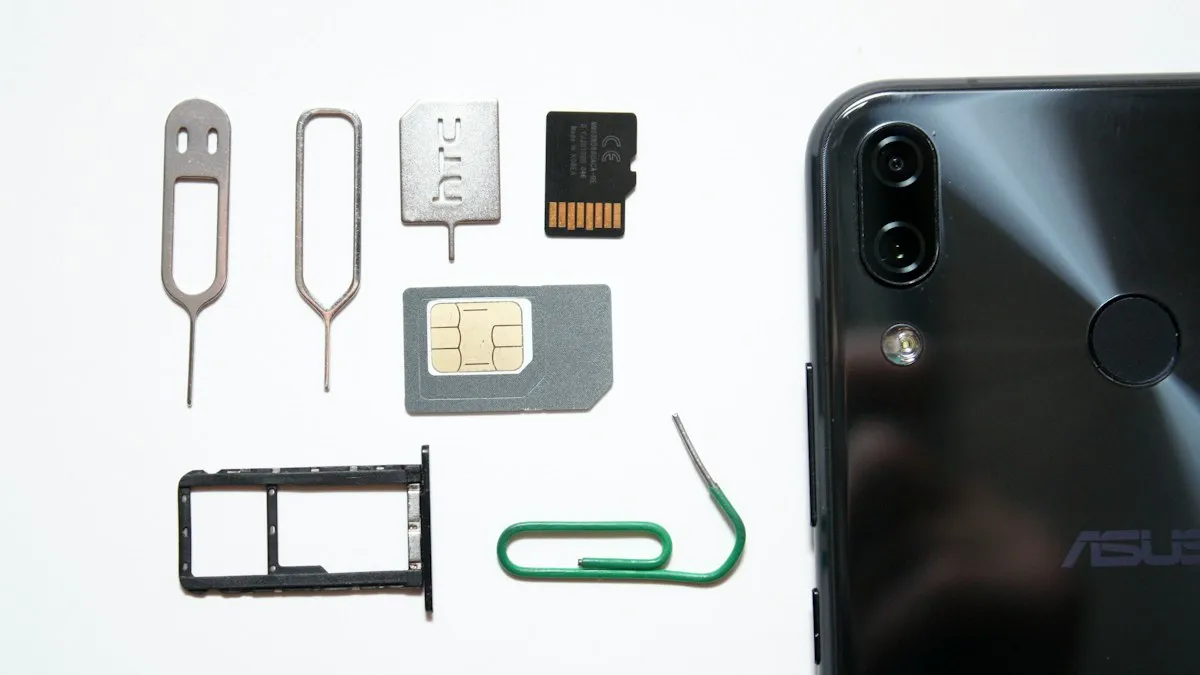
Activate eSIM on iPhone
How to activate eSIM on iPhone with a QR code, manual details or your carrier's app. Steps for Verizon, AT&T and T-Mobile, plus fixes when activation fails.
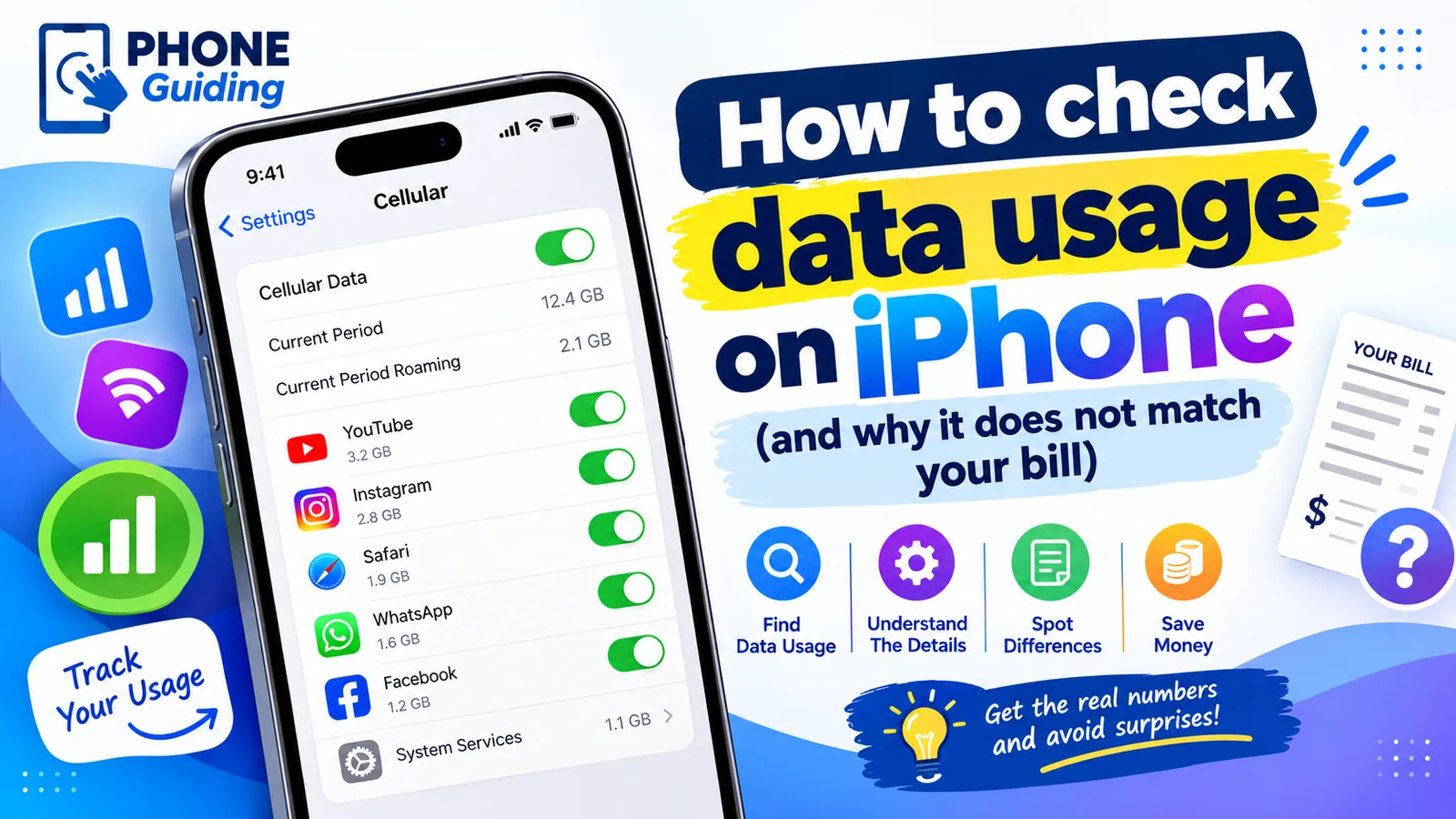
Check data usage on iPhone
Check your cellular data usage on iPhone in Settings › Cellular, see which apps use the most, reset it on your billing date, and cut data use without Wi-Fi.

Phone bill too high
Why is my phone bill so high this month? Check these 9 common causes, from expired promos to device payments and fees, and learn how to fix each one.
More guides you may need
Connect iPhone to TV
Connect your iPhone to a TV wirelessly with AirPlay screen mirroring, or with an HDMI adapter. Works with Apple TV and many Samsung, LG, Roku and Vizio TVs.

Connect Galaxy Buds to iPhone
Connect Galaxy Buds to your iPhone through Bluetooth in under a minute. How to put each model in pairing mode, which features work and the Galaxy Buds app.