

How to change screen lock time on iPhone (Auto-Lock)
The setting is called Auto-Lock. If it is greyed out or stuck at 30 seconds, Low Power Mode is usually the reason.
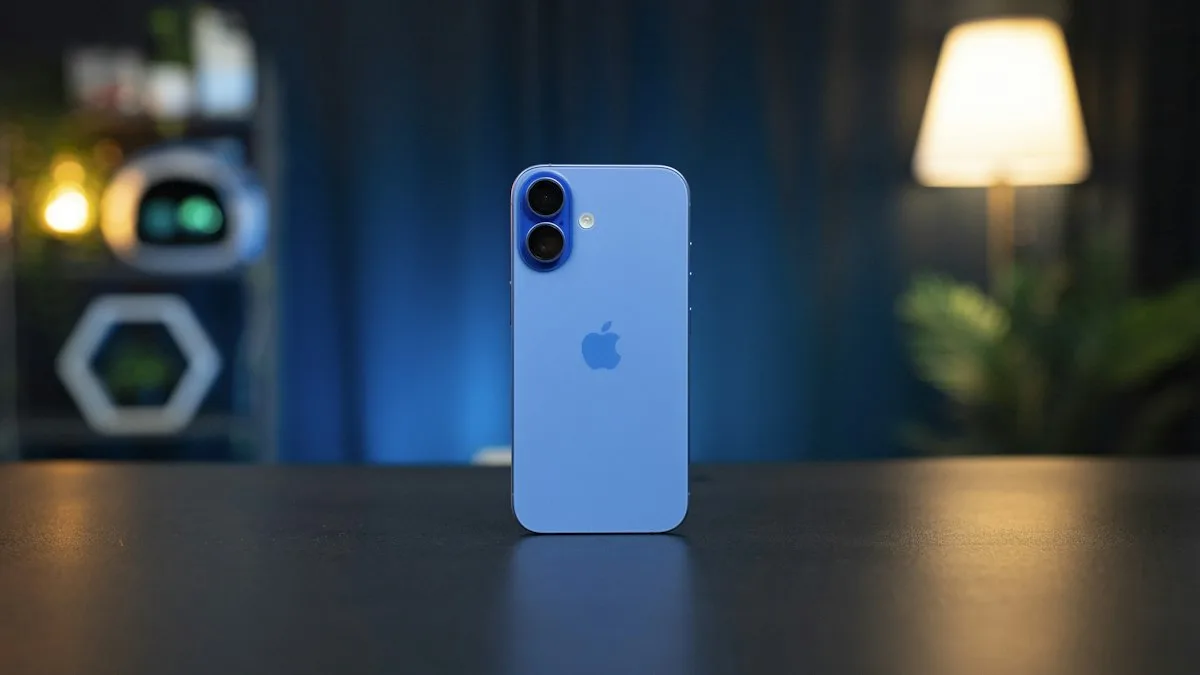
Photo by Amanz on Unsplash
Apple does not call it screen lock time. The setting is named Auto-Lock, and it decides how long your iPhone screen stays on before it turns off and locks. If you searched for the lock time, this is the setting you want. Below are the steps, which time to pick, and what to do when the option will not change.
The fix
Change the screen lock time
- 1
Open Settings and tap Display & Brightness.
- 2
Tap Auto-Lock.
- 3
Choose a time.
Your iPhone offers 30 Seconds, 1 Minute, 2 Minutes, 3 Minutes, 4 Minutes, 5 Minutes and Never.
- 4
Check it worked.
Leave the iPhone untouched. The screen should dim and then lock after the time you chose.
Which Auto-Lock time should you choose?
- 30 Seconds or 1 Minute: best for battery and privacy. The screen turns off quickly when you put the iPhone down.
- 2 to 3 Minutes: a good middle choice if the screen locks before you finish reading a long message or a recipe.
- 4 to 5 Minutes: useful when you follow directions or keep a page open, but the screen is the biggest battery drain on an iPhone.
- Never: the screen stays on until you press the side button. Use it for a short job, then switch it back.
If the screen uses power and your battery drops fast, a shorter time helps. Our guide to an iPhone battery that drains fast covers other causes.
Auto-Lock is greyed out or stuck at 30 seconds
This is the most common problem. Low Power Mode sets Auto-Lock to 30 seconds to save battery, and while it is on you cannot pick a longer time. The setting looks greyed out or goes back to 30 seconds. Fix it like this:
- 1
Open Settings › Battery.
- 2
Turn off Low Power Mode.
The yellow battery icon in the status bar goes away when it is off.
- 3
Go back to Settings › Display & Brightness › Auto-Lock.
The options are available again. Pick your time.
Low Power Mode can switch itself back on when the battery gets low. If your Auto-Lock keeps returning to 30 seconds, check whether Low Power Mode turned on again. See what Low Power Mode does for what else it changes.
Auto-Lock still greyed out with Low Power Mode off?
- A work or school profile can set a maximum Auto-Lock time or lock the setting. Look in Settings › General › VPN & Device Management. If a profile is listed, ask the person who manages it.
- Restart the iPhone and open the setting again. A quick restart clears a stuck settings screen.
- Update iOS in Settings › General › Software Update, in case a bug is stopping the setting from saving.
The screen dims or locks sooner than the time you set
Auto-Lock is not the only thing that dims the display. If the screen darkens early, check these:
- Attention Aware Features. On Face ID iPhones, Settings › Face ID & Passcode has this switch. When it is on, the iPhone can dim the screen before it locks if you are not looking at it.
- Auto-Brightness. It lowers brightness in dim rooms, which can look like the screen is shutting off. See auto brightness that is not working.
- Heat. A very hot iPhone dims its screen to protect itself.
Why the screen stays on when Auto-Lock is set
Some apps keep the screen awake on purpose, such as video players, maps with navigation and some games. The iPhone does not lock while they run. If the screen never turns off and Auto-Lock is not set to Never, close those apps and try again.
Auto-Lock is not the same as Require Passcode
Two settings work together. Auto-Lock turns the screen off. Require Passcode in Settings › Face ID & Passcode sets how soon you must unlock after the screen turns off. With Immediately, you always need Face ID or your passcode. For privacy, keep Auto-Lock short and Require Passcode on Immediately.
Other display settings
Brightness, text size, Always On Display and wallpaper all live near Auto-Lock. Our guide to all iPhone display settings shows where each one is.
Auto-Lock options and what they mean
The choices are 30 Seconds, then 1, 2, 3, 4 and 5 Minutes, and Never, though the list can differ by model and iOS version. A shorter time saves battery and keeps your phone private if you put it down. Never is useful for reading or cooking, but turn it back when you finish, because the screen stays on and uses more battery. If Auto-Lock keeps changing, Low Power Mode or a work profile may be the cause, as explained above.
Attention Aware dimming
On iPhones with Face ID, Attention Aware Features can dim the screen before it locks if you look away. This is separate from Auto-Lock. You can find it under Settings › Face ID & Passcode. If the screen dims sooner than you expect, check that switch first.
Frequently asked questions
Where is screen lock time on iPhone?
Open Settings › Display & Brightness › Auto-Lock. Apple calls the screen lock time Auto-Lock. Pick 30 Seconds, 1 to 5 Minutes, or Never.
Why can’t I change the screen lock time on my iPhone?
Low Power Mode is the usual cause. It locks Auto-Lock at 30 seconds and greys it out. Turn Low Power Mode off in Settings › Battery, then change Auto-Lock. A work or school profile can also restrict it.
What is the longest screen lock time on an iPhone?
5 minutes, or Never. The Never option keeps the screen on until you press the side button, which uses more battery.
Is Auto-Lock the same as the passcode delay?
No. Auto-Lock turns the screen off. Require Passcode, in Settings › Face ID & Passcode, controls how soon after that you must unlock with a passcode or Face ID.
What to try next
People also ask
Where is the Auto-Brightness setting on iPhone?
Open Settings › Accessibility › Display & Text Size and scroll to the bottom. Auto-Brightness is the last switch. It is not in Display & Brightness, which is why many people cannot find it.
Read the full guide: iPhone auto brightness not workingIt says a different Apple Account set the code. What now?
Only that account can reset it. If no one knows it, back up and erase the iPhone, then set it up again.
Read the full guide: Forgot Screen Time passcodeWhy won’t Screen Time turn off?
The phone is managed by a parent through Family Sharing, or a work profile controls it. Only the organizer or IT admin can turn it off.
Read the full guide: Turn off Screen TimeHow do I end Guided Access?
Triple click the side button (or Home button) and enter the Guided Access passcode, then tap End. With Face ID turned on, double click instead.
Read the full guide: Lock iPhone screen from touchRelated guides

iPhone auto brightness not working
iPhone auto brightness not working or the screen keeps changing? Check the Accessibility switch, light sensor, Low Power Mode and heat, then try 3 more fixes.
Forgot Screen Time passcode
Forgot your Screen Time passcode? Reset it in Settings with the Apple Account that set it up, or from a parent’s iPhone for a child. No erase needed.
Turn off Screen Time
Turn off Screen Time on your iPhone in a few taps, reset a forgotten Screen Time passcode with your Apple Account, or turn it off for a child from your phone.
Lock iPhone screen from touch
Lock your iPhone screen from touch while a child watches a video. Turn on Guided Access, triple click the side button, switch Touch off and tap Start.
More guides you may need
Download and install WhatsApp on iPhone
How to download and install WhatsApp on iPhone from the App Store, verify your number and restore chats. Fixes if the code never comes or install fails.
Google Play Store on iPhone
How to download Google Play Store on iPhone? You can't, because it only runs on Android. See why, which tricks to avoid and what to use instead.