

iPhone screen turns on in your pocket? How to stop it waking up
Your iPhone wakes when you raise it, tap it or press the side button. This guide shows which setting wakes it in your pocket, how to turn each one off, and why a waking screen can lock you out.
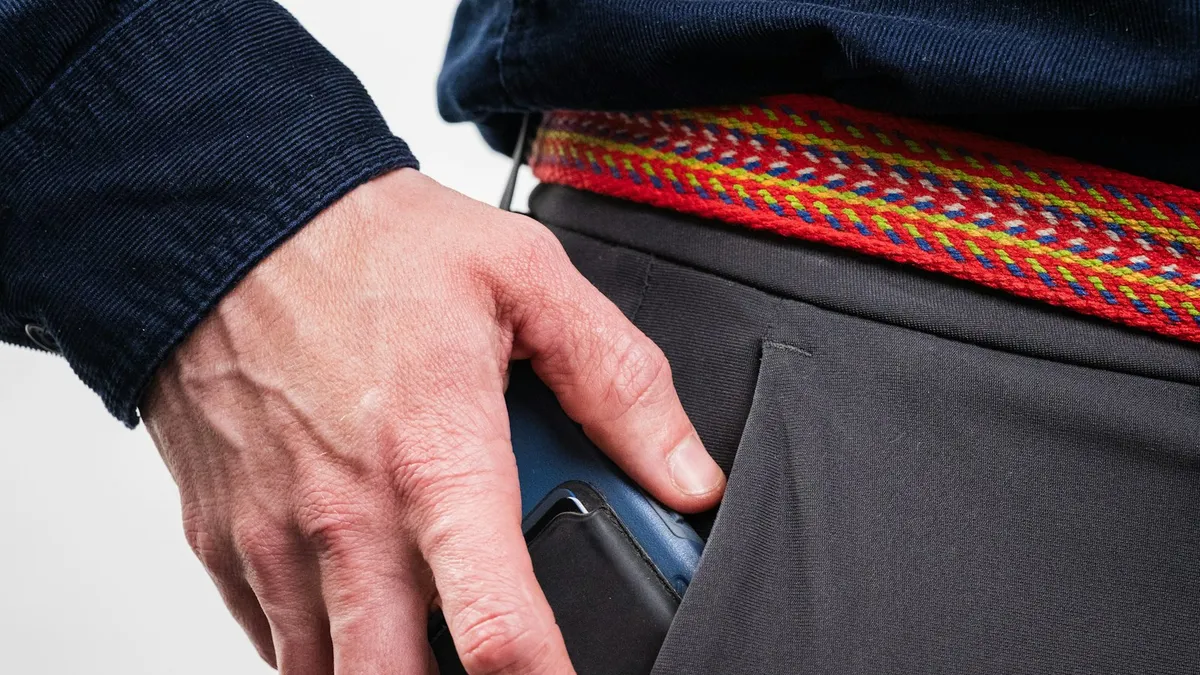
Photo by Jelly Marketing on Unsplash
You pull your phone out and the screen is already lit. Maybe it is warm, the battery is lower than it should be, or it says Unavailable. A screen that wakes in your pocket is annoying, and it can cause real trouble. The cause is usually a setting you can change in a minute.
iPhone screen turns on in pocket: what wakes it?
Apple lists the ways an iPhone wakes up. You press the side button, raise the iPhone, or tap the screen. On an iPhone Duo, opening it also wakes it. Tap to wake is not available on iPhone SE. Each one can happen by accident when the phone is in a pocket.
- Raise to Wake: walking or sitting down moves the phone in a way it reads as a lift.
- Tap to Wake: fabric, keys or your leg touch the glass.
- The side button: a tight pocket or case can press it.
- Notifications: a message can light the screen, and stray touches may keep it on. This one is a common report, not a point Apple's wake page lists.
What is waking your iPhone? A quick table
| What you notice | Likely cause | Try first |
|---|---|---|
| Screen lights when you walk or sit | Raise to Wake | Turn off Raise to Wake |
| Screen lights when fabric touches it | Tap to Wake | Turn off Tap to Wake |
| Screen lights, then stays on | Touches after a notification | Check notification settings |
| Lights only with one case on | Case presses the side button | Try without the case |
| Says Unavailable after your pocket | Wrong passcode tries from touches | Stop the wake-ups, then see the Unavailable guide |
How to turn off Raise to Wake
Apple's guide says to open Settings and tap Display & Brightness to turn off Raise to Wake. This stops the screen lighting when you lift the phone or when it moves in a pocket.
Turn off Raise to Wake
- 1
Open the Settings app.
- 2
Tap Display & Brightness.
- 3
Turn off Raise to Wake.
- 4
Put the phone in your pocket and walk around for a few minutes.
Pull it out and check the screen. If it stayed dark, you found the cause.
The trade-off is simple. After this, you wake the phone with the side button or by tapping the screen. If you also turn off tap to wake, you will use the side button.
How to turn off Tap to Wake
Apple says that on a supported iPhone model you can prevent touches on the screen from waking it. If your Settings does not show the option, your iPhone does not support it. Apple also says tap to wake is not available on iPhone SE.
Turn off Tap to Wake
- 1
Open the Settings app.
- 2
Tap Accessibility.
- 3
Tap Touch.
- 4
Turn off Tap to Wake.
Check the side button and your case
Pressing the side button wakes the phone, so a case that is too tight, a worn case or a pocket seam can do it. Take the case off for a day and see if the problem stops. If it does, try another case or check that the side button cutout is not pressing the button. Also look at the button itself for dirt or a sticky feel.
Check notifications that light the screen
A new notification can light the screen. If you only see the problem after a message arrives, a stray touch may be keeping the display awake. Open Settings, tap Notifications, and look at the apps that send you the most alerts. You can turn off alerts or Lock Screen display for apps that don't need them. A Focus such as Do Not Disturb can also quiet them while you are out. Apple's wake page does not cover this, so treat it as a practical step, not a certain cure.
Why a waking screen can lock you out
This is the part that causes real harm. When the screen is on and the keypad is showing, touches from your pocket can enter digits. Apple says repeated wrong passcode attempts lead to an Unavailable screen, with waits that grow as the wrong tries add up. Apple's security pages describe the wait times, and the exact thresholds can depend on the iOS version.
- Turn off Raise to Wake and Tap to Wake as above.
- Lock the phone with the side button before it goes in your pocket.
- Use Face ID or Touch ID so you rarely need the keypad.
If the phone already says Unavailable, read our guide on what to do when your iPhone says Unavailable. It explains what erasing needs and what you can recover.
Lock the screen faster
Apple says an iPhone locks automatically if you don't touch the screen for a minute or so. If your phone often stays lit longer than you want, shorten the time. Our guide on changing the screen lock time on iPhone shows how. If Attention Aware Features is on, Apple says the iPhone won't dim or lock while it detects attention, which is another thing to know when the phone sits in a pocket face out.
Does a waking screen hurt the battery?
A screen that lights again and again can use extra battery and make the phone feel warm. It is rarely the only cause of a drained battery, though. If your battery drops fast even when the screen stays dark, see our guide on an iPhone battery that drains fast.
Still waking up on its own? Check for a touch problem
If the screen wakes with the phone on a table, the cause may not be your pocket. A cracked screen, moisture or a fault in the touch layer can send false touches. Our page on a touch screen that is not working covers the checks. Some people also see the flashlight come on by itself, and that has its own causes in our guide to an iPhone flashlight that turns on by itself. If a repair came first, such as a new screen, ask the repair shop to check it.
How to find out which trigger it is
Change one thing at a time, or you will not know what worked. This simple test takes a day or two and tells you which trigger is guilty.
A one-trigger-at-a-time test
- 1
Turn off Raise to Wake first, and carry the phone as usual for a few hours.
- 2
If it still wakes, turn off Tap to Wake as well, and carry it again.
- 3
If it still wakes, take the case off and carry it again.
A tight case can press the side button.
- 4
If it still wakes, mute apps that send many alerts.
Open Settings, tap Notifications and turn off alerts for the busiest apps for a day.
- 5
If nothing helps, test it on a table.
A screen that wakes with nothing near it points to a touch or hardware fault, not your pocket.
What about the Always On Display?
Some iPhones keep a dim version of the Lock Screen on when the phone is locked. Apple says the display turns off after locking unless you have turned on the Always On Display. If your screen looks lit but dim, it may be this feature and not a wake-up. Apple adds that the screen still wakes when you raise the phone, tap it or press the side button. You can look at the Always On Display choices under Display & Brightness if your model has it.
Habits that help while you sort it out
- Press the side button to lock the phone before you put it away.
- Carry it in a pocket without keys or coins.
- Put it in the pocket with the screen facing your body, not the fabric.
- Keep Face ID or Touch ID on so a stray tap is less likely to reach the passcode keypad.
None of these is a fix on its own. They simply lower the odds of a touch reaching the screen while you work through the settings above.
Which iPhones does this cover?
Raise to Wake and tapping the screen to wake are part of current iOS. Apple says tapping the screen to wake is not available on iPhone SE, and that Tap to Wake in Accessibility applies to a supported iPhone model. On iPhone Duo, opening the phone also wakes it. Menu names can change in future versions, so use the Settings search bar for "Raise to Wake" or "Tap to Wake" if you cannot find them.
Common mistakes
- Only changing one setting. Raise to Wake, Tap to Wake and the side button are three different triggers.
- Blaming a virus. A waking screen is almost always a setting, a case or a touch fault.
- Ignoring the passcode risk. A pocket can lock a phone.
- Resetting the whole phone first. Try the settings and the case before anything drastic.
When to contact Apple
If the screen still lights up with the phone on a table, or the side button feels stuck, it is time to ask Apple Support or an authorized repair provider. Mention what you tried and any recent drop, repair or water contact. Do not open the phone yourself.
The short version
Turn off Raise to Wake and Tap to Wake, check the case, check notifications, and lock the phone before it goes in your pocket. That fixes most cases and protects you from a passcode lockout.
Frequently asked questions
Why does my iPhone screen turn on in my pocket?
Apple says an iPhone wakes when you press the side button, raise it, or tap the screen. In a pocket, movement, a tap from fabric or a press on the side button can all trigger it.
How do I turn off Raise to Wake?
Open Settings, tap Display & Brightness, and turn off Raise to Wake.
How do I turn off Tap to Wake?
Open Settings, tap Accessibility, tap Touch, and turn off Tap to Wake. Apple says this works on a supported iPhone model, and it is not available on iPhone SE.
Can my iPhone get locked from pocket touches?
Yes, it can. Apple says repeated wrong passcode attempts lead to an Unavailable screen. A waking screen that keeps getting touched can enter wrong digits without you knowing.
What to try next
Sources
Official pages these steps are based on. Menus can differ by software version.
People also ask
Why does my iPhone flashlight turn on by itself?
It is almost always the Flashlight button at the bottom left of the Lock Screen being pressed by accident, often in a pocket or bag. Turning off Tap to Wake or locking the phone before you pocket it usually stops it.
Read the full guide: iPhone flashlight turns on by itselfWhy does my Samsung stay unlocked at home?
Smart Lock is probably set to trust your home or a Bluetooth device. Remove those in Settings › Lock screen › Extend Unlock (Smart Lock on older phones).
Read the full guide: Samsung unlocking in pocketWhy are my iPhone notifications not showing on the Lock Screen?
Usually the Lock Screen option is off for that app, Display As is set to Count, a Focus is hiding alerts, or the alert went to the Scheduled Summary. Check Settings › Notifications and the app's own entry.
Read the full guide: iPhone notifications not showing on lock screenWhy isn't my boarding pass on my iPhone lock screen?
Wallet shows a boarding pass on the lock screen based on your time or location, such as near your departure time. If the Suggest on Lock Screen option is off or not offered for your pass, it won't appear there.
Read the full guide: Boarding pass not on lock screenRelated guides
iPhone flashlight turns on by itself
iPhone flashlight turns on by itself in your pocket or when you wake the screen? Why it happens and 7 ways to stop it, from Tap to Wake to the Action button.
Samsung unlocking in pocket
Samsung phone keeps unlocking or pocket dialing? Turn on Accidental touch protection, turn off Lift to wake and Double tap to wake, and check Extend Unlock.
iPhone notifications not showing on lock screen
iPhone notifications not showing on lock screen? Check the app's Lock Screen switch, Display As, Focus and Scheduled Summary, then try 4 more fixes.
Boarding pass not on lock screen
Boarding pass not showing on iPhone lock screen? Learn when Wallet shows it, how to turn on Suggest on Lock Screen, and how to open your pass right now.
More guides you may need
iPhone keeps asking to transfer phone number
iPhone keeps asking to transfer phone number or it will not finish? Check iOS 18.4, Bluetooth, your Apple Account and your carrier. 7 fixes for a new iPhone.
iPhone keeps asking to trust this computer
iPhone keeps asking to trust this computer every time you plug in? Learn the three real causes and Apple's six-step fix to make the alert stop for good.