

iPhone eSIM Shows "Unknown" for Your Number: Is It a Problem and How to Fix It
Your eSIM works, but Settings says your number is Unknown or blank. In most reports this is a display issue, not a dead line. Here is how to tell the difference.
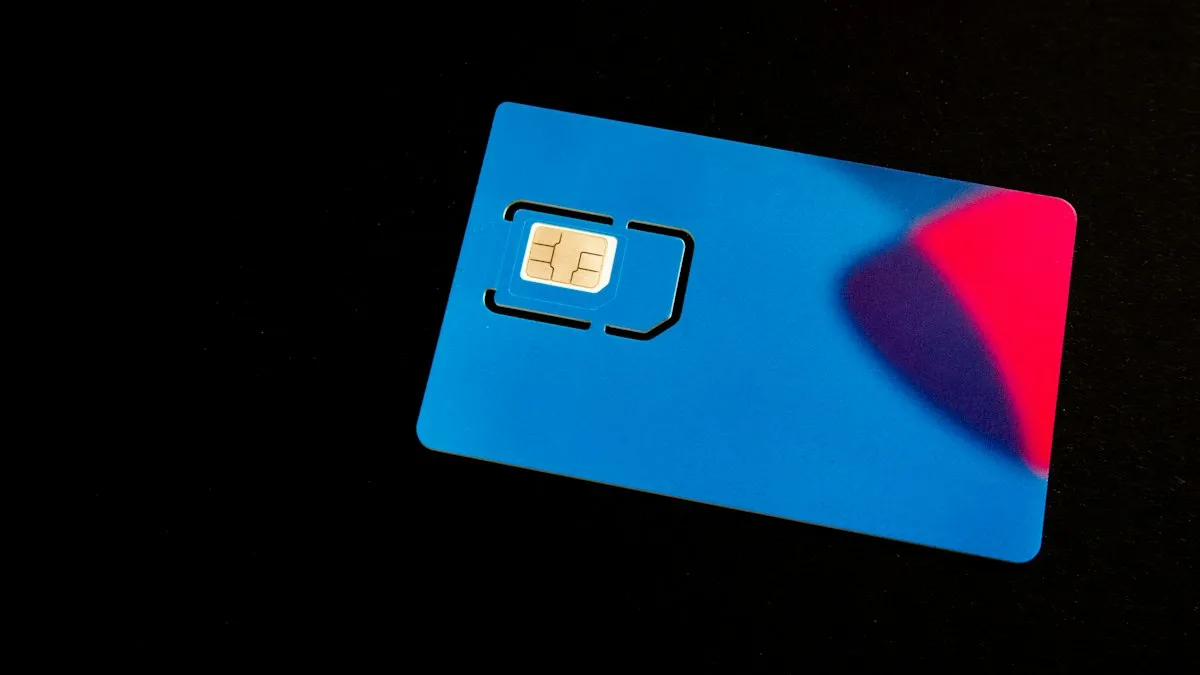
Photo by User_Pascal on Unsplash
You set up an eSIM and everything seems fine. Then you open Settings and the line shows Unknown where your phone number should be. Or the My Number field is empty. It looks as if the eSIM did not take your number.
Apple does not document this display, so there is no official page to quote. Carrier community answers and owner reports agree on the main points, and they are the basis for this guide.
Why does the number show as Unknown?
The phone reads its own number from the SIM. Unlike a normal call setup, many SIMs and eSIMs never store the number at all. A Virgin Media community answer says the number appears as Unknown unless it is programmed into the SIM, and that it can also appear after a number has been ported from another network. Your carrier knows the number from its own records, so calls still route correctly.
That is why users on a carrier forum report an eSIM showing Unknown while everything works perfectly. The label is missing, the line is fine.
Step 1: Check that the line works
Three quick tests
- 1
Call another phone, and have someone call you.
- 2
Send a text to a friend and ask them to reply.
- 3
Turn off Wi-Fi and open a web page to test mobile data.
If all three work, the problem is cosmetic. Skip to Step 3. If any of them fail, go to Step 2 and then call your carrier.
Step 2: Restart and install any carrier update
- Restart the iPhone.
- Turn on Airplane Mode for ten seconds and turn it off.
- Open Settings, General, About. If a carrier settings update is waiting, a prompt appears. Tap Update.
- Check that Settings, Cellular shows your eSIM line as on.
Step 3: Type your number into My Number
Open Settings, Phone and look at My Number. A user on a UK forum suggests editing the field there. Enter your number with the country code, for example +1 and then the ten digits for a US number.
Step 4: Check the line used for iMessage and FaceTime
A missing number can make iMessage or FaceTime pick the wrong line, mostly on phones with two lines. Open Settings, Messages, Send & Receive and make sure your number is ticked under "You can be reached by iMessage at." Do the same in Settings, FaceTime. If your number is not listed, turn iMessage off, wait a few seconds and turn it back on.
If texts to iPhone friends arrive as green messages, our guide to an iPhone that is not receiving calls and the eSIM steps below are the next stops.
Step 5: Rename the line so you can tell it apart
If you have two lines, Apple's Dual SIM page says you can change the plan label. Open Settings, tap Cellular, tap the line, tap Cellular Plan Label and choose a preset or type your own. This does not fix an Unknown number, but it makes it clear which line is which.
Step 6: Ask your carrier
Call your carrier from another phone, or use its app, and ask: "Is the number correctly provisioned on my eSIM?" The same advice appears in the threads when calls or texts fail. Have your account PIN ready. Ask them to check that the line is active and tied to your eSIM, not to an old SIM.
Step 7: Reset network settings, last
Open Settings, General, Transfer or Reset iPhone, Reset, Reset Network Settings. This erases Wi-Fi passwords and Bluetooth pairings. One Three user found it did nothing for an Unknown number on an iPad, so leave it until the end.
Which step fits your situation?
- Calls and texts work: enter your number under My Number and move on.
- Calls fail: restart, install the carrier update and call the carrier.
- Your number was ported recently: expect Unknown until it is fully set up, and ask the carrier.
- iMessage uses the wrong line: fix Send & Receive.
- Nothing helps: ask for a new eSIM activation.
Frequently asked questions
Why does my eSIM say Unknown for the phone number?
Carrier forum answers say the number shows as Unknown when it is not programmed into the SIM, and it can also happen after a number was ported from another network. Calls, texts and data can still work.
Does Unknown mean my eSIM is not working?
Not by itself. Several owners report everything works perfectly while the number shows Unknown. Make a call and send a text to confirm before you worry.
Can I type my number in myself?
On an iPhone you can usually edit it under Settings, Phone, My Number. That changes what the phone displays, not what your carrier has on file. One owner reported the edit would not save, so it may not work for everyone.
Will deleting and re-adding the eSIM fix it?
It might, but it is risky. Many carriers give you a QR code that works once. Contact your carrier before you delete the eSIM, and ask for a new activation if needed.
Does a blank number affect iMessage and FaceTime?
It can. The phone uses the line registered for iMessage and FaceTime. Check Settings, Messages, Send & Receive and make sure your number is ticked there.
What to try next
People also ask
Where is my phone number on an iPhone?
Open Settings › Phone and look for My Number at the top. You can also check Settings › General › About, or the Contacts app under your own card.
Read the full guide: Find your phone numberWhy does my new iPhone keep asking to transfer my phone number?
The number has not finished moving to the new iPhone. The usual reasons are an old iPhone that is locked or out of range, software older than iOS 18.4, or a carrier that does not support eSIM Quick Transfer.
Read the full guide: iPhone keeps asking to transfer phone numberHow do I change Apple Maps from kilometers to miles?
Go to Settings › General › Language & Region › Measurement System and choose US. Apple Maps has no separate distance setting on iOS 16 and later.
Read the full guide: iPhone region settingsIs 74% battery health OK on an iPhone?
It works, but it is worn. Apple considers a battery below 80% of its original capacity worn out. At 70% to 79% you will notice shorter days and may see sudden shutdowns in the cold or at low charge. A replacement fixes it.
Read the full guide: Check iPhone battery healthRelated guides
Find your phone number
How to find your phone number on iPhone and Android in seconds. Check Settings, Contacts, your carrier app or a quick call, and fix a number that shows Unknown.
iPhone keeps asking to transfer phone number
iPhone keeps asking to transfer phone number or it will not finish? Check iOS 18.4, Bluetooth, your Apple Account and your carrier. 7 fixes for a new iPhone.
iPhone region settings
Change iPhone region settings in one guide: App Store country, phone number, in-app purchases, Maps voice, miles or kilometers and which apps see your location.
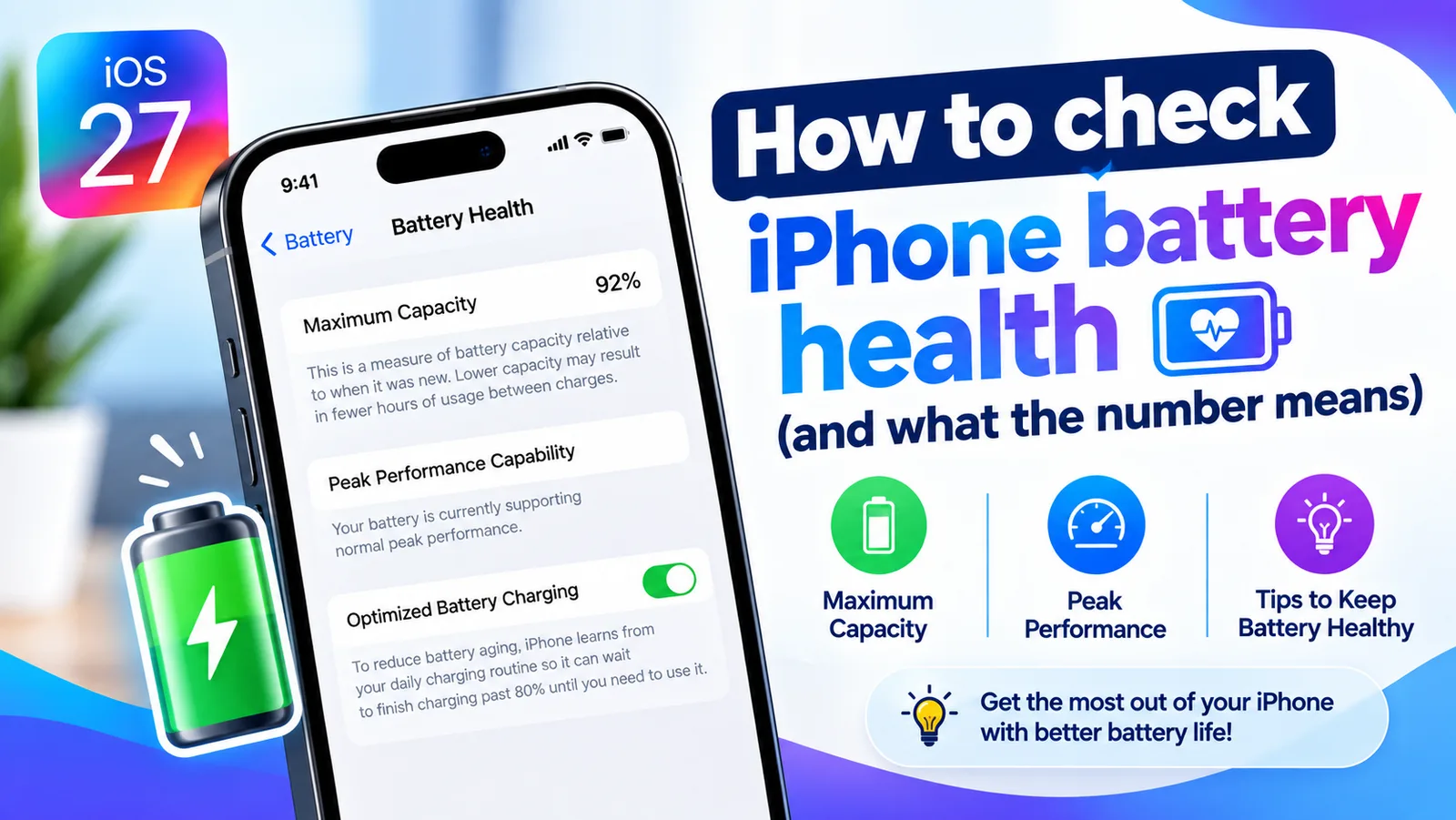
Check iPhone battery health
Find your iPhone's Maximum Capacity in Settings, understand what the percentage tells you, and learn when a battery replacement is actually worth it.
More guides you may need
Face ID move iPhone lower
Face ID keeps saying move iPhone lower or higher? Clean the camera area, remove the screen protector, restart and reset Face ID, then know when it is hardware.

FaceTime sensitive content warning
FaceTime paused your call with a sensitive content warning? Learn what triggers it, how it works on your iPhone, and where to turn it off in Settings.