

Android notifications not showing? 8 fixes for Samsung and Pixel
When Android stops showing alerts, the cause is usually a notification setting, Do Not Disturb or a battery limit that puts the app to sleep. Here is the order to check them.
Photo by Andrey Matveev on Unsplash
You open the app and there are five new messages. Nothing buzzed, nothing lit up the screen, and nothing sat on the lock screen. Or the alerts show up an hour late. It feels like the phone is broken, but it almost never is.
Android has several layers that can hide an alert: the app's own switch, the lock screen setting, Do Not Disturb, and the battery system that puts apps to sleep. Samsung and Pixel phones name these a little differently. The steps below go from the quickest check to the one that fixes most delayed alerts.
Why are Android notifications not showing?
- The app is blocked. Notifications are off for that app, or for one category inside it.
- The lock screen hides them. The setting is on Don't show notifications, or silent ones are hidden.
- Do Not Disturb is on. It can run on a schedule you forgot about.
- Battery limits. The phone puts the app to sleep, so alerts arrive late or only when you open it.
- The app is signed out or out of date. No login, no alerts.
- A software bug. Often after an update, and a restart or update clears it.
Fix 1: Turn notifications on for the app
Start here. On Android 13 and newer, apps have to ask for permission to send notifications. If you tapped Don't allow once, the app stays quiet until you change it.
- 1
Open Settings › Apps and tap the app that is not alerting you.
On a Pixel you may need to tap See all apps first.
- 2
Tap Notifications.
On some Samsung phones the path is Settings › Notifications › App notifications.
- 3
Make sure the main switch is on.
- 4
Look at the categories under it.
Many apps split alerts into groups, such as messages, promotions and reminders. A single category can be off or set to Silent.
- 5
Send yourself a test alert.
Ask someone to message you, or trigger a reminder in the app.
You can also touch and hold an alert when it arrives and tap the settings icon. Android takes you straight to that app's controls.
Fix 2: Check the lock screen setting
If alerts reach the notification shade but not the lock screen, this is the one. Google lists the lock screen choices as don't show any notifications, show all notifications, hide silent notifications, and hide sensitive content. A setting on the first one explains a lot of missing alerts.
- Pixel: Settings › Notifications › Notifications on lock screen. Pick the option that shows conversations, default and silent notifications.
- Samsung: Settings › Notifications › Lock screen notifications. Turn it on, then choose whether to show content or hide it.
- Samsung, one more place: Settings › Lock screen, because some One UI versions tuck the option there.
Hiding sensitive content is a privacy feature. When it is on, you see a line like Sensitive content hidden, which is not the same as no alert. Unlock the phone to read the message.
Fix 3: Turn off Do Not Disturb
Swipe down from the top of the screen and look at the Quick Settings tiles. If Do Not Disturb is lit, tap it to turn it off. Then open its settings and check for schedules. A bedtime or work schedule that runs every day can silence alerts at times you do not expect.
- Look for a Sleep, Driving or Work mode as well. Samsung calls these Modes and Routines, and they can switch on Do Not Disturb by themselves.
- If you want quiet hours but still want some apps, add them to the exceptions list instead of turning everything off.
- Check that your phone is not set to Priority only or Alarms only.
Fix 4: Stop the battery system from putting the app to sleep
This is the fix for alerts that come late, or only when you open the app. To save power, Android limits what apps can do in the background. An app that is asleep cannot check for new messages, so the alert waits until you wake it. Samsung is known for being strict here.
On a Pixel: open Settings › Apps, tap the app, then App battery usage. Choose Unrestricted if you need instant alerts. Optimized is the default and works for most apps, but a few messaging apps are held back by it.
On a Samsung phone: open Settings › Battery, then Background usage limits. Look at Sleeping apps and Deep sleeping apps and remove the app from both lists. Then add it to Never auto sleeping apps. Also turn off Put unused apps to sleep if you rely on apps you open rarely. The menu names change a little between One UI versions, so search Settings for sleeping apps if you do not see them.
Fix 5: Check Wi-Fi, mobile data and Data Saver
Alerts are delivered over the internet. If the phone has no connection, nothing arrives. Turn Wi-Fi off and on, and check that mobile data is on. Then look for data limits that can block background activity.
- Turn off Data Saver, or add the app to the list of apps that can use unrestricted data. On Android it is under Settings › Network & internet › Data Saver, and on Samsung under Settings › Connections › Data usage › Data saver.
- On the app's own data screen, make sure Background data is allowed.
- If you use a VPN, switch it off for a minute and test again.
Fix 6: Check the app itself
If one app is silent and the others are fine, look inside the app. Open its settings and find Notifications or Alerts. Many apps have their own switch, and some turn alerts off when you sign out, change a password or use the app on a second device.
- 1
Open the app and sign out, then sign in again.
- 2
Check its notification settings inside the app.
- 3
Update it in the Play Store.
Open Play Store, tap your profile picture, then Manage apps & device.
- 4
If it still fails, clear its cache.
Clearing the app cache on Android does not delete your account or messages.
WhatsApp has its own long list of causes. If that is the app that is quiet, see WhatsApp notifications that do not work.
Fix 7: Restart and update the phone
Hold the power button and tap Restart. This clears a stuck notification service, which is a common reason for alerts to stop after an update. Then look for software updates. On a Pixel, open Settings › System › System update. On a Samsung phone, open Settings › Software update › Download and install.
If the trouble began right after an update, installing the next one is often the fix. Our guide to updating your Android phone shows the steps for each brand.
Fix 8: Reset app preferences
If you have tried everything and many apps are affected, reset app preferences. This puts the app settings back to their defaults. It does not delete your apps, photos or accounts.
- 1
Open Settings › System › Reset options on a Pixel, or Settings › General management › Reset on a Samsung phone.
- 2
Tap Reset app preferences (Samsung: Reset settings, then choose the app option if it is offered).
- 3
Confirm.
Afterward, open your key apps and allow notifications again.
Is it a setting or a fault? How to tell
- Quiet for one app only: app notification settings, then battery limits.
- Quiet for everything: Do Not Disturb, the lock screen setting, then a restart.
- Show up late, in bursts: battery limits, Data Saver or a weak connection.
- Show in the shade but not on the lock screen: the lock screen setting.
- Show with no sound: the app's category is set to Silent, or the phone is in a silent mode.
- Still nothing after a reset: test in safe mode, then consider a factory reset.
Test in safe mode
Another app, such as a battery saver, a cleaner or a screen filter, can block alerts. Safe mode turns off the apps you installed. If alerts come back there, one of those apps is the cause. Our guide to Android safe mode shows how to start it. Then remove the apps you added most recently, one at a time.
How to keep alerts working
- Allow notifications when an app asks the first time.
- Set only the apps that must be instant to Unrestricted battery use.
- Review your Do Not Disturb schedules now and then.
- Avoid task killers and cleaner apps. They stop apps from running and delay alerts.
- Keep the phone and your apps updated.
- If the battery runs out fast after these changes, see fast battery drain on Android.
Frequently asked questions
Why are my Android notifications not showing on the lock screen?
The lock screen setting may be set to hide notifications, or Hide silent notifications may be on. On a Pixel, check Settings › Notifications › Notifications on lock screen. On a Samsung phone, check Settings › Notifications › Lock screen notifications.
Why do my notifications only show up when I open the app?
That is almost always a battery limit. The phone puts the app to sleep, so it cannot fetch alerts in the background. Set the app to unrestricted or remove it from the sleeping apps list.
Does Do Not Disturb stop all notifications?
It silences most of them. Calls, messages and apps you allow can still come through, and alarms are separate. Check the exceptions list if one app is quiet and the others are not.
Will resetting app preferences delete my data?
No. It resets defaults such as disabled apps, notification restrictions, background data limits and permissions. It does not delete your apps or files, but you will need to allow notifications again where needed.
What to try next
People also ask
Why is the Android 17 update not showing on my Pixel?
The rollout is staged, so it reaches phones in waves. Check for it by hand in Settings, System, System updates, System update, Check for update, and confirm your Pixel is on the supported list.
Read the full guide: Android 17 update not showingWhy does my battery drain after an update?
The phone optimizes apps and indexes files for a day or two after a big update. If drain continues after that, check Battery usage for a misbehaving app.
Read the full guide: Android battery draining fastWhy do I only get WhatsApp messages when I open the app?
Your phone is stopping WhatsApp from running in the background, usually to save battery. On Android, set WhatsApp's battery usage to Unrestricted. On iPhone, turn on Background App Refresh for WhatsApp.
Read the full guide: WhatsApp notifications not workingWhy are my iPhone notifications not showing on the Lock Screen?
Usually the Lock Screen option is off for that app, Display As is set to Count, a Focus is hiding alerts, or the alert went to the Scheduled Summary. Check Settings › Notifications and the app's own entry.
Read the full guide: iPhone notifications not showing on lock screenRelated guides
Android 17 update not showing
Android 17 update not showing on your Pixel or Samsung? See 8 reasons, from staged rollouts to beta enrollment, and how to check for the update the right way.
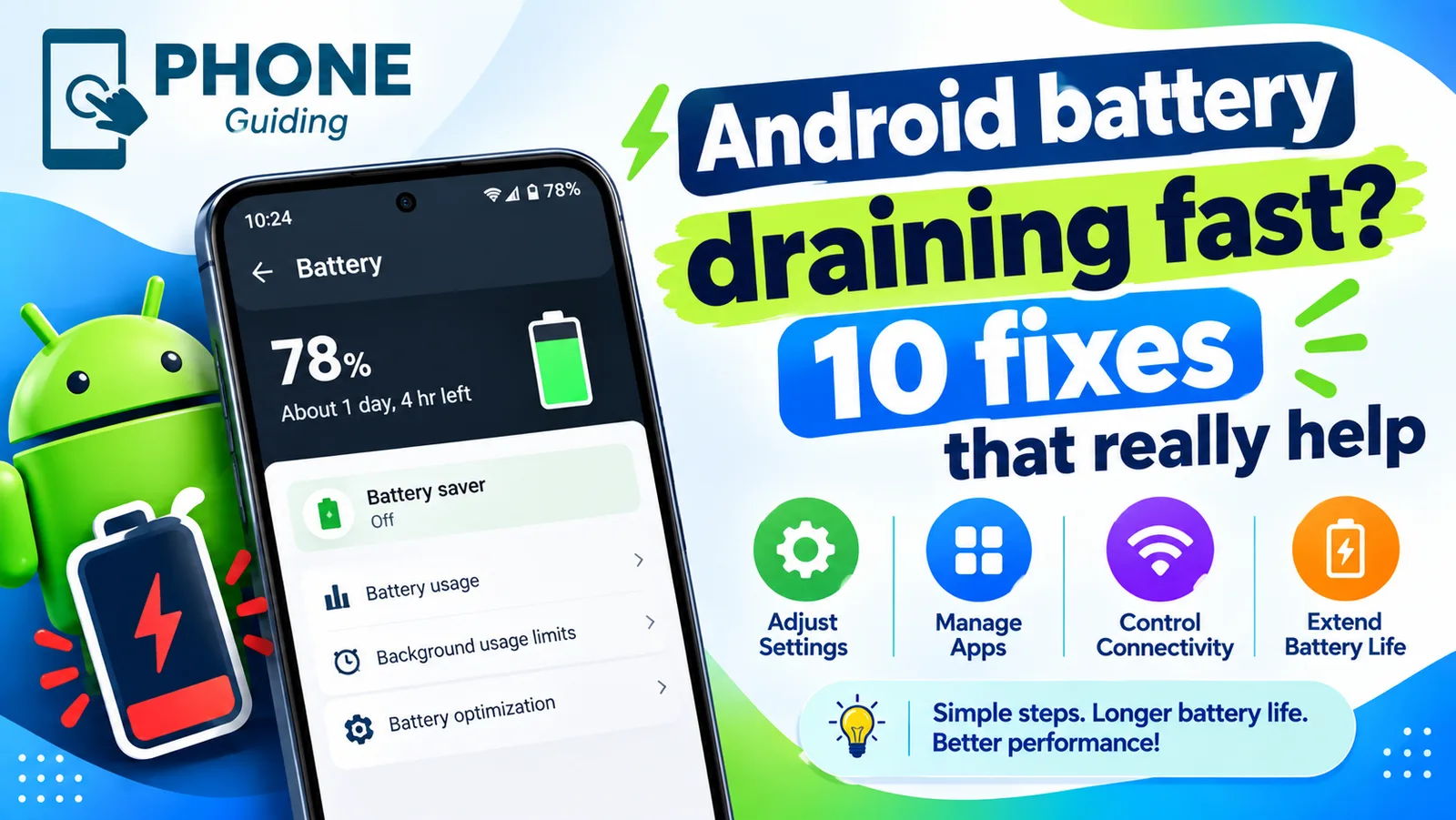
Android battery draining fast
Android battery draining fast? Find the app to blame in Battery usage, limit background apps, fix weak signal drain, lower the refresh rate and more.
WhatsApp notifications not working
Not getting WhatsApp notifications until you open the app? Fix the settings in WhatsApp and on your phone that block alerts, on both Android and iPhone.
iPhone notifications not showing on lock screen
iPhone notifications not showing on lock screen? Check the app's Lock Screen switch, Display As, Focus and Scheduled Summary, then try 4 more fixes.
More guides you may need
Scam Detection on Pixel
Scam Detection on Pixel warns you about scam calls, texts and chat notifications. See the phones and countries listed, how to turn each part on, and limits.

Record a call on Android
Learn how to record a call on Android with the Phone app on Pixel, Samsung and other phones, where recordings are saved, and the consent laws to know first.