

How to add a Home button to the iPhone screen with AssistiveTouch
An iPhone can show a floating Home button on the screen. Turn on AssistiveTouch in Accessibility, tap the button, and choose Home. It works on every iPhone, with or without a physical Home button.
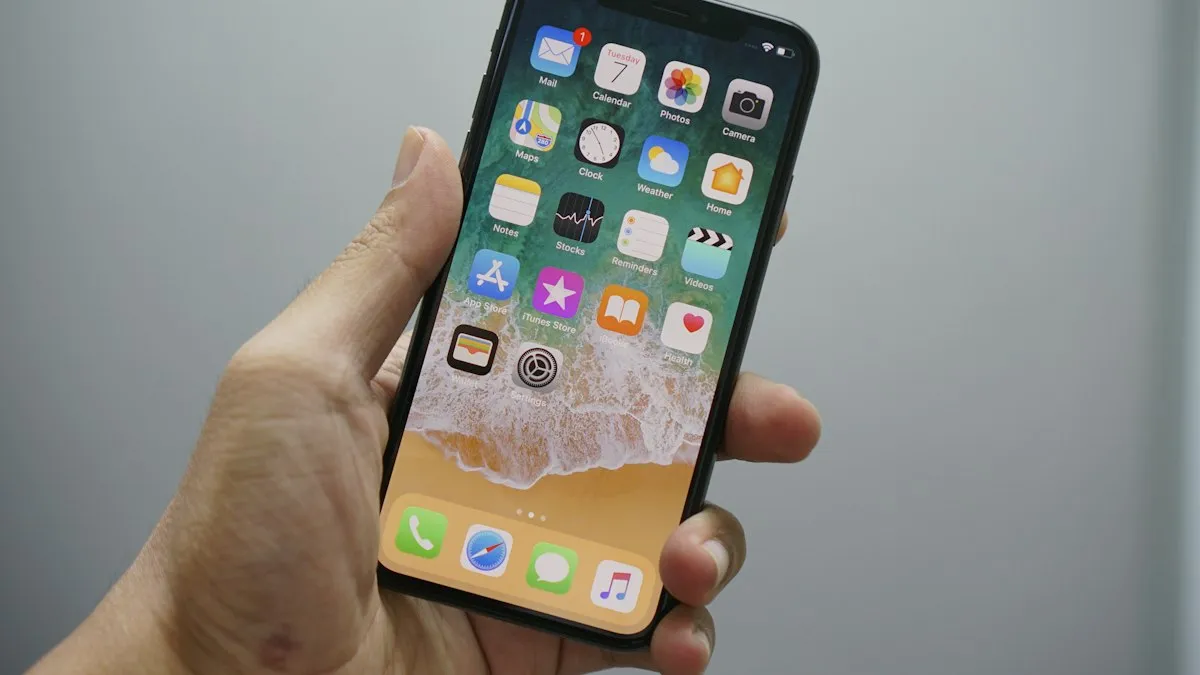
Photo by Bagus Hernawan on Unsplash
Maybe your Home button is worn out, maybe you have a newer iPhone without one and miss it, or maybe you just want a bigger target to tap. Either way, iPhone has a built-in floating button that does what the Home button does. It is part of AssistiveTouch, an accessibility feature, and it takes about a minute to set up. Menu names can differ a little by iOS version, and older versions list the path under General › Accessibility.
How do you add a Home button to the iPhone screen?
Turn on the on-screen Home button
- 1
Open Settings and tap Accessibility.
If you do not see it near the top, use the search box in Settings and type AssistiveTouch.
- 2
Tap Touch, then tap AssistiveTouch.
On older versions of iOS, go to General › Accessibility › AssistiveTouch.
- 3
Switch AssistiveTouch on.
A small gray button with a white circle appears on the screen.
- 4
Tap the floating button, then tap Home.
You go back to the Home Screen, exactly like pressing the Home button.
What does the on-screen Home button do?
Tapping the floating button opens a small menu with a few large icons. The Home icon is the one you want. Tap it once to leave an app and go to the Home Screen. Out of the box, the menu also has Notification Center, Control Center, Device and Siri. You can change what appears there, and you can also set what a single tap, a double tap and a long press do when you tap the floating button itself.
How do you set a double tap to open recent apps?
Customize the button
- 1
Go to Settings › Accessibility › Touch › AssistiveTouch.
- 2
Scroll to Custom Actions.
You see Single-Tap, Double-Tap and Long Press.
- 3
Tap Double-Tap and choose App Switcher.
The App Switcher shows your open apps, like double-pressing a real Home button.
- 4
Tap Single-Tap and choose Home if you want one tap to go home.
If you leave Single-Tap on Open Menu, you tap twice: once for the menu and once for Home.
That change makes the floating button feel like a real Home button: one tap goes home and two taps show your recent apps. Keep Open Menu on a long press so the full menu is still there when you need it.
Can you move the button or make it less visible?
Yes. Drag the floating button to any edge of the screen, and it stays where you leave it. It sits above apps, so move it away from keyboards, game controls and menus that you use often. When you are not using it, the button fades. To change how much it fades, go to Settings › Accessibility › Touch › AssistiveTouch and adjust Idle Opacity. A lower setting makes it less distracting, and a higher setting makes it easier to see.
Is there a faster way to turn it on and off?
Yes. You can add AssistiveTouch to the Accessibility Shortcut so a triple click of the Side button turns it on or off. Open Settings › Accessibility, scroll to the bottom and tap Accessibility Shortcut, then choose AssistiveTouch. If you pick more than one feature, a triple click asks which one you want. This is handy if you only want the on-screen button some of the time.
Will the on-screen button help if my physical Home button is broken?
It can. A broken or sticky Home button is one of the most common reasons people turn this on. The floating button gives you a way back to the Home Screen and the app switcher while you wait for a repair. It does not fix Touch ID. If the fingerprint sensor is part of the broken button, you will need your passcode to unlock the phone. Compare repair prices before you decide, using our guides to iPhone screen replacement cost and whether a new battery is worth it, and check how to check phone warranty first.
Why can't I see the button, or why did it disappear?
- It is switched off: open Settings › Accessibility › Touch › AssistiveTouch and make sure the switch is on.
- It is hidden behind something: drag it away from the edge, or turn off Auto-Hide in the AssistiveTouch settings if you see that option.
- The screen is rotated: the button can jump when you turn the phone. Drag it back to where you want it.
- A restart is needed: restart the iPhone if the button freezes. See an iPhone touch screen that is not working if taps are not registering at all.
Does the Home button use battery or slow the phone?
No noticeable amount. AssistiveTouch is a light feature, and it does not run heavy tasks in the background. If your iPhone feels slow, the cause is almost always something else, such as storage or an old battery.
What else can AssistiveTouch do?
The same menu can lock the screen, change the volume, take a screenshot, restart the iPhone and open Control Center. These are useful if a side button or a volume button is broken. You can also add your own shortcuts, such as a custom gesture, by editing the Top Level Menu in the AssistiveTouch settings. Our guide to locking the iPhone screen with Guided Access covers a different tool for stopping accidental touches.
Quick checklist
Can you add other buttons to the AssistiveTouch menu?
Yes. In Settings › Accessibility › Touch › AssistiveTouch, tap Customize Top Level Menu. You can change how many icons the menu shows, and tap any icon to swap it for another action such as Screenshot, Lock Screen, Restart, Volume Up, Volume Down or Siri. People with a broken side or volume button often put those actions in the menu so they can still use the phone normally.
Does AssistiveTouch work on an iPad or with a case?
Yes to both. The path is the same on an iPad, and the floating button works with any case because it is only drawn on the screen. A thick case does not affect it. A screen protector with a very rough surface can make taps less responsive, but it does not change how the feature works.
What if AssistiveTouch will not turn on or is greyed out?
Restart the iPhone first, then try again. If the switch is still greyed out, check that Guided Access or a Screen Time restriction is not limiting accessibility features, and make sure iOS is up to date under Settings › General › Software Update. As a last step, Settings › General › Transfer or Reset iPhone › Reset › Reset All Settings clears odd settings without deleting your data. See how to update your iPhone if the update will not install.
Should you use the on-screen button or learn the gestures?
On an iPhone with Face ID, swiping up from the bottom is faster than tapping a button, and most people get used to it in a day or two. The floating button is best when a physical button is broken, when swiping is hard because of a hand or finger condition, or when you want a larger target to tap. You can use both. Many people switch the button on for a few weeks while they get used to gestures and then turn it off.
How do you avoid tapping the button by mistake?
Put it on the edge where your thumb does not rest, lower the Idle Opacity so it blends in, and set Single-Tap to Open Menu rather than Home if accidental taps send you out of apps. You can also keep AssistiveTouch off most of the time and use the Side button triple click to turn it on only when you need it.
- AssistiveTouch is on under Settings › Accessibility › Touch.
- Single-Tap is set to Home and Double-Tap to App Switcher if you want real Home button behavior.
- The button sits at an edge where it does not block anything.
- Idle Opacity is set to a level you like.
- The Accessibility Shortcut is set to AssistiveTouch if you want a quick on or off switch.
Frequently asked questions
Can I add a Home button to an iPhone without a Home button?
Yes. AssistiveTouch works on every iPhone, including models with Face ID, and gives you an on-screen Home button.
Does the on-screen Home button work if my real Home button is broken?
Yes. It does the same job as pressing Home, so it is a good workaround until you get a repair. It cannot replace Touch ID if your fingerprint sensor is broken.
How do I make the on-screen Home button less see-through or smaller?
Open Settings › Accessibility › Touch › AssistiveTouch and change Idle Opacity. The button fades when you are not using it, and you can drag it to a spot that does not block anything.
How do I remove the Home button from the iPhone screen?
Go back to Settings › Accessibility › Touch › AssistiveTouch and turn the switch off. The floating button disappears right away.
What to try next
People also ask
Why is my iPhone screen black and white?
Color Filters is probably set to Grayscale. Go to Settings › Accessibility › Display & Text Size › Color Filters and turn it off, or check the Accessibility Shortcut that may have switched it on.
Read the full guide: Change color on iPhoneHow do I end Guided Access?
Triple click the side button (or Home button) and enter the Guided Access passcode, then tap End. With Face ID turned on, double click instead.
Read the full guide: Lock iPhone screen from touchWhy does my iPhone screen turn on in my pocket?
Apple says an iPhone wakes when you press the side button, raise it, or tap the screen. In a pocket, movement, a tap from fabric or a press on the side button can all trigger it.
Read the full guide: iPhone turns on in pocketWhy does my Samsung open Bixby when I hold the power button?
Samsung sets the side key to wake Bixby by default. Change it in Settings › Advanced features › Side button › Press and hold, and choose Power off menu.
Read the full guide: Turn off a Samsung phoneRelated guides

Change color on iPhone
How to change color on iPhone: use Color Filters, Night Shift, Dark Mode, tinted icons and Lock Screen colors. Also fix a black and white or yellow screen.
Lock iPhone screen from touch
Lock your iPhone screen from touch while a child watches a video. Turn on Guided Access, triple click the side button, switch Touch off and tap Start.
iPhone turns on in pocket
iPhone screen turns on in pocket? Turn off Raise to Wake and Tap to Wake, check your case and notifications, and avoid a passcode lockout. Steps from Apple.
Turn off a Samsung phone
Holding the side button on your Samsung opens Bixby instead of turning it off? Here are 4 ways to power off a Galaxy, and how to make the button work normally.
More guides you may need
Recover deleted texts on Android
Recover deleted texts on Android from the Trash in Google Messages or Samsung Messages, the Archived and Spam folders, or a Google or Samsung Cloud backup.
Schedule a text on iPhone
Schedule a text on iPhone with Send Later in Messages, up to 14 days ahead. Plus how to edit or cancel it, and a Shortcuts trick for regular SMS texts.