

How to set up two factor authentication on your phone and key accounts
A password alone is not enough anymore. Add a second step in ten minutes, and keep backup codes so you never get locked out.
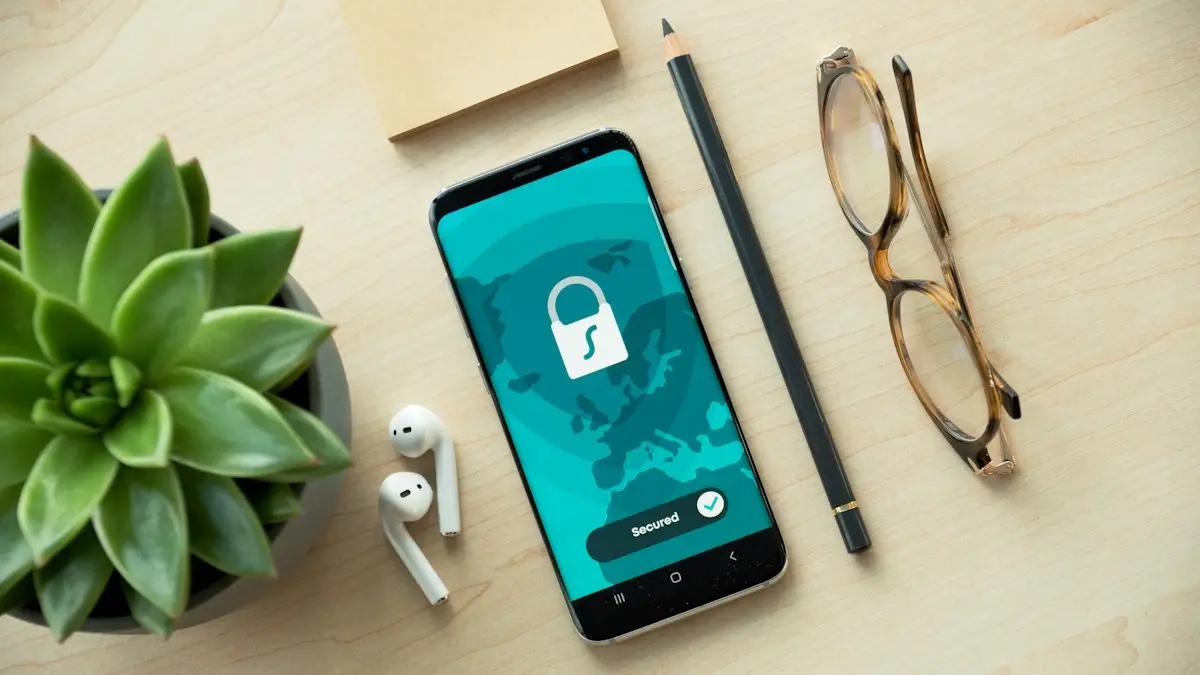
Photo by Dan Nelson on Unsplash
Most account break-ins start with a stolen or reused password. Two-factor authentication, often shortened to 2FA, adds a second check after the password, such as a code from an app or a tap on a trusted phone. Even if a criminal has your password, they cannot get in without the second step. It takes a few minutes per account, and it is one of the most effective security steps you can take. Below are the three types, the setup for Apple and Google and the habits that keep you from locking yourself out.
Which kind of second step should you pick?
From strongest to weakest
Passkeys and security keys
A passkey replaces the password with a cryptographic key stored on your phone or in your password manager, and you approve it with Face ID, a fingerprint or a PIN. A hardware security key is a small USB or NFC device you tap. Both resist phishing, because they only work on the real website.
Authenticator apps
An app shows a six-digit code that changes every 30 seconds. The code lives on your device, so moving your phone number does not move your codes. It is the best choice when a site does not offer passkeys.
Device prompts
Apple and Google can show a prompt on a trusted phone asking you to approve a sign-in. It is quick and fairly strong, but you must read the prompt, because attackers sometimes trigger fake requests.
Text message codes
A code sent by SMS is better than nothing, but it can be stolen through a SIM swap or a phishing page. Use it as a backup, not as your only second step.
How to set up two-factor authentication on your Apple Account
Most Apple Accounts created in recent years already have two-factor authentication on. It works by showing a six-digit code on your other trusted Apple devices whenever you sign in somewhere new, or by sending the code to a trusted phone number.
- 1
Open Settings › [your name] › Sign-In & Security.
If you see Two-Factor Authentication marked On, it is already active.
- 2
Tap Two-Factor Authentication, then Turn On if it is off.
Follow the prompts and confirm a trusted phone number that can receive texts or calls.
- 3
Add a second trusted phone number.
Use a family member's number or a landline you can reach, in case you lose your phone.
- 4
Set up a Recovery Key or a Recovery Contact if you want extra protection.
A Recovery Key is a long code you store safely, and it replaces Apple's standard recovery process. Keep it offline, because losing both the key and your devices means you cannot get back in.
- 5
Review the list of trusted devices.
Scroll down in Sign-In & Security and remove any device you no longer own.
If you cannot sign in or the account is locked, see how to reset an Apple Account password and what to do when an Apple Account is locked.
How to set up 2-Step Verification on your Google Account
- 1
Go to myaccount.google.com and open Security.
On Android you can also open Settings › Google › Manage your Google Account › Security.
- 2
Under How you sign in to Google, tap 2-Step Verification.
Sign in again if Google asks you to confirm it is you.
- 3
Turn it on and pick your methods.
Google prompts on your phone are the default. Add an authenticator app and, if you have one, a security key. Add a phone number as a backup.
- 4
Create passkeys for your Google Account if offered.
A passkey lets you sign in with your fingerprint, face or screen lock, and it is the strongest option.
- 5
Generate and save backup codes.
Choose Backup codes in the same menu. Print them or store them in a password manager. Each works once.
How to set up an authenticator app for any account
- 1
Install an authenticator app.
Choose one from a trusted company, such as Google, Microsoft or a well-reviewed independent app. Some password managers also include one. Pick an app that can back up or sync, so a lost phone is not a disaster.
- 2
Open the account's security settings and choose an authenticator app.
Look for Two-factor authentication, Two-step verification or Multi-factor authentication. The site shows a QR code.
- 3
Scan the QR code with the app.
The app adds the account and starts showing a six-digit code.
- 4
Enter the current code on the site to confirm.
The code changes every 30 seconds, so type it quickly.
- 5
Save the backup codes the site gives you.
Store them somewhere other than the phone that holds the app.
Which accounts come first?
- Your main email. It can reset the password on nearly everything else.
- Apple Account and Google Account. They hold your backups, photos and device controls.
- Banking, credit card and payment apps. These hold money and personal data.
- Your password manager. It holds all your other logins.
- Phone carrier account. A carrier takeover leads to SIM swap attacks, so add a PIN and number lock.
- Social media and shopping accounts. They are common targets for scams and stored cards.
Backup codes and what to do when you change phones
The biggest problem with two-factor authentication is losing access to the second factor. Before you retire a phone, make sure the codes work on the new one. Some authenticator apps sync across devices, and others need you to move each account by hand using a transfer option. Do not wipe or sell the old phone until every important account has been checked on the new one. Keep your backup codes in a password manager or printed in a safe place, and keep them away from your phone.
- 1
Install the authenticator app on the new phone and sign in or transfer accounts.
- 2
Log in to each important account and confirm the new codes work.
- 3
Update your phone number on each account if it has changed.
- 4
Remove the old phone from trusted devices and sessions.
Locked out? Here is how to get back in
- Use a backup code if you saved one.
- Try another trusted device that is still signed in, and add a new method before you do anything else.
- Use the account's recovery option, such as Apple's account recovery or Google's account recovery form. Expect a waiting period, sometimes days, to stop attackers.
- Contact the service's support if you have proof of who you are, such as the original device or a receipt.
For more on codes that arrive by text and how criminals steal them, see how SIM swap scams work and how to tell if a text is a scam.
Common problems with two-factor codes
- Code says invalid: check that your phone's clock is set automatically. Authenticator codes depend on the right time. On iPhone, use Settings › General › Date & Time › Set Automatically. On Android, use Settings › System › Date & time.
- Text code never arrives: check signal, wait a minute, and ask for a new code. Some carriers block short codes, so use an app instead.
- Prompts arrive on an old phone: remove it from your trusted devices.
- Too many prompts: someone may be trying to sign in. Deny them, and change your password right away.
Frequently asked questions
What is the safest kind of two-factor authentication?
A hardware security key or a passkey is the strongest, then an authenticator app, then a prompt on a trusted device. Text message codes are the weakest, but still far better than a password alone.
Is two-factor authentication the same as two-step verification?
In everyday use, yes. Google calls it 2-Step Verification and Apple calls it two-factor authentication, but both ask for something you know and something you have.
What if I lose the phone I use for codes?
Use your backup codes, a second trusted device or a recovery method you set up earlier. Without any of those, recovery can take days, so save backup codes now.
Do I need two-factor on every account?
Start with email, Apple or Google, banking, your password manager and social media. Email matters most, because it can reset almost everything else.
What to try next
People also ask
How do I AutoFill a verification code on my iPhone?
When a site or app asks for a code and the text arrives, the code shows above the keyboard. Tap it to fill it in. Codes from Mail can also fill in Safari on recent versions.
Read the full guide: Verification codes on iPhoneWhat does "authentication required" mean on a Galaxy Watch?
It means an app on the watch that uses your Google account, such as the Play Store, Gmail or Wallet, no longer has a valid sign-in. The watch needs to confirm your account again before the app works.
Read the full guide: Galaxy Watch authentication requiredHow do I know if I have been SIM swapped?
The usual sign is a phone that suddenly loses service while Wi-Fi still works. You may also get texts about a SIM change or alerts about password resets you did not request.
Read the full guide: SIM swap scamDoes being signed out mean my Gmail was hacked?
Not always. Google also signs you out after a password change. Check myaccount.google.com › Security › Your devices for devices you do not recognize.
Read the full guide: Gmail keeps signing me outRelated guides
Verification codes on iPhone
Verification codes on iPhone: how OTP and 2FA codes arrive, how to AutoFill them from Messages and Mail, use Passwords, and fix codes that don't come.
Galaxy Watch authentication required
Galaxy Watch says authentication required in Play Store, Gmail or Wallet? It lost its Google sign-in. Remove and re-add your account from the phone to fix it.
SIM swap scam
A SIM swap scam lets a criminal take over your phone number and reset your accounts. Learn the warning signs, what to do first and how to lock down your number.
Gmail keeps signing me out
Gmail keeps signing you out on your phone or browser? Check your Google account security, update the app, fix cookies and the date, and try 4 more fixes.
More guides you may need
Report bugs on iOS
How to report bugs on iOS: use Feedback Assistant, Apple's feedback page or Apple Support, and learn what makes a bug report useful. Steps for any iPhone.
Set up an AirTag
Set up an AirTag with your iPhone in under a minute, name it, and use Find My to ring it, get Precision Finding directions or put it in Lost Mode.