

How to use a VPN on iPhone: set it up, turn it on and know when you need one
A VPN takes five minutes to set up. The harder part is knowing what it protects, what it does not and which one to trust.
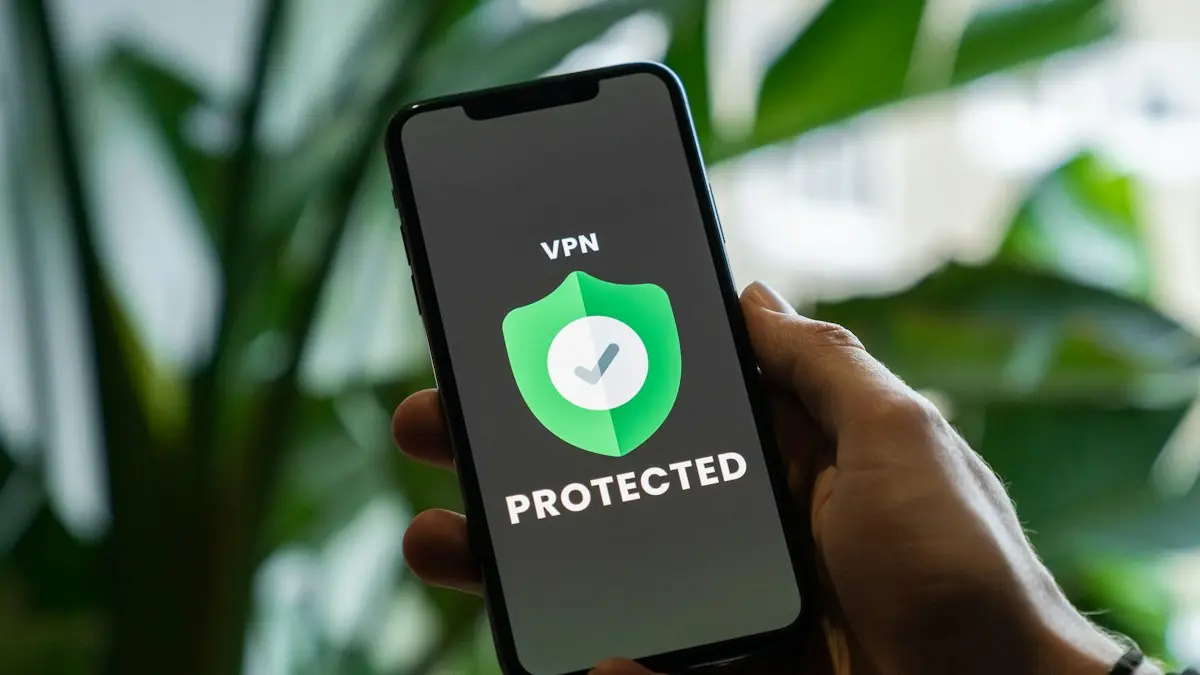
Photo by Privecstasy on Unsplash
A VPN, or virtual private network, sends your internet traffic through an encrypted tunnel to a server run by the VPN company. Websites then see that server's address instead of yours, and anyone on the same public Wi-Fi network cannot read what you send. It is useful, but it is not magic. It does not make you anonymous or protect you from a scam link, and a poor VPN can be worse than none. This guide shows how to set one up, how to check that it works and how to decide whether you need one.
How to set up a VPN on iPhone with an app
The fix
The easiest method
- 1
Pick a VPN service you trust.
Look for a company with a clear privacy policy, a paid plan, independent security audits and a long track record. Read reviews from more than one source.
- 2
Install the app from the App Store and open it.
- 3
Create an account or sign in.
- 4
Tap Connect.
The first time, iOS asks to add a VPN configuration. Tap Allow and confirm with Face ID, Touch ID or your passcode.
- 5
Check the status bar.
A small VPN badge appears at the top of the screen when you are connected. A VPN switch also appears in Settings, near the top of the list.
Most apps let you pick a server location and turn on options such as connecting automatically on public Wi-Fi. Choose a server close to you for the best speed. If you want the VPN to start on its own, look for a setting called Auto-connect, On-demand or Always-on in the app.
How to add a VPN manually in Settings
This method is for work, school or a VPN that gives you server details instead of an app. You need the type (IKEv2, IPSec or L2TP), the server address, a remote ID and your login details from the provider.
- 1
Open Settings › General › VPN & Device Management › VPN.
- 2
Tap Add VPN Configuration.
- 3
Choose the type, then enter the description, server, remote ID and login details.
- 4
Tap Done, then turn on the VPN switch.
After this, the VPN switch also appears at the top of Settings.
How to turn off a VPN on iPhone
- In the app: open the VPN app and tap Disconnect or the power button.
- In Settings: tap the VPN switch near the top, or go to Settings › General › VPN & Device Management › VPN and turn it off.
- To remove it completely: in the VPN settings, tap the info button next to the profile and choose Delete VPN, or delete the app.
- If it keeps turning back on: turn off Connect On Demand in the profile, or Auto-connect in the app.
What a VPN does and does not protect
- It does: encrypt your traffic between the phone and the VPN server, so people on public Wi-Fi cannot read it, and hide your real IP address from the sites you visit.
- It does not: stop phishing links, protect you from malware you install, hide what you do from the VPN company itself or make you anonymous when you sign in to an account.
- It does not: replace updates, strong passwords or a screen lock.
Do you need a VPN on iPhone?
Most of the web now uses HTTPS, so basic browsing on public Wi-Fi is much safer than it used to be. A VPN still helps in a few cases: when you use a hotel, airport or café network, when you want to hide your browsing from your internet provider or a network owner, when you need to connect to a workplace network, or when you travel and want to reach your home services. It is less useful if you already trust your network and mostly use apps that encrypt their own traffic.
VPN vs iCloud Private Relay
iCloud Private Relay comes with iCloud+ and is turned on at Settings › [your name] › iCloud › Private Relay. It hides your IP address and browsing from websites and your network provider, but it works for Safari, some app traffic and DNS only. It does not cover everything your phone sends. A VPN covers the whole device, and it lets you choose where your traffic appears to come from. You can use both, though some VPN apps turn Private Relay off while they run.
How to choose a safe VPN
- A clear no-logs policy, backed by an independent audit if possible.
- A paid plan or a clear business model. If the product is free, ask how the company makes money.
- A named company with a real address, support and a history.
- Modern protocols such as WireGuard or IKEv2, and a kill switch that blocks traffic if the VPN drops.
- No requests for unusual permissions, and no ads or trackers in the app.
- Reasonable speeds and a server near you.
VPN not working on iPhone? Try these fixes
- 1
Switch networks.
Try Wi-Fi instead of cellular data, or the other way round. Some networks block VPN traffic.
- 2
Change the server or protocol.
Pick another server location, or switch the protocol in the app's settings.
- 3
Turn Airplane Mode on and off, then reconnect.
- 4
Update the app and iOS.
Open the App Store to update the VPN app, and check Settings › General › Software Update.
- 5
Reset network settings if nothing else works.
Go to Settings › General › Transfer or Reset iPhone › Reset › Reset Network Settings. This also forgets Wi-Fi passwords, so note them first. For more, see what to do when an iPhone will not connect to Wi-Fi.
Why does my iPhone say VPN when I did not turn one on?
A VPN badge you did not expect usually has one of four causes. A work or school profile may connect automatically. A security, ad-blocking or parental-control app may use a local VPN to filter traffic. An old VPN app may still be set to connect on demand. Or you may have installed a free app that added a profile without making it obvious. Open Settings › General › VPN & Device Management and look at the VPN section and any configuration profiles. If you do not recognize one, tap the info button and choose Delete VPN, then check which apps are still installed.
If the phone is managed by an employer, the profile may be required, and removing it can remove access to work email and apps. Ask your IT team before you delete anything under Device Management. For a personal phone with a profile you cannot explain, see how to check an iPhone for a virus.
Using a VPN on public Wi-Fi: a short routine
- 1
Connect to the Wi-Fi network first.
Open the network's login page if it shows one, and accept the terms. Some captive portals do not load while a VPN is on.
- 2
Then turn the VPN on.
Wait for the status icon to appear before you open any apps that handle passwords or money.
- 3
Avoid sensitive accounts on networks you do not trust, even with a VPN.
Use your cellular connection for banking if you can.
- 4
Turn the VPN off when you leave.
This saves battery and avoids slowdowns on your home network.
Does a VPN use more battery or data?
A VPN adds some overhead, so expect a small drop in speed and a small rise in battery use, especially on a weak connection. The extra data is a few percent, not a large amount. If battery life matters, leave the VPN off at home and turn it on when you use public Wi-Fi. Many apps can do this automatically by trusting your home network.
Other ways to improve your privacy on iPhone
- Keep iOS and your apps up to date.
- Use a passcode, Face ID and two-factor authentication on your accounts.
- Turn off Wi-Fi auto-join for open networks.
- Review app permissions at Settings › Privacy & Security.
- Learn to spot scam texts and links, which no VPN will stop.
A good place to start is how to spot scam texts. If you want to change how your phone resolves websites instead, see how to change DNS on iPhone, and for IP address questions read how to change your IP address on iPhone.
Frequently asked questions
Does iPhone have a built-in VPN?
No. iPhone supports VPN connections in Settings, but you need a VPN service or your workplace's details. iCloud Private Relay is a related privacy feature for Safari, but it is not a full VPN.
How do I know my VPN is working on iPhone?
A VPN icon appears in the status bar at the top of the screen, and Settings shows a VPN toggle near the top. Your IP address on a site that shows it should be different from your usual one.
Does a VPN slow down my iPhone?
It can reduce speed a little and use more battery, because your traffic is encrypted and sent through another server. A good VPN on a nearby server is rarely noticeable.
Is a free VPN safe on iPhone?
Some are, but many make money from your data or show ads. Check the company, read its privacy policy and be careful with any VPN that has no clear way of paying for itself.
What to try next
People also ask
Can third-party apps get my Snapchat locked?
Yes. Apps and tweaks that add features to Snapchat break its rules and can cause logouts or a temporary lock. Delete them and change your password.
Read the full guide: Snapchat keeps logging me outDoes one gray tick always mean blocked?
No. It also shows when their phone is off, has no internet or they deleted WhatsApp.
Read the full guide: Blocked on WhatsApp?What is the best iPhone for an elderly person?
A recent model that still receives iOS updates, with a screen size they can read and a good battery. Face ID is easier for many people than a fingerprint, but some prefer a Home button. Try holding one before you buy.
Read the full guide: Best iPhone for seniorsCan I use a physical SIM and an eSIM at the same time?
Yes, on most dual-SIM phones. You can use one line for calls and another for data, for example your home number plus a travel data plan.
Read the full guide: What is an eSIMRelated guides
Snapchat keeps logging me out
Snapchat keeps logging you out? Remove third-party apps with access, turn off VPN, update the app, check other devices and try 4 more fixes that work.
Blocked on WhatsApp?
Think you are blocked on WhatsApp? Look for one gray tick, no last seen or profile photo, calls that never connect, and a failed group add. What each one means.

Best iPhone for seniors
Choosing an iPhone for a parent or grandparent? Check screen size, Face ID or Touch ID, software support, battery and safety features, then set it up simply.
What is an eSIM
An eSIM is a digital SIM built into your phone. Learn how it differs from a physical SIM, which phones support it, and how to set one up on iPhone and Android.
More guides you may need
iPhone screen won't rotate
iPhone screen won't rotate with the lock off? Check Control Center, the app, Display Zoom and the Measure app Level test, then restart or reset it.
iPhone slow charger message
iPhone says Slow Charger? It means your adapter or cable delivers less power than your iPhone can use. Here is what counts as slow and which charger fixes it.