

iPhone time zone not changing automatically when traveling? Fix it
Your iPhone uses location and your network to set the time zone. If either is switched off, the clock stays on home time.
Photo by Kevin Ku on Unsplash
Landing in a new city and seeing your iPhone still on home time is confusing, and it can make you miss a meeting, a tour or a flight connection. The fix is almost always a setting, not a fault.
How your iPhone knows the time zone
With Set Automatically on, the iPhone uses two sources. The cellular network sends the local time, and Location Services tells the iPhone where it is so it can pick the right time zone. If Location Services, or its hidden Setting Time Zone switch, is off, the iPhone relies on the network alone. That often fails abroad, on Wi-Fi only, or with a data-only travel eSIM, and the clock stays on home time.
The fix
6 fixes, in order
- 1
Turn on Set Automatically.
Go to Settings › General › Date & Time and turn on Set Automatically. The Time Zone line below it should then show your current city once the iPhone has a connection.
- 2
Turn on Location Services.
Settings › Privacy & Security › Location Services must be on. The time zone feature needs it even if you have turned off location for every app.
- 3
Turn on the Setting Time Zone switch.
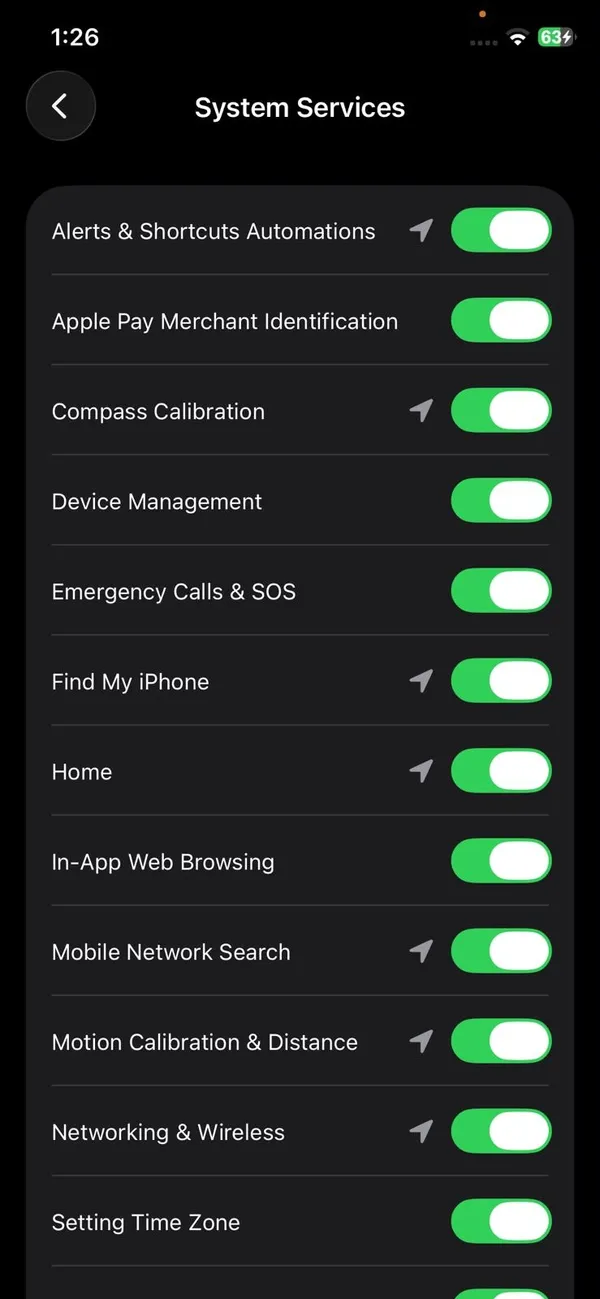
In Location Services, scroll to the bottom, tap System Services and turn on Setting Time Zone. This hidden switch is the most common cause.
- 4
Reconnect to the local network.
Turn Airplane Mode on for 15 seconds, then off, or restart the iPhone after landing. This makes it register with the local network, which sends the current time. If you are roaming, make sure your plan allows it, or connect to local Wi-Fi.
- 5
Update iOS.
Countries change their time zone and daylight saving rules now and then, and iOS updates include the latest ones. An iPhone several versions behind can show the wrong time in places whose rules changed recently.
- 6
Set the time zone by hand.
Turn off Set Automatically, tap Time Zone and search for the nearest large city in the same zone. The clock changes as soon as you pick it.
Why can’t I change the time zone on my iPhone?
The most common reason is that Set Automatically is on. While it is on, the Time Zone line is filled in by your location and you cannot tap it. That is by design. To pick a time zone yourself:
- 1
Open Settings › General › Date & Time.
- 2
Turn off Set Automatically.
The Time Zone line now becomes tappable.
- 3
Tap Time Zone and search for a city.
Pick any large city in the time zone you want. The clock changes right away.
If Set Automatically itself is greyed out, or the time zone snaps back after you change it, see the next section. Changing the time of day by hand works the same way: with Set Automatically off, the date and time rows become editable too.
Set Automatically is greyed out
If you cannot tap Set Automatically, something is locking it. The usual cause is Screen Time: go to Settings › Screen Time › Content & Privacy Restrictions and set Location Services and Account Changes to Allow. A work or school device management profile can also lock it, in which case only your IT team can change it. Check Settings › General › VPN & Device Management to see whether a profile is installed. On a child’s iPhone, the parent needs to change these Screen Time settings with the Screen Time passcode.
Right time zone, but the clock is a few minutes off?
With Set Automatically on, the iPhone keeps its clock in sync with Apple’s time servers, so it should never drift by minutes. If it does, turn Set Automatically off, wait a few seconds, and turn it back on while connected to Wi-Fi or cellular data. A VPN or a network that blocks time servers, such as some office Wi-Fi, can stop this sync, so try a different connection. If the time is still wrong, update iOS and restart the iPhone.
Daylight saving time did not change?
In most of the US, daylight saving time ends on the first Sunday of November, which is November 1 in 2026, when clocks go back one hour at 2 AM. With Set Automatically on, the iPhone changes by itself overnight. If it did not, check the same settings as above and make sure the Time Zone shown in Date & Time is your city, not a fixed offset such as GMT-5. A fixed offset never changes for daylight saving.
- Most of Arizona does not use daylight saving time, but the Navajo Nation does. Near the edges, the iPhone can switch between them; set the time zone by hand if it keeps flipping.
- Hawaii does not use daylight saving time either, so its difference from the mainland changes during the year.
- Near a state line that splits two time zones, such as parts of Indiana, Kentucky and Tennessee, the phone may connect to a tower across the line and show the other zone.
On a cruise ship
Ships often have their own cellular network, and the ship’s time can differ from the local time in port. Your iPhone may jump between the two, which causes missed shore excursions. Most cruise lines advise going by the ship’s announced time. The simplest fix is to turn off Set Automatically when you board, set the ship’s time by hand, and use Airplane Mode with Wi-Fi at sea to avoid expensive maritime roaming charges. Switch Set Automatically back on when you get home.
Using a travel eSIM?
Data-only travel eSIMs are a cheap way to get online abroad, but they do not always send the local time the way a regular carrier line does. Make sure Location Services and Setting Time Zone are on, and the iPhone will use your location instead. Our guides to eSIM basics and using your phone in Mexico cover travel plans and roaming costs.
After a flight
- Turn off Airplane Mode after landing so the iPhone can see the local network.
- Give it a few minutes on cellular or local Wi-Fi to pick up the new time zone. Opening Maps once can speed this up, because it refreshes your location.
- If it stays on home time, toggle Set Automatically off and on, then restart the iPhone and check again.
- Install any carrier settings update, which appears as a pop-up in Settings › General › About.
Keep calendar events on home time
If you want meetings to stay in your home time zone while traveling, go to Settings › Apps › Calendar › Time Zone Override, turn it on and pick your home city. The clock still changes, but Calendar shows events at home times.
To check the time back home while you travel, add your home city in the Clock app under World Clock, so you never have to change the phone’s time zone by hand. A World Clock widget on the Home Screen shows both times at a glance.
Before you travel: a 2-minute checklist
- Check Set Automatically and Setting Time Zone are both on, so the clock changes when you land.
- Add your destination and home cities to World Clock in the Clock app.
- Decide whether calendar events should follow you or stay on home time, and set Time Zone Override to match.
- Look at your alarms. They ring at local time, so a 6 AM alarm set at home rings at 6 AM local time on arrival.
- Sort out a travel plan or eSIM before you leave, so you have data, and the correct time, as soon as you land.
Fix photos taken with the wrong time
If the iPhone stayed on home time for part of a trip, those photos may show the wrong time. Open a photo in the Photos app, swipe up or tap the info button, then tap Adjust next to the date. Change the time or time zone and tap Adjust. To fix many at once, select them first, tap the More button and choose Adjust Date & Time.
Apple Watch, iPad and Mac
An Apple Watch takes its time from the paired iPhone, so fixing the iPhone fixes the watch as soon as they reconnect. An iPad without cellular needs Wi-Fi and Location Services turned on to change time zone. On a Mac, open System Settings › General › Date & Time and turn on Set time zone automatically using your current location.
Frequently asked questions
Why can’t I change the time zone on my iPhone?
Set Automatically is probably on, which locks the Time Zone line. Turn it off in Settings › General › Date & Time, then tap Time Zone and pick a city.
Why is Set Automatically greyed out?
Screen Time restrictions, a work or school profile, or your carrier can lock it. Check Settings › Screen Time › Content & Privacy Restrictions, and ask your IT department if the phone is managed.
Do calendar events change time zone too?
Yes, unless Time Zone Override is on. Check Settings › Apps › Calendar › Time Zone Override and turn it off if you want events to follow your current location.
Will my alarms change when the time zone changes?
Alarms follow local time. A 7:00 AM alarm rings at 7:00 AM in the new time zone.
Why is my iPhone showing the wrong time near a border?
It may be using a cell tower from the neighboring country. Set the time zone by hand until you move away from the border.
People also ask
Where is Location Services on iPhone?
Open Settings › Privacy & Security › Location Services. The main switch is at the top.
Read the full guide: Where is Location Services on iPhoneWhy does Safari think I am in another state?
Websites usually guess your location from your IP address. Mobile carriers, VPNs and Private Relay can give you an address that belongs to another city or state.
Read the full guide: Safari wrong locationWhere is screen lock time on iPhone?
Open Settings › Display & Brightness › Auto-Lock. Apple calls the screen lock time Auto-Lock. Pick 30 Seconds, 1 to 5 Minutes, or Never.
Read the full guide: Change screen lock time on iPhoneIt says a different Apple Account set the code. What now?
Only that account can reset it. If no one knows it, back up and erase the iPhone, then set it up again.
Read the full guide: Forgot Screen Time passcodeRelated guides
Where is Location Services on iPhone
Find Location Services on your iPhone: Settings › Privacy & Security › Location Services. Turn it on or off, pick which apps see you, and fix it if greyed out.
Safari wrong location
Safari showing the wrong city or state on your iPhone? Find out why sites guess your location from your IP address and how to fix it with a few settings checks.
Change screen lock time on iPhone
Change how long your iPhone screen stays on before it locks. Use Auto-Lock, fix it when it is greyed out or stuck at 30 seconds, and keep the screen on longer.
Forgot Screen Time passcode
Forgot your Screen Time passcode? Reset it in Settings with the Apple Account that set it up, or from a parent’s iPhone for a child. No erase needed.
More guides you may need
Screenshot on Android
Take a screenshot on any Android phone with Power and Volume Down, plus Samsung’s palm swipe, Motorola’s three finger swipe and long scrolling screenshots.
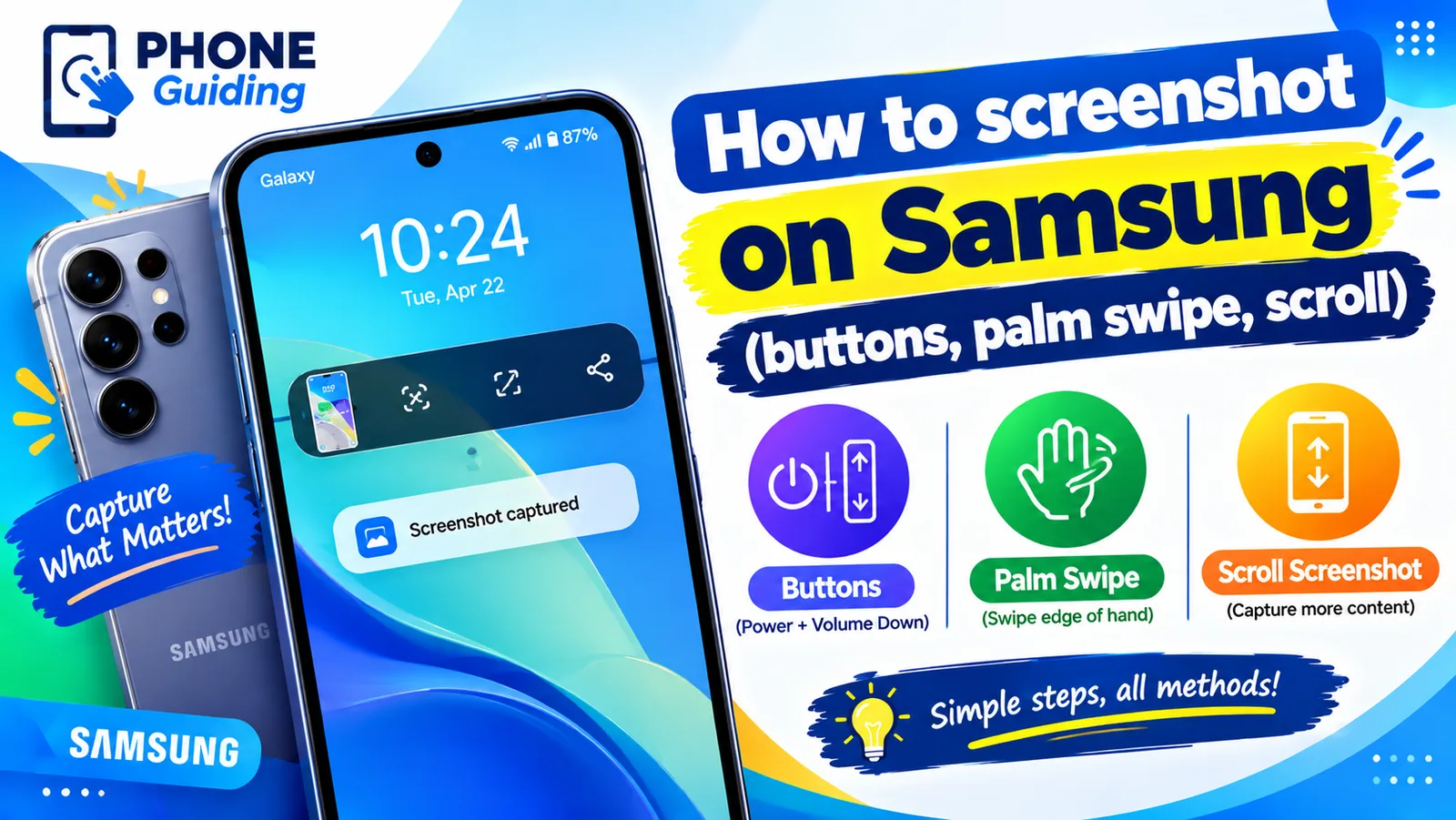
Screenshot on Samsung
Take a screenshot on any Samsung Galaxy with Power and Volume Down, a palm swipe or Bixby, and capture long pages with Scroll capture. Settings included.