

How to turn off call screening on iPhone (iOS 26 and iOS 27)
Since iOS 26, your iPhone can answer unknown numbers for you and ask why they are calling. If that is costing you deliveries, doctor calls or job offers, here is how to switch it off, fully or partly.
Photo by Daniel Dan on Unsplash
Apple added call screening in iOS 26, and it works the same way in iOS 27. When a number that is not in your contacts calls, your iPhone can pick up for you, ask the caller to say who they are and why they are calling, and show you their answer as text. Only then does your phone ring.
It is a good spam filter. It is also why a lot of people suddenly miss calls from pharmacies, delivery drivers, recruiters, schools and doctors' offices. Automated systems often hang up when a robot answers, and some real people do too. If that sounds like your week, switching it off takes about 20 seconds.
How to turn off call screening on iPhone
Stop your iPhone from asking callers who they are
- 1
Open the Settings app.
It is the gray gear icon on your Home Screen. You can also swipe down and search for “Settings”.
- 2
Tap Apps, then tap Phone.
Scroll to the bottom of Settings and tap Apps. The list is alphabetical, so Phone is under P. You can also type “Phone” in the search bar at the top.
- 3
Tap Screen Unknown Callers.
You will find it in the section about calls from unknown numbers. The current choice is shown to the right, usually Ask Reason for Calling or Silence.
- 4
Choose Never.
The full path is Settings › Apps › Phone › Screen Unknown Callers › Never. There is no save button. The change applies as soon as you tap.
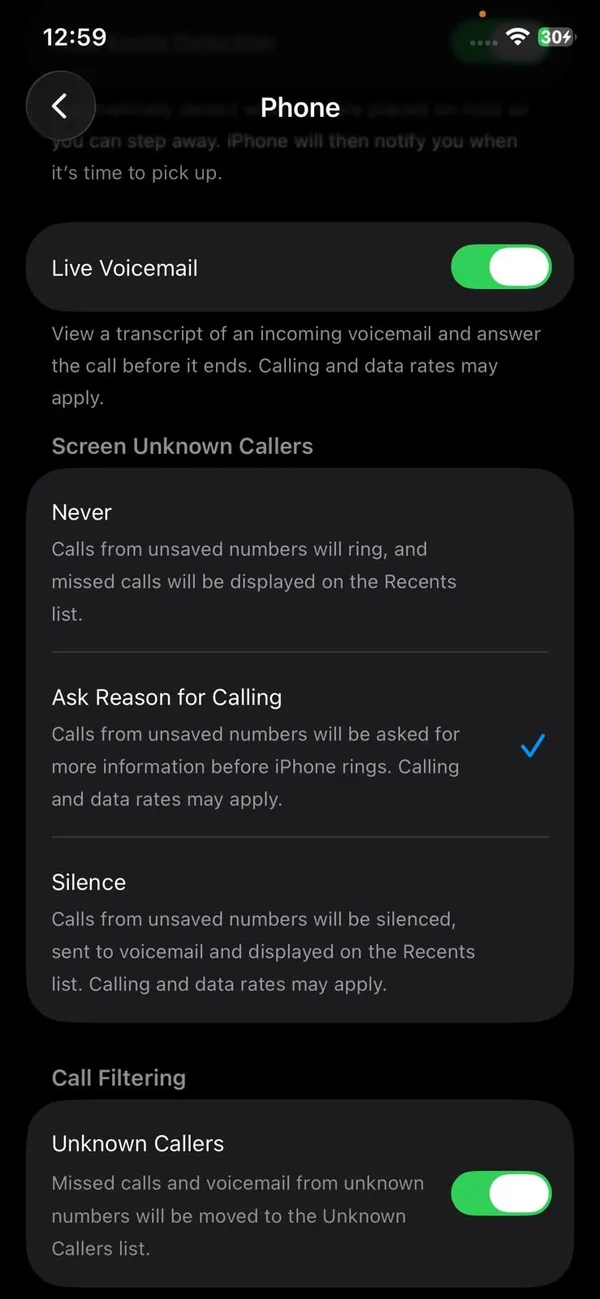
iOS 26: Settings › Apps › Phone. Tap Never to stop screening. - 5
Test it.
Ask someone whose number is not saved in your phone to call you, or call yourself from a work phone. Your iPhone should ring right away, with no transcript screen first.
What the three Screen Unknown Callers options do
Before you pick Never, it helps to know what each setting does. Some people only want to stop the “robot answering” part while still hiding obvious spam.
If that did not work
Never
Calls from numbers you have not saved ring like any other call. This is how iPhones behaved before iOS 26. Pick this if you get a lot of legitimate calls from new numbers.
Ask Reason for Calling
Your iPhone answers the call silently, an automated voice asks the caller for their name and reason, and you see a live transcript. You can then pick up, send it to voicemail or ignore it. This is the setting behind the “my iPhone asks people who is calling” complaint.
Silence
Unknown numbers never ring at all. They go straight to voicemail and appear in your call list. This is the strictest option, and the one most likely to make you miss something important.
Calls still going to voicemail? Turn off Call Filtering too
Screen Unknown Callers is only one of several filters in iOS 26 and later. On the same Phone settings page there is a Call Filtering section. It does not answer calls for you, but it moves missed calls and voicemails from unknown numbers out of your main list, so it can feel like calls vanished.
Turn off the other call filters
- 1
Go back to Settings › Apps › Phone.
- 2
Scroll to Call Filtering.
Turn off Unknown Callers if you want every missed call and voicemail in one list again.
- 3
Decide on the spam filter.
The spam toggle silences calls your carrier has flagged as likely spam or fraud and moves them to a Spam list. Most people should leave this on. Turn it off only if you know real calls are being flagged, such as calls from a clinic that uses a shared outbound number.
- 4
Check the filtered lists in the Phone app.
Open the Phone app and tap the filter button near the top of your calls. You will see lists such as Unknown Callers and Spam. Look here for anything you missed while screening was on.
Why saved contacts can still get screened
Screening only applies to numbers that are not in your contacts, so a friend should never hear the automated voice. When they do, the cause is almost always the number itself:
- They called from a different line. Offices, hospitals and many businesses call out from a main number, not the direct line you saved.
- The saved number is wrong or old. Open the contact, tap Edit and compare it with the number in your Recents. One wrong digit is enough.
- It is an international number. Save it with the plus sign and country code, for example +44 for the UK. This matters much less for US numbers.
- The contact is in an account that is switched off. If the person is saved in Gmail or Outlook and that account's Contacts switch is off, your iPhone cannot see them. Check Settings › Apps › Contacts › Contacts Accounts.
If your contacts show up as plain numbers everywhere, not just during calls, that is a separate sync problem. Our guide to contacts showing as numbers instead of names walks through it.
Other places that can screen or silence calls
If unknown callers still do not ring after you choose Never, something else is filtering them. Go through these in order.
The fix
Check these settings next
- 1
Your carrier's spam app or account setting.
Verizon Call Filter, AT&T ActiveArmor and T-Mobile Scam Shield can block or send suspected spam to voicemail before your iPhone ever sees the call. Open the app or your carrier account online and lower the blocking level or turn off automatic blocking.
- 2
Third-party call blockers.
Apps such as Hiya, Truecaller or RoboKiller work through Settings › Apps › Phone › Call Blocking & Identification. Turn off any you no longer use.
- 3
Focus and Do Not Disturb.
A Focus that only allows certain people will silence everyone else, including new numbers. Check Settings › Focus for schedules like Sleep or Work that switch on by themselves.
- 4
Blocked numbers.
Look at Settings › Apps › Phone › Blocked Contacts. A number blocked by mistake goes straight to voicemail every time.
- 5
FaceTime calls.
FaceTime has its own switch at Settings › Apps › FaceTime › Silence Unknown Callers. Turning off phone screening does not change it.
Texts from new numbers hidden too?
iOS 26 also added message screening. If texts from unknown numbers land in a separate list, go to Settings › Apps › Messages, scroll to Unknown Senders and turn off Screen Unknown Senders. You can also do this in the Messages app: tap the filter button, then Manage Filtering. This is where missing verification codes and delivery texts often hide.
What about Live Voicemail?
Live Voicemail is a different feature that people often mix up with screening. When a caller goes to voicemail, it shows you a live transcript of the message while they are still talking, and you can pick up mid-message. It does not answer calls for you or stop your phone from ringing.
If you do not want it, turn off Settings › Apps › Phone › Live Voicemail. Your carrier's regular voicemail will then take messages. Our guide to configuring voicemail on iPhone covers the carrier side.
Should you turn off call screening?
There is no single right answer. It depends on who calls you. Here is an honest way to decide:
- Turn it off (Never) if you are job hunting, run a small business, wait on medical results, or get calls from delivery drivers and contractors. Missing one of those costs more than a few spam calls.
- Keep Ask Reason for Calling if you get several spam calls a day and most real callers are already in your contacts. Real people usually say their name, and you can pick up in time.
- Avoid Silence unless you truly never need to hear from a new number. It is the setting most likely to hide something important.
A middle path works well for many people: set screening to Never, keep the carrier spam filter on, and block persistent robocallers as they show up. You get most of the spam protection without making real callers talk to a machine.
How to turn call screening back on
If spam gets out of hand again, go back to Settings › Apps › Phone › Screen Unknown Callers and choose Ask Reason for Calling. Nothing is lost when you switch between options, and you can change it as often as you like. Some people turn it on only for a busy week and off again when they are expecting important calls.
Frequently asked questions
Why is my iPhone asking callers who they are?
Screen Unknown Callers is set to Ask Reason for Calling. Your iPhone answers numbers that are not in your contacts, asks the caller for their name and reason, and shows you a transcript before it rings. Set it to Never to stop this.
Does call screening block calls from my contacts?
No. Numbers saved in your contacts ring normally. If a contact still gets screened, the number saved on their card probably does not match the number they are calling from.
Can I turn off call screening for just one person?
There is no per-person switch. The simple fix is to save that person's number as a contact, which lets their calls ring straight through while screening stays on for everyone else.
Is iPhone call screening the same as Live Voicemail?
No. Call screening happens before your phone rings. Live Voicemail shows a live transcript while a caller leaves a voicemail. They have separate switches in Settings › Apps › Phone.
What to try next
Sources
Official pages these steps are based on. Menus can differ by software version.
People also ask
Why did FaceTime pause my call with a warning?
Your iPhone detected video that may contain nudity and stopped the call to ask what you want to do. The check happens on the device, and Apple does not receive the video.
Read the full guide: FaceTime sensitive content warningCan you completely turn off Liquid Glass?
No. Liquid Glass is the design of iOS 26 and later, so the rounded shapes and floating bars stay. Turning on Reduce Transparency removes almost all of the see-through effect, which is as close to off as Apple allows.
Read the full guide: Turn off Liquid GlassCan I still call 911 after turning these off?
Yes. Hold the side and a volume button, then drag the Emergency Call slider, or dial 911 as normal.
Read the full guide: Turn off Emergency SOSHow do I get the small screenshot thumbnail back in iOS 26?
Open Settings › General › Screen Capture and turn off Full Screen Previews. Screenshots then show as a thumbnail in the corner again.
Read the full guide: Change screenshot settings on iPhoneRelated guides
FaceTime sensitive content warning
FaceTime paused your call with a sensitive content warning? Learn what triggers it, how it works on your iPhone, and where to turn it off in Settings.
Turn off Liquid Glass
Learn how to turn off Liquid Glass on iPhone as far as Apple allows. Use the iOS 27 slider, Tinted mode and Reduce Transparency to make menus solid and clear.
Turn off Emergency SOS
Stop your iPhone calling 911 by accident: turn off Call with Hold and Release, Call with 5 Button Presses and Crash Detection in Settings › Emergency SOS.
Change screenshot settings on iPhone
Every iPhone screenshot setting and option: turn off iOS 26 full-screen previews, pick PNG or HDR, use Back Tap, and what older iPhones like the X can change.
More guides you may need
Where is Location Services on iPhone
Find Location Services on your iPhone: Settings › Privacy & Security › Location Services. Turn it on or off, pick which apps see you, and fix it if greyed out.
Where is the clipboard
Where is the clipboard on my phone? iPhone has no clipboard app, but Android keyboards do. See how to view, paste, pin and clear what you copied on each.