

iPhone camera blurry? 9 fixes for soft, out-of-focus photos
A blurry iPhone camera is most often a dirty lens, a case or film in the way, or a close-up shot the camera cannot focus on. A real hardware fault is rarer.
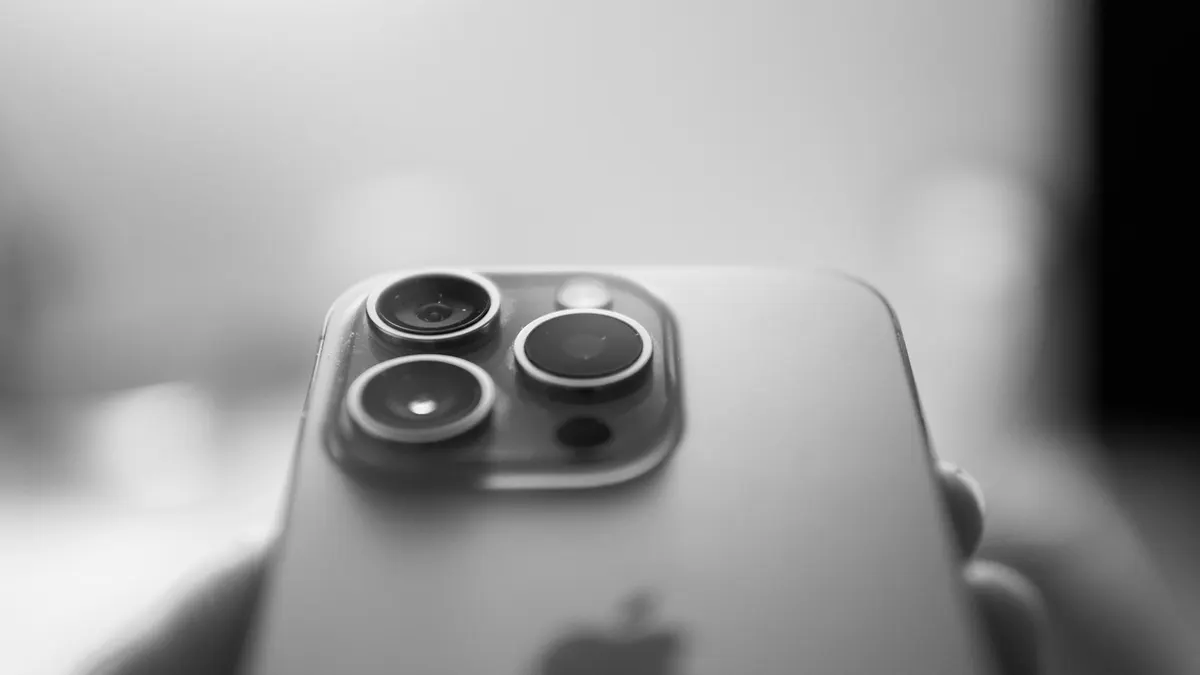
Photo by Daniele Fotia on Unsplash
A photo that should be sharp comes out soft, smeared or just a little off. Sometimes the whole picture is blurry, sometimes only the subject, and sometimes only at one zoom level. The reason is rarely a failing camera. The lens, the light, your distance and the way the camera chooses a lens decide more of the result than the sensor does.
The steps below start with the easy fixes, then cover the settings and habits that make photos soft, and end with the damage that needs a repair. Run through them in order, and take a test photo of a printed page or a book cover after each step.
What makes an iPhone photo look blurry?
- A dirty lens. Pocket lint, fingerprints and skin oil create a hazy film over the whole picture.
- A case, a film or a lens protector in the way. A cutout that is too small, a stuck-on sticker or a cheap add-on lens softens or vignettes the image.
- Too close to the subject. Each camera has a minimum focus distance, and closer than that, it cannot focus.
- Low light or movement. The camera uses a longer exposure, and any shake blurs the photo.
- Zoom. Digital zoom stretches pixels and loses detail.
- Damage. A drop, water or strong vibration can harm the autofocus or stabilization parts.
- A software bug. Rare, but a new iOS release can change how the camera chooses a lens or sharpens a photo.
Fix 1: Is the lens clean?
Start here, because it fixes a large share of blurry cameras. Use a clean, dry microfiber cloth, like the one you use for glasses, and wipe each lens in small circles. A T-shirt works in a pinch, but a rough fabric can scratch. If the grease does not come off, breathe lightly on the lens to fog it and wipe again. Do not spray cleaner on the phone, and do not use paper tissue or the corner of a rough towel. Check the front camera too, if your selfies look soft.
Fix 2: Is a case, film or add-on in the way?
Remove the case and any clip-on lens, magnetic mount or sticker, then take a photo. If the picture is sharp, the add-on was the cause. A case that is too thick around the camera cutout can block part of the field of view or reflect light. A cracked or cheap lens protector can look clear and still soften the image. Also check that no clear film from the factory is stuck over the glass, which happens on a new or refurbished phone.
Fix 3: Are you too close to the subject?
The standard iPhone cannot focus on something only a few inches away. Move back until the subject sharpens, then zoom in a little if you need to. Tap the subject on screen so the camera knows where to focus. A yellow square appears. Touch and hold to lock the focus and exposure, and the label AE/AF Lock shows. Drag the small sun icon up or down to change the brightness.
Fix 4: Which zoom and lens are you using?
Tap the zoom buttons at the bottom of the viewfinder. Stay at the lens labels such as 0.5x, 1x, 2x or 3x rather than pinching to a number between them. Between those stops, the iPhone crops and enlarges the image, which costs detail. For the sharpest photo, move your feet instead of zooming.
Fix 5: Is there enough light and a steady hand?
- Turn on a lamp or move to a brighter spot. In dim light, the camera uses a slow shutter and shows more blur.
- Hold the iPhone with two hands and rest your elbows on a table or wall.
- In Night mode, hold still until the timer on the moon icon finishes.
- Use the volume button or a timer for the shutter, so pressing the screen does not shake the phone.
- For moving subjects, such as pets and kids, take a burst by holding the shutter button, then pick the sharpest frame.
Fix 6: Restart the iPhone and update iOS
- 1
Close the Camera app and restart the iPhone.
Hold the side button and a volume button, slide to power off, and turn it back on.
- 2
Install the latest iOS.
Open Settings › General › Software Update. If the blur began right after an update, a newer point release may fix it. For other bugs that start after an update, see problems after an iOS update.
- 3
Free up storage if the phone is almost full.
A full iPhone can slow the camera and the saving of photos. Our guide to making room on your iPhone shows what to remove.
Fix 7: Is it blurry in one app only?
If the photos look fine in the Camera app but blurry inside another app, the app is the cause. Many apps compress photos and capture at lower resolution. Take the photo in the Camera app and upload it from your Photos library instead. Check the app's settings for options such as high quality uploads, and update the app. If the issue persists, delete the app and install it again.
Fix 8: Reset the camera settings
A setting you forgot about can make photos look soft. Open Settings › Camera and look at Formats, Preserve Settings and any filters or Photographic Styles you might have left on. Turn off features you do not need. If that does not help, open Settings › General › Transfer or Reset iPhone › Reset › Reset All Settings. This keeps your photos and apps but puts the settings back to the default.
Fix 9: Is there damage that needs a repair?
Take a test photo of a printed page from about a foot away in good light, using each lens. If every photo is blurry and the lens is clean, check for the signs below.
- A cracked or scratched lens cover. Look at the glass over each camera. A crack scatters light and softens the picture.
- A rattle or a buzz from the camera. A faint rattle when you shake the phone, or a buzzing sound when you open the camera, can mean the stabilization or autofocus parts are damaged.
- Fog or water under the glass. Moisture inside the camera module is a sign of water damage.
- Photos that jump or never lock focus. The camera hunts back and forth. A drop or strong vibration is the likely cause.
If you see any of these signs, book a repair. Check your coverage by serial number first with this guide to phone warranty. Apple covers hardware faults inside its limited warranty, and AppleCare plans can lower the cost of damage that a normal warranty does not cover. Read what AppleCare covers if you are not sure. A back glass or camera lens repair for an out-of-warranty phone can cost a meaningful amount, so compare it with the price of a replacement, like in our guide to what an iPhone repair can cost.
Is it the front camera, the back camera or both?
Test each camera. If only the front camera is blurry, clean the small lens near the top of the screen and remove any screen protector that sits over it. A thick or misaligned protector often causes soft selfies. If only one rear lens is blurry, for example the ultra wide, the problem is probably that lens and not the whole phone. If every camera is soft, the cause is more likely a setting, an update or a general fault. For a camera that shows a black screen or will not open at all, read our guide to a phone camera that is not working.
Which habits keep photos sharp?
- Wipe the lens with a clean cloth before you shoot something important.
- Tap to focus, wait for the square to settle, then press the shutter.
- Stay at the labeled zoom stops and move closer instead of pinching.
- Use a case with a wide, clean camera cutout and skip stacked add-on lenses.
- Avoid long rides with the phone on a vibrating mount.
- Keep iOS and your camera apps updated.
Frequently asked questions
Why is my iPhone camera blurry all of a sudden?
A smudged lens is the usual cause, followed by a case or film covering part of the lens, low light and a shot that is too close. A drop or heavy vibration can also damage the focus system.
Why is my iPhone camera blurry up close?
Every iPhone has a minimum focus distance. Move back a few inches. Newer Pro models switch to the ultra wide lens for close shots, which can look soft, so check Settings › Camera › Macro Control.
Can a software update fix a blurry iPhone camera?
If the blur started after an iOS update and the lens is clean, a restart and a newer update often fix it. If the photos stay soft in every light, the cause is usually physical.
Can motorcycle vibration damage an iPhone camera?
Yes. Apple warns that long exposure to high-amplitude vibration, such as a motorcycle engine, can damage the stabilization and autofocus systems and lead to blurry photos.
What to try next
People also ask
Why does my iPhone camera go back to 4:3?
The Camera app resets to its default each time unless Preserve Settings is on. Go to Settings › Camera › Preserve Settings and turn on Creative Controls.
Read the full guide: Change aspect ratio on iPhoneIs JPG worse than HEIC?
Quality looks the same, but JPG files are about twice as large, so they use more storage.
Read the full guide: Change HEIC to JPG on iPhoneWhy does my iPhone not ring but still vibrates?
The phone is in Silent mode, or the ringtone volume is at zero. Check the Ring/Silent switch or Action button, then raise Ringtone and Alert Volume in Settings › Sounds & Haptics.
Read the full guide: iPhone not ringingWhy are my iPhone notifications not showing on the Lock Screen?
Usually the Lock Screen option is off for that app, Display As is set to Count, a Focus is hiding alerts, or the alert went to the Scheduled Summary. Check Settings › Notifications and the app's own entry.
Read the full guide: iPhone notifications not showing on lock screenRelated guides
Change aspect ratio on iPhone
Change your iPhone camera aspect ratio to 16:9, 4:3 or square, pin the control to the top bar in iOS 27, keep it as default, and reshape photos you took.
Change HEIC to JPG on iPhone
Make your iPhone take JPG photos instead of HEIC with one setting, and convert photos you already have to JPG for free with the Files app. No extra app needed.
iPhone not ringing
iPhone not ringing when someone calls? Check Silent mode, Focus, Bluetooth, unknown caller settings and 6 more causes to get your ringtone back fast.
iPhone notifications not showing on lock screen
iPhone notifications not showing on lock screen? Check the app's Lock Screen switch, Display As, Focus and Scheduled Summary, then try 4 more fixes.
More guides you may need
No backups available
Getting no backups available when you restore an iPhone? Check your Apple Account, Wi-Fi, iOS version and iCloud backup list to find the backup that is missing.
iPhone not tracking steps
iPhone steps stuck at zero or not counting? Turn on Fitness Tracking, check Health data sources, carry the phone right and try more fixes, Watch or not.